The built-in “Windows Security” app provides the option to “Allow Apps through Firewall”, if a legitimate third-party app or program that you are trying to open or download is being blocked by Windows Firewall.
Once the app or program is unblocked in Windows Security, it will be allowed to bypass Windows Firewall and you will be able to use the app on your computer, without encountering any error messages.
Allow Apps Through Windows Firewall
You won’t be able to access the option to Allow Apps through Windows Firewall, if Norton or any other third-party antivirus program is installed on the computer. In such cases, you need to configure the exception by using firewall settings of the third-party antivirus software installed on your computer.
If you are using the built-in Windows Security app, you can use any of the following methods to allow apps through Windows Firewall on your computer.
1. Allow App Through Firewall
In order to allow an app through Windows Firewall, the first step is to try to open the app that you want to allow through Windows Firewall. This will result in that particular app being listed on the “Allowed Apps” screen, where it can be permitted to bypass the Firewall on your computer.
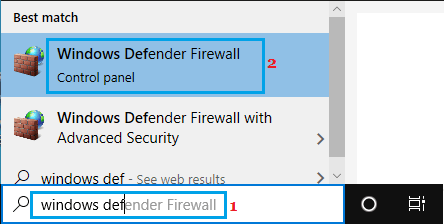
1. Type Windows Defender in the search bar > click on Windows Defender Firewall in the search results.
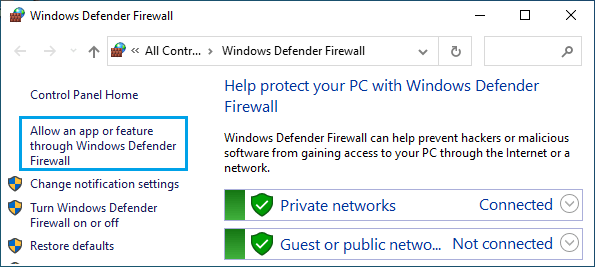
2. On the next screen, click on Allow an app or feature through Windows Defender Firewall option.
3. On the next screen, check the little box next to the program that you want to unblock or Allow through Windows Firewall.
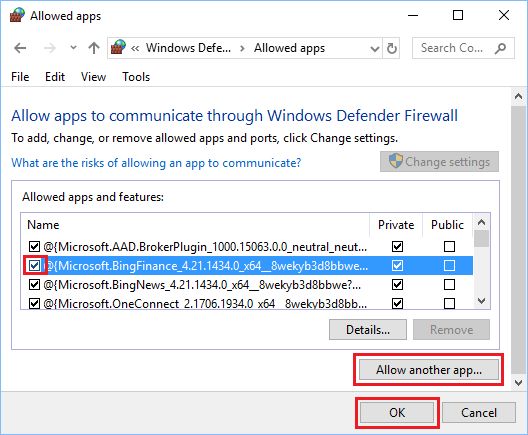
Note: Checking the box allows the program to access the network resources on your computer.
If the App that you want to Allow is not listed, click on Allow another app… button. On the next screen, select the App or Program from the list and click on Add.
2. Allow Apps Through Firewall Using Settings
You can also allow Apps through Windows Firewall by using the Settings App on your computer.
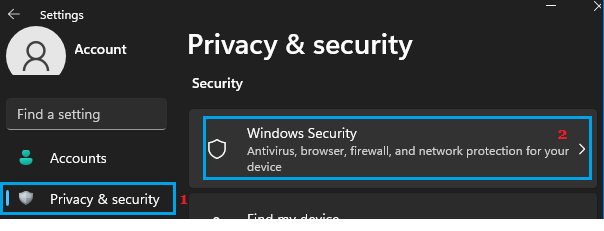
1. Go to Settings > Privacy & Security (left-pane) and click on Windows Security in the right-pane.
2. On Windows Security screen, click on Firewall & network protection tab in the right-pane.
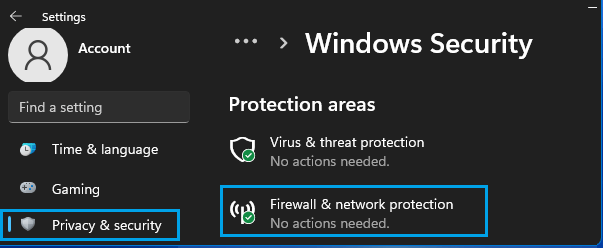
Windows 10: Go to Settings > Update & Security > Windows Security > click on Firewall & network protection option.
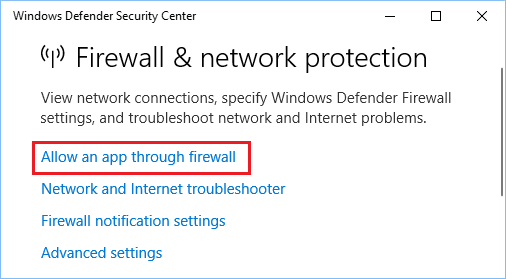
3. On “Firewall and network protection” screen, scroll down and click on Allow an app through firewall link.
4. On the next screen, check the little box next to App or Program that you want to Allow.
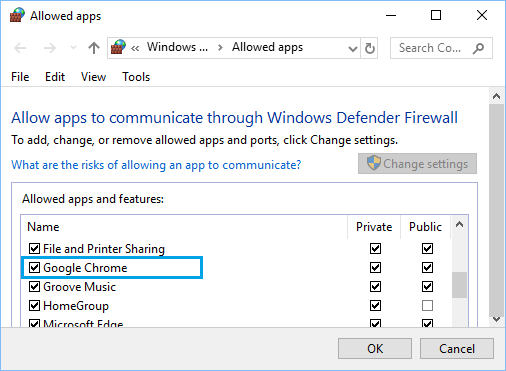
Note: If you are not logged in to Admin Account, you will be required to click on Change Settings button and enter your Admin password.