Windows operating system comes with built-in SFC (System File Checker) & DISM (Deployment Image Servicing and Management), which can be used to check System Files on the computer for errors and repair them.
The SFC tool is designed to check the integrity of system files on the computer and automatically replace them with correct ones, in case they are found to be missing, corrupted, damaged or changed.
If the SFC Scan is unable to replace certain corrupted files, it may ask you to run the DISM tool or you can Run it yourself to repair the remaining corrupted system files.
Repair Corrupted System Files Using SFC & DISM
You can access and run SFC and DISM tools on a non-admin User Account by opening Command Prompt as Admin, which requires you to enter the Admin Password.
In general, it takes about 10 to 20 minutes to complete a full system scan using the SFC tool and it is usually known to come up with the following results.
- Windows Resource Protection did not find any integrity violations (which is a good result)
- Windows Resource Protection found corrupt files and repaired them (better than good!)
- Windows Resource Protection found corrupt files but was unable to fix some (or all) of them (not a good result)
In case you get the third message, you need to take the help of DISM tool to fix the problem on your computer.
1. Steps to Repair Corrupted System Files Using SFC
Follow the steps below to run the SFC Command to repair corrupted or damaged System Files.
1. Type Command Prompt or CMD in the Search bar > right-click on Command Prompt App in search results and click on Run as Administrator option.
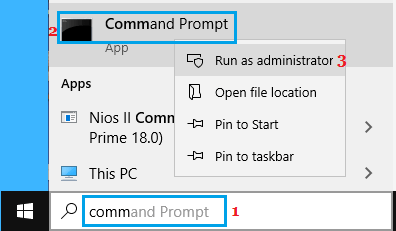
2. When prompted, enter your Admin Password to open Command Prompt As Admin.
3. On the Command Prompt screen, type sfc /scannow and hit the Enter Key.
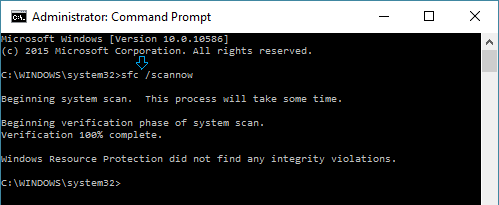
Note: There should be a space after sfc.
4. Patiently wait for Windows to scan the computer for System File Errors and fix them.
Once the SFC scan is completed, it will come up with a message stating whether or not it was able to find and fix all the corrupted system files.
If it was unable to fix certain files, you need to run the DISM tool to fix those files and then run the SFC scan agian to confirm that they have been fixed.
2. Steps to Repair System Files Using DISM
You can follow the steps below to Run the DISM tool on your computer.
1. Open Command Prompt as Admin.
2. Type DISM /Online /Cleanup-Image /RestoreHealth and press the Enter Key.
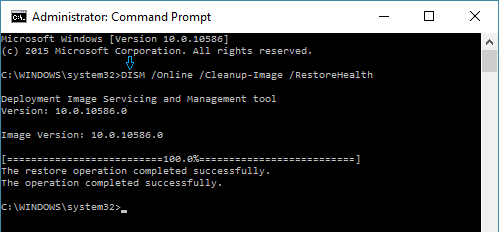
Note: There needs to be a space after DISM, Online and Cleanup-Image.
3. Wait for the DISM tool to check the computer for file system errors and fix them.
Note: Similar to the SFC tool, it takes 10 to 15 minutes or longer for the DISM process to be completed and it is also known to stay stuck at certain percentage for a long time.
Hence, make sure that you do not interrupt the DISM process in any way. Once it is completed, restart the computer and run the SFC command once again to confirm that all the corrupted files have been repaird.