If you are a Windows user and prefer using Gmail, you might be pleased to know that it is possible to create Microsoft Account using your current Gmail Address, which saves you from the effort of creating and maintaining a new Outlook Email Address to sign up for Microsoft Account.
Using Gmail to create Microsoft Account provides you with the same privileges as available for anyone that is using an Email Address from Microsoft related services like Outlook or Hotmail.
Create Microsoft Account With Gmail
You can create Microsoft Account using your existing Gmail Address, both while setting up a New Windows computer and also on an existing computer.
Creating Microsoft Account provides you with access to Microsoft Store, from where you can download free Apps and purchase a wide range of products, including Surface devices, Xbox consoles, Windows PCs, Windows Operating system, Microsoft office, Gaming accessories and a variety of other digital products.
Microsoft Account is also required to access Microsoft related services like OneDrive, Office, Xbox Live, Microsoft 365, Find My Device and others.
1. Create Microsoft Account Using Gmail on New Computer
When you are setting up a New computer or reinstalling Windows, you will be prompted to create a Microsoft Account.
Since, you already have Gmail Account, you can make use of your existing Gmail Account to create a Microsoft Account.
1. Start the Setup process of your New computer by pressing its Power Button.
2. Follow the onscreen instructions to setup the computer, until you arrive at Sign in with Microsoft screen.
3. On Sign-in with Microsoft screen, enter your Gmail Address and click on Create Account.
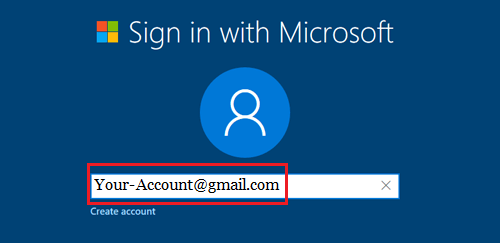
4. On the next screen, create a Password that you want to associate with your Microsoft Account and press the Enter Key on the keyboard of your computer.
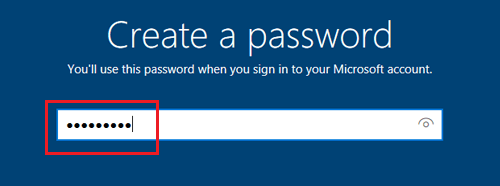
5. Follow the next set of instructions to complete the setup process of your New Windows computer.
After the computer is setup, you will be able use your Gmail based Microsoft Account to login to Microsoft Store and access other Microsoft related services.
2. Create Microsoft Account with Gmail on Existing Computer
If you are currently using a Local User Account to login to the computer, you can create Microsoft Account using Gmail using the following steps.
1. Login to the Admin Account on your computer.
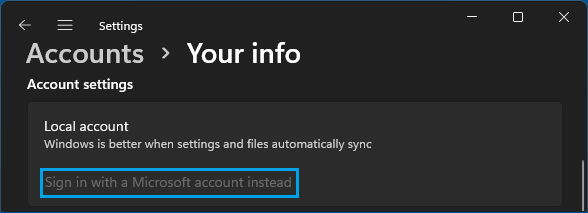
2. Once you are logged-in, go to Settings > Accounts > Your Info and click on Sign in with Microsoft Account Instead Link.
3. On the next screen, leave the Email field blank and click on Create one! link.
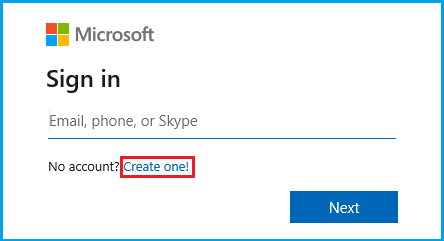
4. On Create account screen, enter your Gmail Address and click on the Next button.
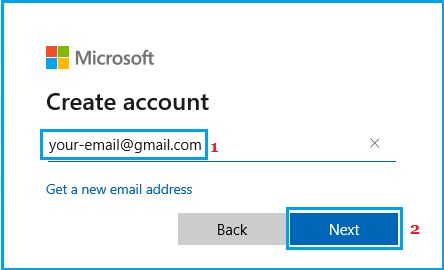
Important: Do not click on Get a new email address link, as this will make you sign-up for a new Outlook Email Address.
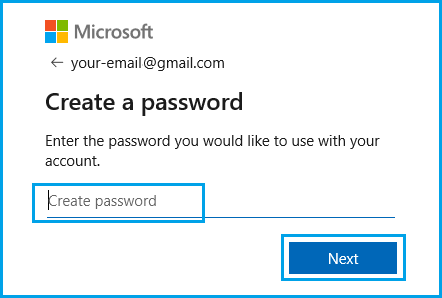
5. On the next screen, create a Password for your Microsoft Account and click on the Next button.
5. On the next two screens, enter your First & Last Name, select Country, enter Date of Birth and click on Next button.
6. Now, Microsoft will send a Verification code to your Gmail Address > Get the verification code by logging into your Gmail Address.
7. Enter the Verification code and click on the Next button.
8. Depending on the case, you may be required to solve a CAPTCHA to prove that you are human.
Once the CAPTCHA is solved, you have successfully created Microsoft Account using your existing Gmail Address.
You can now login to Microsoft Store and access Microsoft services like OneDrive, Teams, Outlook and others using your Gmail based Microsoft Account.