If you are unable to Print PDF files in Adobe Reader, the problem could be due to incorrect Printer settings or due to the PDF File being damaged or corrupted.
Another reason for PDF Files not printing on a Windows computer is due to Microsoft Edge having its own built-in PDF viewer, which can sometimes lead to PDF file printing problems in Adobe Reader.
Can’t Print PDF Files in Adobe Reader (Windows 11/10)
In our case, there was no error message while trying to replicate the problem of PDF files not printing on a Windows computer with Microsoft Edge as the default browser.
As reported by other users, the Print command issued from the computer was not responded by the printer and yet there was no print related error message on the computer.
Based on this, it is most likely that you are dealing with a glitch (restarting helps) or the computer is trying to print to an unconnected default printer (office computer, while you are at home).
If this is not the case, you should be able to complete the print job by using other methods as provided below in this guide.
1. Restart the Computer
Powering OFF and Restarting the computer helps in clearing stuck programs and processes, which might be causing the printing problem on your computer.
1. Completely Power OFF the computer by using the Power button.
2. Wait for 5 minutes and Restart the computer.
3. After the computer restarts, see if you are able to print the PDF file.
2. Select the Right Printer
It is possible that your computer is trying to print to a previously selected printer. Hence, make sure that the right printer is selected on the printer screen.
1. Open the PDF File that you are trying to print
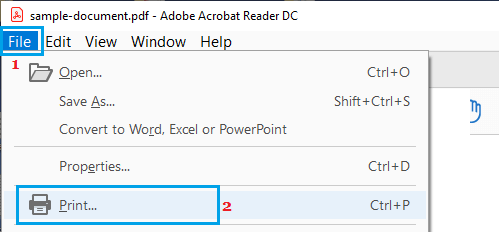
2. Click on the File tab and select the Print option in the drop-down menu.
3. On the next screen, select the right Printer that is actually connected to your computer
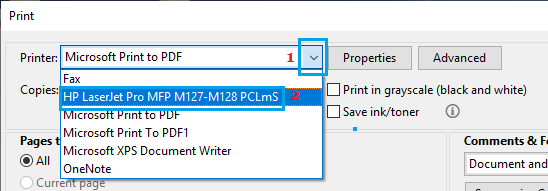
4. Once the right Printer is selected, click on the Print button, located at bottom-right corner of the print screen.
3. Print As Image
If the file that you are trying to print is a simple PDF Document and you are in a hurry, you can print the file as an image.
1. Open the PDF File that you wanted to print
2. Click on File > Print option in the drop-down menu.
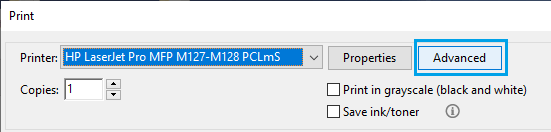
3. On the Print screen, click on the Advanced button.
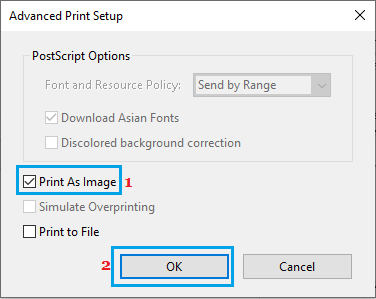
4. On the next screen, select Print As Image option and click on OK.
5. Back on the Print screen, click on the Print button.
4. Save As Another PDF File
Sometimes, the problem is due to the PDF file itself being damaged or corrupted.
1. Open the PDF File that you were trying to print.
2. Click on the File tab and select the Save As option in the drop-down menu.
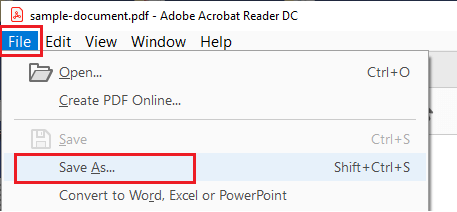
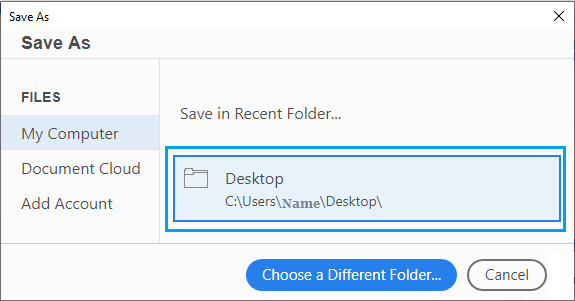
3. On the Save As screen, click on the suggested File Location or choose a different location.
4. On the next screen, type a different name for the file and click on the Save button.
Now, you should be able to print using the New PDF File that you just created.
5. Recreate PDF File
If you had created the PDF file using Print to PDF option in Microsoft Word or Excel, you can simply discard the problematic PDF file and create a New PDF File.
The steps to create a PDF file are more or less the same in Word, Excel and other Apps that support the PDF file format.
1. Open the Original File (Word, Excel, etc.) that was used to create the PDF file.
2. Once the file is open, click on File > Save As option in the drop-down. On the next screen, make sure that “Save as type” is “PDF Document” and click on the Save button.
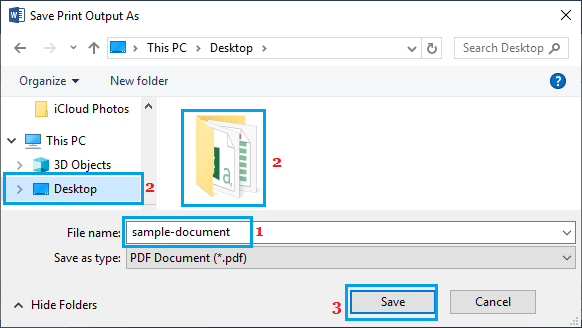
Once the PDF file is recreated, try to print from the recreated PDF File.
6. Repair Adobe Acrobat Software
It is possible that the Adobe Software as installed on your computer has become damaged or corrupted.
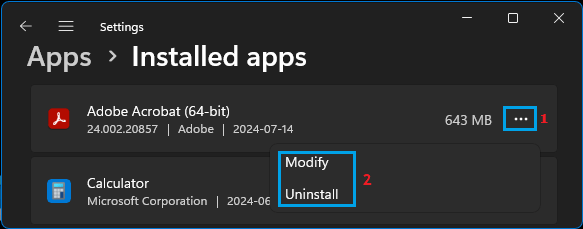
1. Press Win + I keys > go to Apps > Installed Apps.
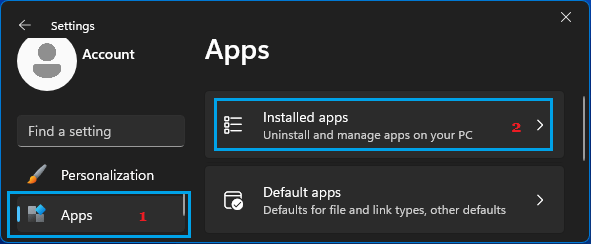
2. On “Installed Apps” screen, Locate Adobe Acrobat > click on 3-dots icon and select the Modify option.
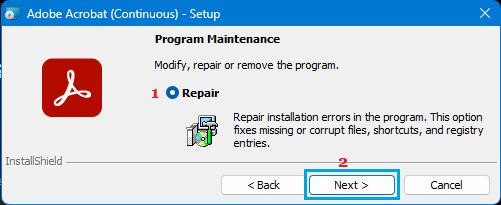
3. On the next screen, select the Repair option and follow the instructions to complete the repair process.
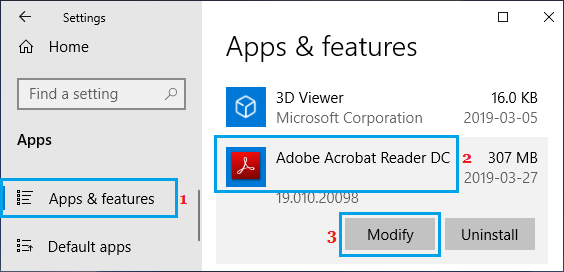
Windows 10: Go to Settings > Apps > Apps & Features > select Adobe Acrobat and click on the Modify button.
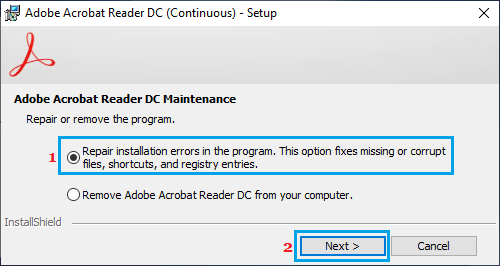
On the next screen, select the Repair option and follow the instructions to complete the repair process.
After repairing/reinstalling Adobe Acrobat, you should be able to print PDFs from within Adobe Acrobat on your Windows 11/10 computer.