When you open services.msc without administrator rights, you will be able to view all Windows services, check their current status (Running, Stopped) and take a look at their Startup Type (Manual, Automatic or Disabled) and other details like Logon account, Dependencies and Descriptions.
However, you won’t be able to stop/start protected services, change the Startup type of any service, change the account under which the service runs and make other changes without running services.msc as an administrator.
Related: How to Start, Stop, Disable Services in Windows 11/10.
Run Services.msc as Admin from Non-Admin Account
If you are logged-in to a regular user account, the easiest way to run services,msc as administrator is by using the Start Menu Search bar on your computer.
In addition to this, you can run services.msc as administrator from a non-admin account by using the Run Command, Command Prompt, Task Manager and by creating a “services.msc” shortcut on the Desktop of your computer.
Note: You should run services.msc as administrator; only when it becomes necessary to make changes to a Windows service and you know what you are trying to achieve.
1. Open Services As Admin Using Start Menu
As mentioned above, an easy way to Run services.msc as an administrator is by using Windows Search.
1. Type Services.msc in the search bar.
2. From the Search results, select Services (system) and click on Run as Administrator.
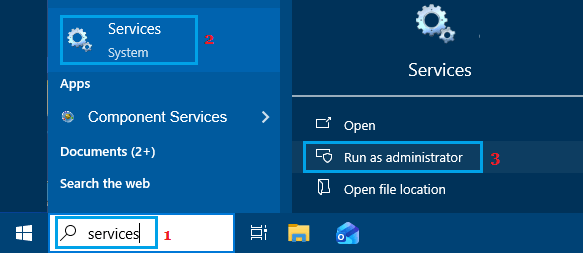
3. On the User Account Control (UAC) screen, enter your Admin password and click on Yes to confirm.
2. Run Services.msc As Admin Using Command Prompt
Another easy way to Run Services.msc as admin is by using Command Prompt.
1. Type CMD in the Search bar > right-click on Command Prompt and select Run as administrator option.
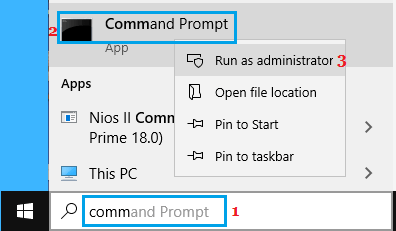
2. Type services.msc and press the Enter key on the keyboard of your computer.
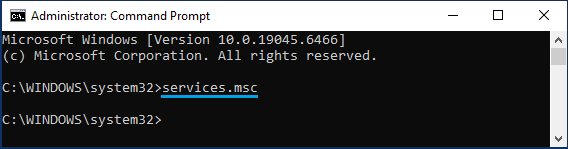
3. This will open the Services screen with Admin rights.
3. Run Services.msc As Admin Using Run Command
A popular way to open services.msc as administrator is by using Run Command.
1. Right-click on Start button and click on Run.
2. In the Run Command screen, type services.msc and press Ctrl + Shift + Enter keys.
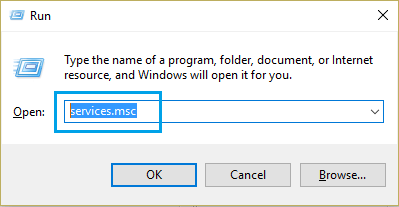
3. On the User Account Control (UAC) screen, enter your Admin password and click on Yes to confirm.
4. Open Services.msc As Admin Using Task Manager
If you are in the Task Manager, you can Run Services.msc as admin by using “Run New Task” option as available in Task Manager.
1. Right-click on the Taskbar and click on Task Manager.
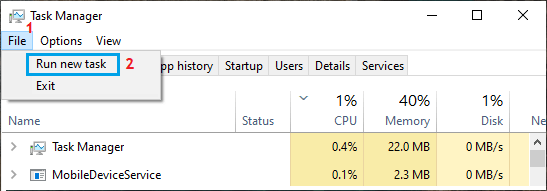
2. On the Task Manager screen, select the File tab and click on Run new task.
3. On “Create new task” dialog box, type services.exe > select Create this task with administrative privileges box and click on OK.
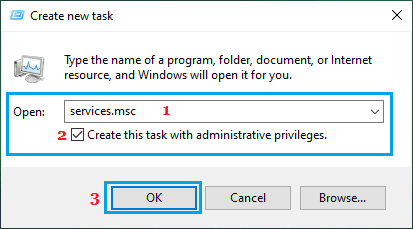
This will open the Services Interface with Admin Privileges.
Note: Depending on the User Account settings, the “Create this task with administrative privileges” box may not be available on a non-admin account.
5. Open Services.msc As Admin Using Shortcut
You can create a Desktop Shortcut for Services.msc and use the Shortcut to Run Services as Admin.
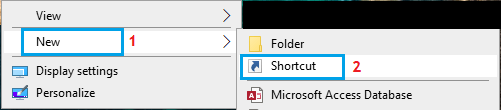
1. Right-click in any empty space on the Desktop and click on New > Shortcut.
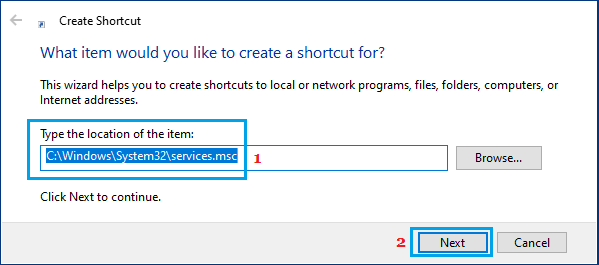
2. On Create New Shortcut box, enter C:\Windows\System32\Services.msc and click on Next.
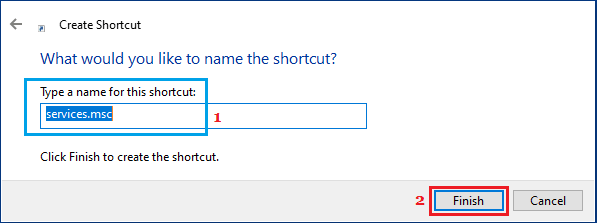
3. On the next screen, you can accept the default Name and click on Finish to save the Shortcut to Desktop.
4. After this, you can Run Services as Admin by right-clicking on the Shortcut and selecting Run as administrator option.
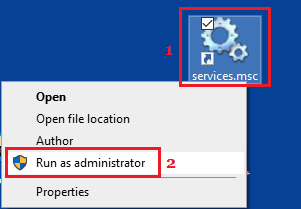
Note: You can modify the Shortcut to Run Services as Administrator upon double-click by right-click on the Shortcut > selecting Properties > Advanced and selecting the Run as Administrator option.