The most common reasons for users looking for a way to check or view the list of all the apps and programs installed on a Windows computer are due to the following reasons.
- Optimize Performance: Taking a look at all the installed apps can help in deciding which apps can be removed to free up storage space and resource usage on the computer.
- Security & Privacy: Making sure that an unknown app or program has not been unknowingly installed on the computer.
- Fix Problems: Knowing which apps and programs are installed on the computer helps in identifying conflicts and issues with system performance.
- Backup & Recovery: Getting a list of all the installed apps is good backup strategy; as it helps in checking and making sure that all the apps are present after recovery.
View Installed Apps & Programs in Windows
Depending on the type of applications (Windows Store, Desktop Programs or others) that you are trying to view, you can take a look at the installed apps and programs on a Windows computer by using any of the following methods.
Microsoft Store Apps: If you are only looking for Microsoft Store apps, you can make use of Microsoft Store CLI or open the Microsoft Store on your computer and check the Library tab.
Microsoft Store & Desktop Apps: You can make use of the Settings App, Start Menu, Control Panel and Command Prompt to view both Microsoft Store and traditional desktop apps installed on the computer,
All Applications: You can get a comprehensive view of Windows Store apps, Desktop programs, System Tools and Hidden apps that do not appear in the Control Panel or Start Menu by using Shell:AppsFolder command; which takes you to the Applications Folder on your computer.
1. View Installed Apps Using Start Menu
A quick, easy and direct way to view installed apps and programs on a Windows computer is by clicking on the Start button; which opens an alphabetically arranged list of installed apps.
1. Click on the Start button to open the Start Menu.
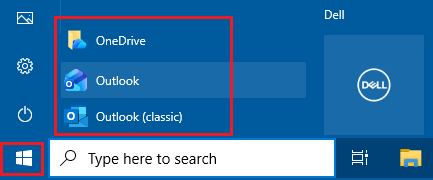
2. Click on All Apps button and this will bring up a scrawl-able list of most of the Apps installed on your computer.
Note: While the All tab in the Start menu does bring up a long list of apps, it may not show all the installed apps.
2. Find Installed Apps Using Settings
You can view both Microsoft Store and traditional desktop apps installed on the computer by going Settings > Apps > Installed Apps.
1. Press Windows + I keys to open Settings.
2. On the Settings screen, select Apps in the left-pane and click on Installed Apps in the right-pane.
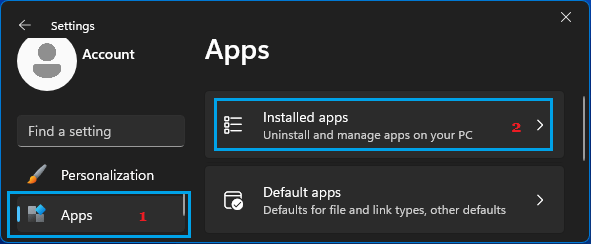
Windows 10: Go to Settings > Apps > Apps & Features.
3. On the next screen, you can find all the apps and desktop programs installed on your computer.
Missing from the list will be drivers, services, optional Windows features, update packages and manually installed apps and desktop programs.
3. View Installed Apps Using Control Panel
Going by experience, using Control Panel is a more reliable way for uninstalling older apps, desktop programs and legacy software; compared to the Settings app.
1. Open the Control Panel on your computer.
2. On the Control Panel screen, switch to Large Icons view and click on Programs & Features.
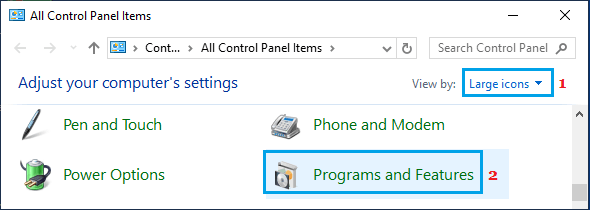
3. On the next screen, you can find the apps and desktop programs installed on your computer.
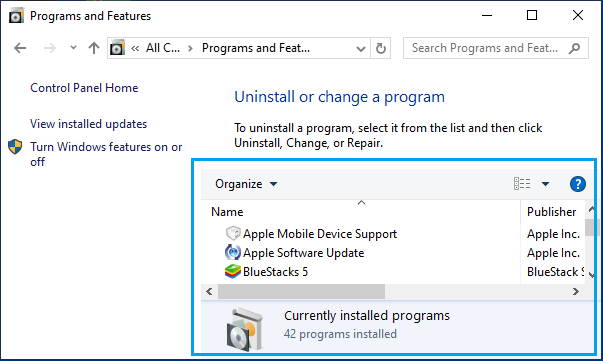
On this page, you can sort the apps by installed date, version and location.
4. Find Installed Apps and Programs in Applications Folder
The “Applications” Folder shows a wide range of applications; including traditional desktop applications, Windows Store Apps, System Tools, Legacy Control Panel Applets and Hidden apps that do not appear in Control Panel or the Start Menu.
1. Right-click on Start button and click on Run.
2. Type Shell:AppsFolder and click on OK.
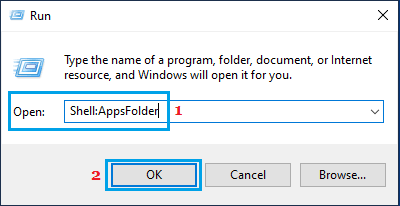
3. On the Applications screen, you will be able to view all the installed apps and programs on your computer.
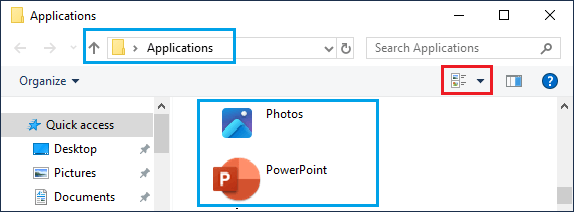
Note: You can Sort the listed apps and change the layout to suit your requirements.
As you can see, this method provides only a graphical view of the installed apps and does not include structured information such as version, publisher, install date or the installation location.
4. View Installed Apps Using Microsoft Store CLI
If you are only interested in Microsoft Store Apps, you can make use of Microsoft Store CLI; which brings up a neatly arranged list of all the Microsoft Store Apps installed on the computer.
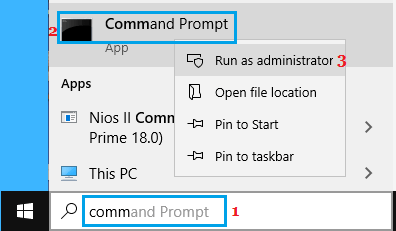
1. Type CMD in the Search bar > right-click on Command Prompt and select Run as administrator option.
2. On the Command Prompt screen, type store installed and press the Enter key.
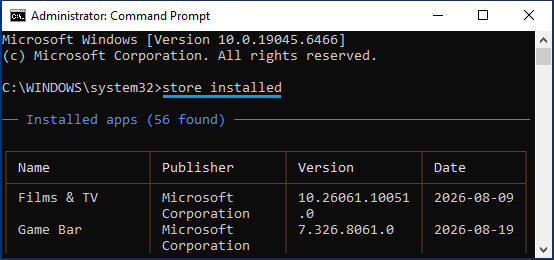
This will bring up all the installed Microsoft Store Apps; neatly arranged by their Names, Publisher name, Version and Dates on which the apps were installed on the computer.
5. View Installed Apps Using Microsoft Store
You can also go directly to Microsoft Store and take a look at all the Microsoft Store Apps installed on the computer.
1. Open the Microsoft Store app on your computer.
2. Click on Library tab in the left-pane and you will see the list of apps in the right-pane.
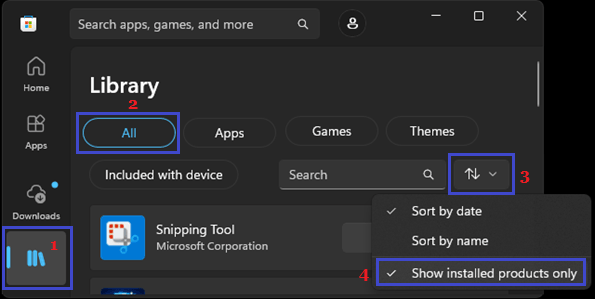
3. Make sure you are on All tab > click on the Sort Icon and select Show Installed Products only to view the Microsoft apps installed on your computer.
6. Check Installed Apps Using Command Prompt
If you are using Windows 10 (which supports WMIC command), you can bring up a list of all the installed apps on your computer by using the following steps.
1. Open Command Prompt with Admin Privileges on your computer.
2. On the Command Prompt screen, type wmic product get name,version,vendor and press the Enter key.
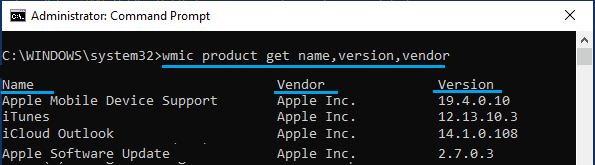
3. Once the Command is executed, it will bring up a list of installed apps on the computer.
Note: This Command can take up to 30 seconds and it does not list Microsoft Store Apps.
7. Find Installed Apps Using PowerShell
You can bring up a comprehensive list of applications installed on the computer for the current user by using the Terminal or the PowerShell.
1. Right-click on Start button and click on Windows PowerShell (Admin).
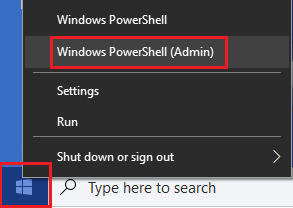
2. On the Terminal or PowerShell screen, copy and paste the following commands:
Microsoft Store Apps: Get-AppxPackage | Select-Object Name, Version, Publisher | Sort-Object Name | Format-Table -AutoSize
64-bit applications: Get-ItemProperty “HKLM:\Software\Microsoft\Windows\CurrentVersion\Uninstall\*” |
Where-Object DisplayName | Select-Object DisplayName, DisplayVersion, Publisher, InstallDate | Sort-Object DisplayName | Format-Table -AutoSize
32-bit applications: Get-ItemProperty “HKLM:\Software\Wow6432Node\Microsoft\Windows\CurrentVersion\Uninstall\*” | Where-Object DisplayName | Select-Object DisplayName, DisplayVersion, Publisher, InstallDate | Sort-Object DisplayName | Format-Table -AutoSize
Current User Apps: Get-ItemProperty “HKCU:\Software\Microsoft\Windows\CurrentVersion\Uninstall\*” |
Where-Object DisplayName | Select-Object DisplayName, DisplayVersion, Publisher, InstallDate | Sort-Object DisplayName | Format-Table -AutoSize
This method is generally used by system administrators & advanced users, as it gives structured and exportable data; which can be transferred to a CSV or Excel File.