The default setting on iPhone is to automatically identify duplicate photos and place them in a separate album or folder; clearly labelled as “Duplicates” under “Utilities” section of the Photos App. However, this setup may appear failing to find duplicate photos due to the following reasons.
Indexing Process: iPhone periodically goes through the process of indexing its Photo Library; during which it identifies duplicate photos and places them in “Duplicates” photo album. Hence, a common reason for duplicate photos not showing up on iPhone is due to the indexing process being in progress or not yet being initiated by the Photos App.
Focus on True Duplicates: iPhone makes use of on-device machine learning and image analysis algorithm to compare both image data and visual content, instead of totally relaying on file name and metadata). However, it still appears to be focused on true or exact-match duplicates; which results in exact pixel-to-pixel matching photos being flagged as duplicates and similar looking photos (cropped or slightly altered) being ignored.
iCloud Syncing: If you are using iCloud Photos, the process of identifying duplicate photos can be delayed or impacted by the syncing process.
Fix for Duplicate Photos Not Showing Up on iPhone
Now that we have identified the most common reasons for duplicate photos not showing up on iPhone, let us go ahead and take a look at what can be done to fix the issue of duplicate photos not showing on iPhone.
1. Check Duplicates Photo Album
The “Duplicates” photos Album appears on iPhone; only if its duplicate photo finding algorithm has indexed the photo library and come up with at-least one duplicate photo.
1. Open the Photos App on your iPhone and tap on Collections tab in bottom menu.

2. On the Collections screen, scroll down to “Utilities” section and you should be able to see Duplicates folder.
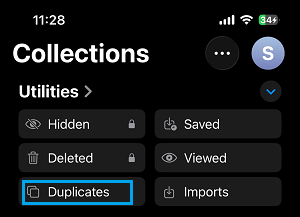
3. You can open Duplicates Folder by tapping on it and see if there any duplicate photos in it.
If the Duplicates Folder is not available or empty, it means there are no duplicate photos on your device. However, it could also be due to the indexing process being in progress or not yet being started.
2. Index Photo Library
You can check if your iPhone is still in the process of indexing the photo library by going to the “Library” tab of the Photos App on your device.
1. Open the Photos App on your iPhone and tap on Library.

2. On the Library screen, scroll down to bottom of the page and see if there is a Message; indicating the status of indexing on your iPhone.
If there is no indexing status message, connect your device for charging and this might allow your iPhone to initiate and complete the indexing process.
While the indexing process usually happens when iPhone is locked and connected for charging, plugging your device for charging does not automatically guarantee that the indexing process will surely take place. The frequency of indexing can vary from every few hours to days; depending the size of Photo Library and the schedule of background running tasks.
3. iPhone Cannot Identify All Duplicate Photos
Based on our experience, iPhone is usually good at identifying duplicate photos appearing from social media accounts (which were near duplicates); but is lacking in ability to flag identical looking photos taken by the Rear/Front facing camera. For example, if you take multiple photos of the same subject (person, pet, location or object), they are unlikely to be identified as duplicate photos by iPhone.
Currently, the only way to remove similar looking photos on iPhone is by going through all the photos located on your device and manually removing them; based on your judgement.
4. Manually Create Duplicate Photos
You can check and confirm; if your device is capable of finding duplicate photos and this feature is working properly on your iPhone by manually creating some duplicate photos and waiting for “Duplicates” album to appear or duplicate photos to appear in an existing “Duplicates” album.
1. Open the Photos App on your iPhone and select a Photo that you want to Duplicate.
2. Once the Photo is selected, tap on 3-dots icon located at top-right corner and select Duplicate in the drop-down menu.
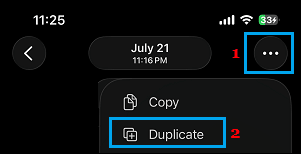
3. You can repeat the above steps to create some more duplicate photos.
After this, you can expect “Duplicates” album to appear in Photos App (if it is not there) with duplicate photos in it.
5. Install Updates
If above steps did not help, check and make sure that your device is up-to-date with the latest iOS and App updates.
1. Go to Settings > General > Software Update.
2. On the Software update screen, tap on Update Now (If an update is available) and patiently wait for the latest available update to be downloaded on your device.
3. Install the Update.
After completion of the update, you can expect the Duplicate Photos feature to be working properly on your iPhone.