The default Text Size on iPhone is set exactly to mid-level on the Text Sizing Slider; which in theory should provide comfortable readability to a large number of users with typical/average visual ability. However, the size of the Text as it appears on App Labels, Menu tabs and within the native apps on iPhone can be easily increased or decreased to match individual visual requirements.
For example, older adults dealing with a fairly common issue of age-related loss of eye’s ability to focus on near objects can expect an improved readability on iPhone by slightly increasing the Text Size to match their individual level of presbyopia.
Once you are able to set an ideal Text Size on iPhone (by trial/error), you can expect to see the revised text size being reflected in App labels, native apps like Mail, Contacts, Calendar, Phone, Notes and other apps that support Dynamic Fonts.
Related: How to Enlarge Text Size on iPhone Safari Browser.
Increase Text Size On iPhone to Improve Readability
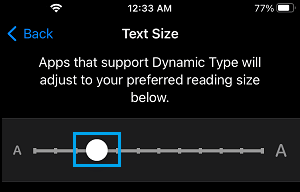
If you feel that the Font Size on iPhone is a bit smaller than it should be, you can make use of the Text Slider as available on “Display & Brightness’ Settings screen to increase the Text Size from its current 17 points size to a slightly larger size that suits you better.
If this does not help, iPhone provides yet another Text Slider under “Accessibility” Settings; which can be used to make your device use a larger or bolder font and also adjust the size of the selected (larger/bolder) font to match your visual requirements.
1. Change Text Size Using Display & Brightness Settings
As mentioned above, you should first try to improve the readability of the Text on your iPhone by going to “Display & Brightness” Settings.
1. Go to Settings > Display & Brightness > Text Size.
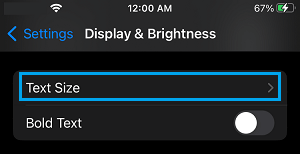
2. On Text Size screen, use the slider to increase the Text Size to suit your visual requirements.
2. Use Larger Font Size By Using Accessibility Settings
You can make your device to use a Larger Font Size and increase or decrease the Text Size by making use of yet another Text Slider; which is available under “Accessibility” Settings on your iPhone.
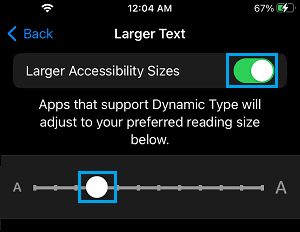
1. Go to Settings > Accessibility > Display & Text Size > tap on Larger Text.
2. On the next screen, enable Larger Accessibility Sizes option and use the Slider to increase the Text Size.
3. Enable Bold Fonts On iPhone
In addition to increasing the Text Size, you can increase the readability of the text on your iPhone by enabling the Bold Text option as available on your device.
1. Go to Settings > Accessibility > Display & Text Size.
2. On the next screen, enable the Bold Text option.
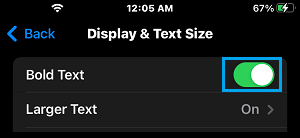
This will immediately make the text appear thicker/darker, compared to regular text.
Other Options in Accessibility Settings
The “Accessibility” settings menu on iPhone provides a number of options; which can be used to improve the readability of the Text appearing in native and dynamic-text supporting third-party apps on your device.
- Zoom: Enlarges the Text
- Voice over: Speaks out items on the screen
- Grayscale: You can set this option while reading books to get a Kindle like setting.
- Larger Text: Makes iPhone use a larger font size (larger than “Display and Brightness” settings).
- Bold Text: Can help in improving readability.
- Increase contrast: Can help in improving readability by darkening the colors.
4. Add Text Slider to Control Center
Instead of having to go through various menus, you can make the “Text Slider” much more easily accessible on your iPhone by adding it to the Control Center.
1. Open the Control Center on your iPhone (by swiping down from top-right corner).
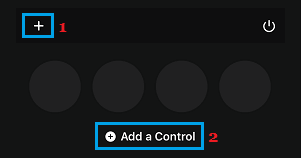
2. On the Control Center, tap on the + Icon located at top-left corner of the screen > scroll down to bottom of the screen and select + Add a Control option.
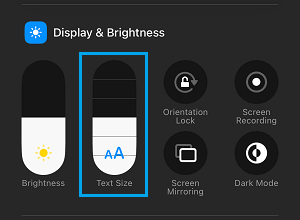
3. On the next screen, scroll down to “Display & Brightness” section and tap on Text Size Icon.
This will immediately add the Text Slider to the Control Center on your iPhone, which can be easily accessed by swiping down from tap-left corner of the screen.
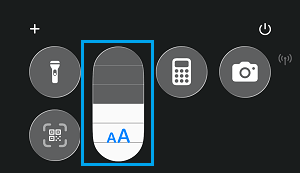
You can change the Text Size by dragging the Slider up to increase the Text Size and dragging it down to decrease the Text Size.