If you have forgotten the Screen Time Passcode on iPhone, Apple provides the option to reset screen time passcode and regain full access to apps and services that are locked with a screen time passcode on your iPhone.
While forgetting the Screen Time Passcode does not prevent you from accessing your device, it can limit or prevent access to restricted apps; depending on kind of Apps Limits or Content & Privacy Restrictions that were placed for those apps on your iPhone.
Hence, the only way to gain full and unrestricted access to restricted apps and services on your iPhone is by resetting the Screen Time Passcode.
Reset Screen Time Passcode on iPhone
The process to reset the Screen Time Passcode on iPhone varies, depending on the version of iOS operating system that is running on your device.
If your iPhone is running iOS 13.4 and later versions, you can easily reset the Screen Time Passcode on your iPhone by using your Apple ID and Apple ID password.
In the case of older devices (iOS 12 & earlier), Screen Time Passcode was known as Restrictions Passcode and the only way to reset Restrictions Passcode is by using third-party tools as provided in this guide: How to Reset Restrictions Passcode on iPhone.
Note: If you are trying to reset Screen Time Passcode on a child’s device, you need to make use of the parent’s device, select the Child’s name and follow the steps to reset Screen Time passcode.
1. Change Screen Time Passcode
You can follow the steps below to replace the forgotten Screen Time Passcode on your iPhone with a New 4-Digit Screen Time Passcode.
1. Go to Settings > Screen Time > scroll down and tap on Change Screen Time Passcode.
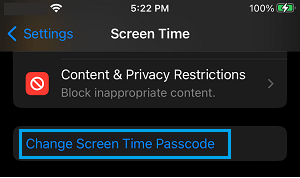
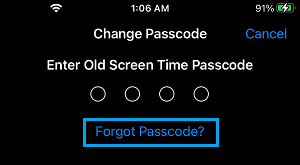
2. On the pop-up, select Change Screen Time Passcode option. On the next screen, tap on Forget Passcode? option.
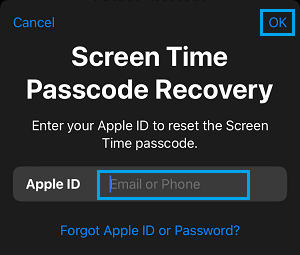
3. On the “Screen Time Passcode Recovery” screen, enter your Apple ID, Passcode and tap on OK.
4. On the next screen, you can create a New Password.
Note: If you are using Share Across Devices, you can expect the New Screen Time Passcode to sync to your other Apple devices.
2. Remove App Limits & Restrictions from Apps
After the Screen Time Passcode is Reset, the App Limits and Restrictions that you had placed on the Apps on your iPhone will continue to remain in place.
If you are looking for an unrestricted access to those apps, you will have to manually switch off the App Limits and Restrictions that you had placed on those apps on your iPhone.
1. Go to Settings > Screen Time > scroll down and tap on Content & Privacy Restrictions.
2. On the next screen, disable Content & Privacy Restrictions by moving the slider to OFF position.
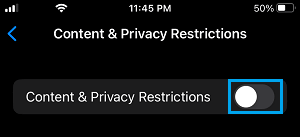
3. Next, go back to “Content & Privacy Restrictions” screen and tap on App Limits.
4. On the next screen, disable App Limits by moving the slider to OFF position.
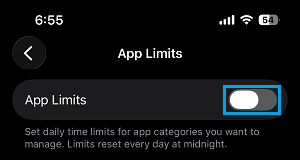
This removes all the App Limits & Restrictions on your iPhone, while allowing the revised Screen Time Passcode for your use.
3. Turn OFF Screen Time Passcode
Another way to turn-off the App Limits and Restrictions on your device is by selecting the “Turn OFF Screen Time” option.
1. Go to Settings > Screen Time > scroll down and tap on Change Screen Time Passcode.
2. On the pop-up, select Turn off Screen Time Passcode option.
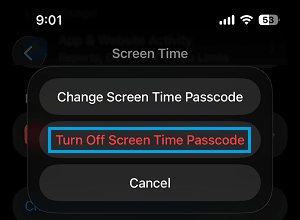
3. On the pop-up, enter the New 4-digit Screen Time Passcode that you had created during the Reset process.
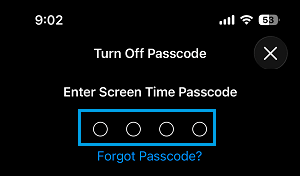
This will disable the use of Screen Time Passcode on iPhone, which results in all App Limits and Restrictions on Apps being removed on your device.