The default Setting on a Windows computer is to automatically Restart the Service; if it detects a crash or problem with a particular service. However, it can still become necessary to manually stop, start, restart and modify the Startup settings of a Windows service during troubleshooting.
- Service Failure: Manual start may be required; if a service fails or crashes and Windows Service Manager does not automatically take the required action.
- Troubleshooting: During troubleshooting, you may find the need to manually stop certain services or start a particular service, in order to ensure the proper functioning of a dependent service.
- System Performance: Disabling unwanted services and modifying the Startup behavior (Auto Start, Delayed Start) of certain services can improve system performance.
Note: Windows operating system comes with the built-in ability to manage services. Hence, the act of modifying a Windows Service should be considered only if it becomes necessary and you clearly understand the reasons.
Start, Stop & Disable Windows Services
The easiest way to take a look at the services running on a Windows computer and Stop/Start or Restart a required Windows Service is by going to the “Processes” tab of the Task Manager.
However, the Task Manager does not provide the option to Disable services (If you are logged-in to regular user account) and prevents protected services from being modified. In such cases, you can start services.exe as admin by using Run Command or make use of elevated Command Prompt to modify the service.
Note: It is good idea to create a system restore point as a precautionary measure; so that you can undo the changes made (If required).
1. Start, Stop, Restart Windows Service Using Task Manager
The easiest way to stop, start and restart Windows Services that do not require admin rights is by using Task Manager.
1. Right-click on the Taskbar and click on Task Manager.
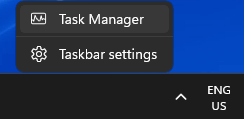
2. On the Task Manager screen, select the Services Tab in the left-pane and you will be able to see all the Services running on the computer in the right-pane.
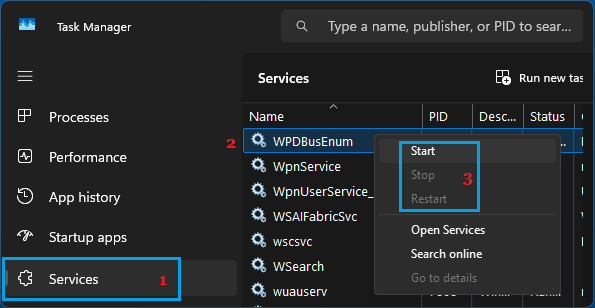
You can Start, Stop or Restart any service by right-clicking on it and selecting the required option in the right-click menu.
2. Start, Stop, Restart Protected Windows Services
If the option to Start/Stop the service is not available via the Task Manager, you can open service.exe as administrator and this will allow you to Start/Stop protected services.
1. Right-click on the Start button and click on Run.
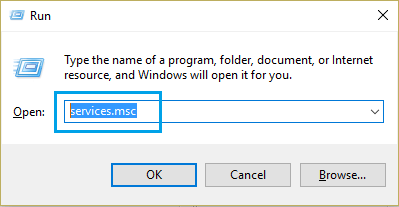
2. On the Run Command pop-up, type services.msc and press Ctrl + Shift + Enter keys to open Services as admin.
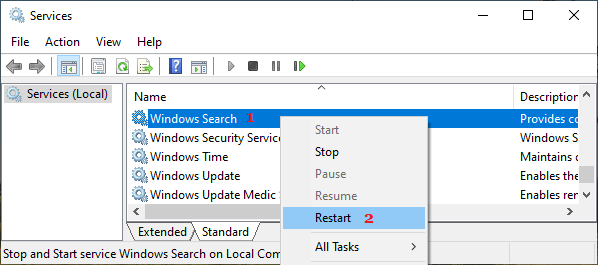
3. On the Services screen, you can Stop, Start and Restart any service by right-clicking on it and selecting the required option.
3. Enable, Disable Windows Service Using Services Console
You can enable or disable any Windows Service by going to the Properties screen of the selected Windows Service.
1. Open Services.exe as an administrator.
2. On the Services screen, locate the Service that you want to Enable or Disable and double-click on it.
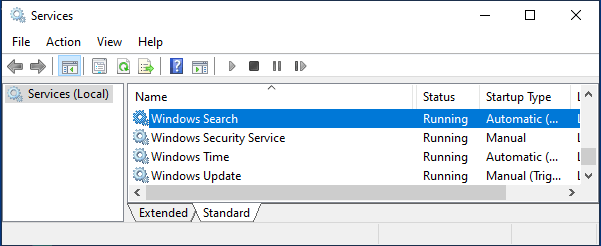
3. On the Service’s Properties screen, select the Disable option in the box located next to Startup type.
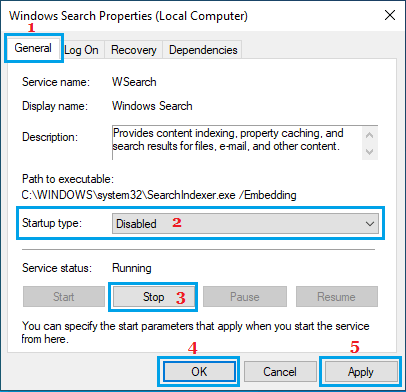
4. Stop the service by clicking on Stop and click on Apply & OK to save this change on your computer.
4. Start, Stop Windows Service Using Command Prompt
If you know the name of the service, you can Start or Stop the service by using Command Prompt.
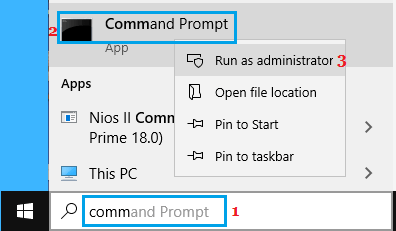
1. Type CMD in the Search bar > Right-click on Command Prompt and select Run as administrator option.
2. To start a service, type net start “Service Name” and press the Enter key.
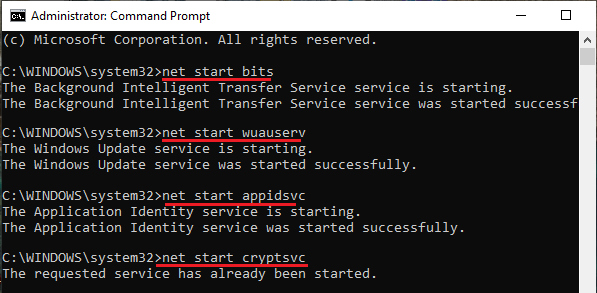
3. To Stop a service, type net stop “Service Name” and press the Enter key.
5. Enable, Disable Windows Service Using Command Prompt
You can also disable Windows Services by using Command Prompt.
1. Open Command Prompt As Admin.
2. To disable a service, type sc config “Service Name” start= disabled and press the Enter key.
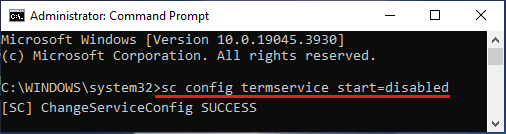
3. To re-enable the service, type sc config “Service Name” start= auto and press the Enter key.