If your computer is coming up with “There is not enough memory to complete this operation”, you won’t be able to open the File, App or Desktop program that you were trying to open.
While this error message appears to be pointing to lack physical memory (RAM), it can also occur on computers with high RAM capacity, where lack of memory is not the issue.
In such cases, the problem could be occurring due to corrupted system files or the App/program that is generating this error message being damaged or corrupted.
Not Enough Memory to Complete This Operation in Windows
On computers with Low RAM capacity (8 GB RAM in our case), this error message can be fixed by increasing the virtual memory on the computer, which provides Windows with additional room to handle data.
In addition to this, it is also worth checking the computer for System File Errors and repairing the App or Desktop program, which is generating this error message.
1. Increase Virtual Memory
If your computer has low RAM capacity (8 to 10 GB), increasing the size of virtual memory or paging file can help in fixing this issue.
While the default setting in Windows is to Automatically manage paging file size, it also provides the option to manually increase the size of paging file (pagefile.sys) on your computer.
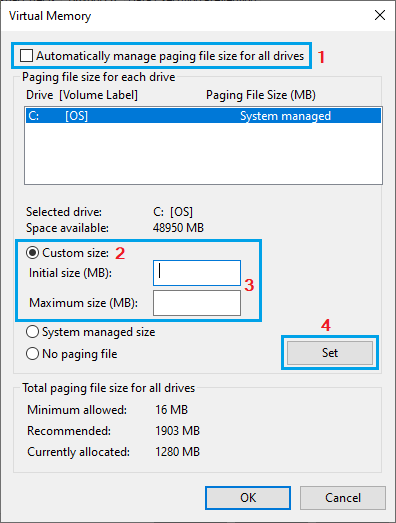
This provides Windows with additional space on the hard drive (virtual RAM) to store data required for proper functioning of apps and programs running on your computer.
For the actual steps to increase virtual memory (size of pagefile.sys), you can refer to this guide: How to Disable, Delete, Resize Pagefile.sys.
2. Repair the App
Windows operating system comes with the built-in option to repair apps, if they are not running properly and coming up with error messages.
1. Go to Settings > Apps > Apps & Features.
2. On the next screen, click on 3-dots icon located next to the App and select Advanced options in the menu that appears.
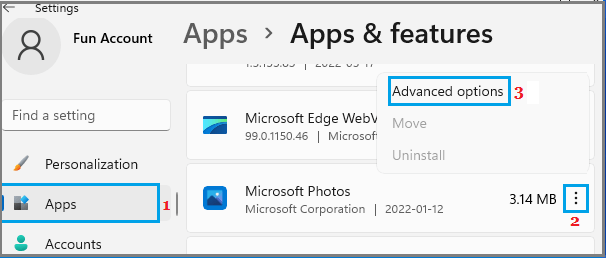
3. On the next screen, select the Repair option.
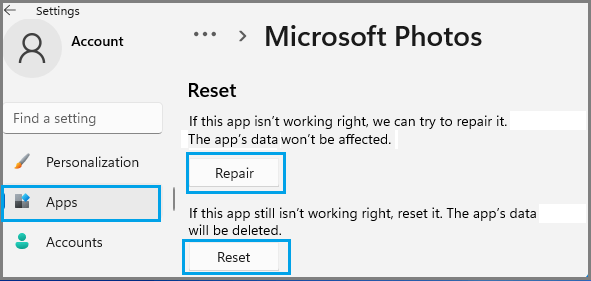
Note: You can also try the Reset option, which resets the App to its original settings.
3. Check 32-bit Apps
While the latest version of Windows can run 32-bit apps, there is always the possibility of 32-bit apps becoming incompatible with system/security and performance requirements of a 64-bit operating system.
1. Right-click on the Taskbar and click on Task Manager.
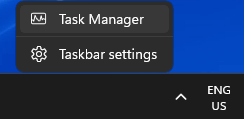
2. On Task Manager screen, go to the Details tab and see if is any 32-bit application is showing up.
If you find any 32-bit application, you can replace it with a 64-bit version, in order to avoid this problem.
4. Run Disk Cleanup
Accumulation of temporary files, thumbnails and other types of files can cause performance issues and lead to memory related errors on the computer.
1. Type Disk Cleanup in the Search bar and click on Disk Cleanup in the search results.
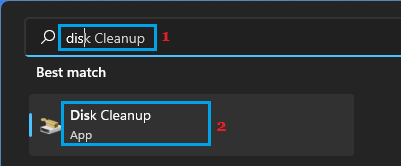
2. On the next screen, select the Files that you want to delete and click on OK.
5. Run SFC Scan
If your computer is still coming up with “Not Enough Memory” error message, the problem could be due to damage or corruption of System Files.
In most cases, this can be checked and fixed by using the built-in SFC (System File Checker) tool that is available on a Windows computer.
1. Right-click on Start button and click on Command Prompt (Admin).
2. On the Command prompt screen, type sfc /scannow and press the Enter key.
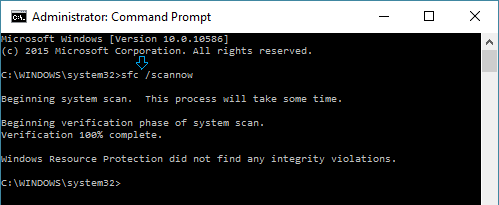
3. Wait for the SFC command to be executed and Restart the computer.