As you must have noticed, you can no longer open System Properties by clicking on the System link in Control Panel; which now redirects to “About” page of the Settings App, instead of directly opening the System Properties dialog box.
While you can access the classic System Properties dialog box by using “Related Links” section of the “About” page, those who are looking for direct access to System Properties Interface can open System Properties by making use of “sysdm.cpl” applet; which can be executed by using Run Command, Command Prompt and Windows Search.
The System Properties Interface in Windows
The “System Properties” Interface or dialog box on a Windows computer; provides access to a wide range of advanced system settings, including computer name, domain/workgroup access, remote desktop settings, system protection and performance settings.
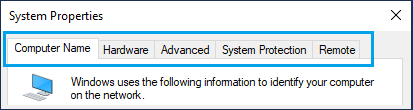
Computer Name: As you can see from above image, this is the first tab of System Properties screen; which can be used to view and change the Name of your computer and join System Domain or Workgroup.
Hardware: The second tab of System Properties screen provides access to Device Manager and Device Installation Settings. As you must be aware, the Device Manager can be used to view all the hardware devices installed on the computer, update drivers, roll-back drivers and uninstall devices.
Advanced: This is perhaps the most useful tab of the System Properties screen; as it provides access to Advanced system settings like virtual memory settings, user profile management, startup and Recovery settings.
System Protection: This tab can be used to Create System Restore Points and undo changes made on the computer by reverting the computer to a previously created system restore point.
Remote: As indicated by its name, the last tab of System Properties screen can be used to enable or disable Remote Assistance connections to the computer.
Hence, it is really important that you become familiar with at-least one of the following methods to open the System Properties Interface on your computer.
1. Open System Properties Using Windows Search
A simple way to open the System Properties Interface on a Windows computer is by making use of the Windows Search bar to bring up sysdm.cpl applet.
1. Type sysdm.cpl in Windows Search bar and press the Enter key.

2. If prompted, enter Admin Password to authorize access to System Properties on your computer.
If you find it difficult to remember “sysdm.cpl”, type Advanced in the Search bar and click on View Advanced System Settings in the search results.
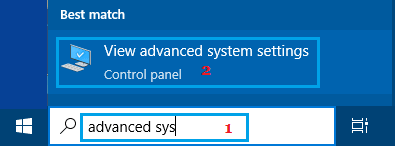
This will take you to the Advanced Tab of the System Properties Interface.
2. Open System Properties Using Run Command
You can open the classic System Properties Interface by typing sysdm.cpl in the Comman Prompt screen and pressing the enter key.
1. Right-click on the Start button and click on Run.
2. In the Run command, type sysdm.cpl and press the Enter key or click on OK.
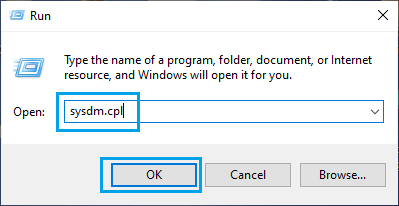
This will lead you to “Computer Name” tab of the classic System Properties screen.
Note: You can directly go to specific System Properties tabs by running SystemPropertiesAdvanced, SystemPropertiesProtection and SystemPropertiesRemote commands.
3. Open System Properties Using Command Prompt
You can also run the sysdm.cpl command by using Command Prompt or PowerShell.
1. Right-click on Start button and click on Command Prompt (Admin).
2. On the Command Prompt screen, type sysdm.cpl and press the Enter key on the keyboard of your computer.
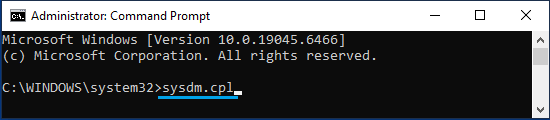
Note: While Admin access is not required to run sysdm.cpl command, you will be prompted to enter Admin Password while making changes to certain System Properties.
4. Open System Properties Using Settings
If you prefer not to use the Command Prompt or Run Command, you can access the classic System Properties screen by using Settings.
1. Press Windows + I keys to open Settings.
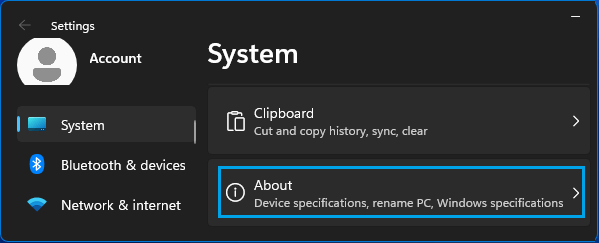
2. On the Settings screen, select System in the left-pane and click on About in the right-pane.
3. On the About screen, scroll down to Related Links tab and click on any of the Links (System Protection or Advanced System Settings).
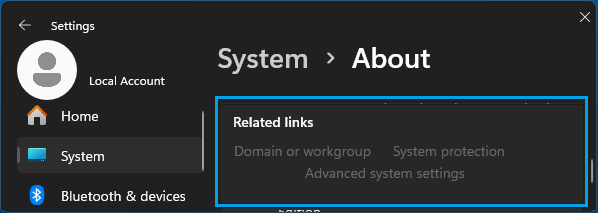
4. This will take you to the classic System Protection Interface.
5. Open System Properties Using This PC
If you are using Windows 10, you can access the classic System Properties Interface by using “This PC” Icon located on the Desktop of your computer.
1. Click on This PC Icon located on the Desktop of your computer. If it is not available, open File Explorer and select This PC tab in the left-pane.
2. On This PC screen, right-click in any Empty space in the right-pane and click on Properties.
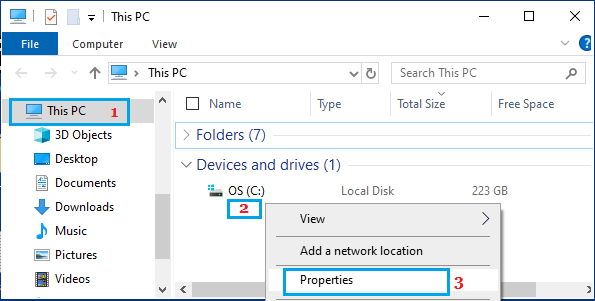
3. On the next screen, you can click on Remote Settings, System Protection or Advanced System Settings to reach the Classic System Properties Interface.
6. Open System Properties Using Control Panel Shortcut
You can create a System Shortcut on the Desktop by using Control Panel and use this shortcut to open System Properties.
1. Open the Control Panel on your computer.
2. On the Control Panel screen, right click on the System Icon and select Create shortcut option.
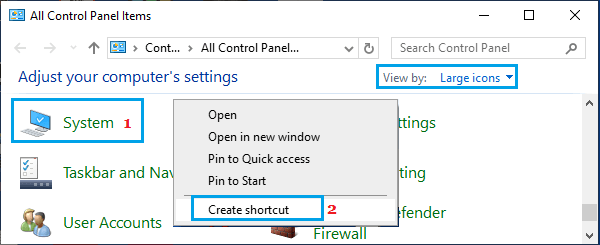
3. Right-click on the System Shortcut and click on Properties.
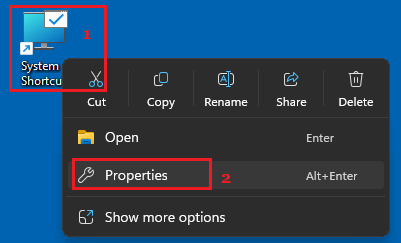
This will take you directly to the System Properties dialog box.