While the Safari browser is specifically designed to run on Apple Devices, it is not uncommon to find cases of Safari browser not working, getting stuck, freezing, crashing or not at all opening on Mac.
The reason for Safari browser not working or opening on Mac could be due to corrupted browser cache, incompatible browser extensions or network & DNS related issues.
Safari Not Working or Opening on Mac
If the default Safari browser on your MacBook is not working or not opening, you should be able to fix the problem using the following steps.
1. Check Internet Connection
If Safari browser is not opening any websites, the problem could be due to your device not being connected to internet (Wi-Fi or Ethernet). You can rule out this possibility by opening the same website on Google Chrome or any other web browser installed on your Mac.
If Safari is the only web browser available on your Mac, you can check internet connectivity by opening the Mail, Messages and any other app that requires data.
Note: You can check the responsiveness, upload and download capacity of the network by opening Command prompt and running networkQuality command on your MacBook.
2. Restart Safari Browser
Close the website or the webpage on which the Safari browser is stuck. Right-click on Safari Icon in the Taskbar and select the Quit option.
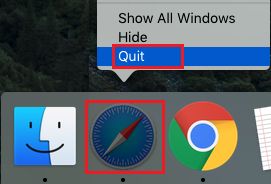
After this, relaunch the Safari browser on your MacBook and try to access the website.
3. Force Quit Safari Browser
If you are unable to Quit Safari browser from the Taskbar or unable to close the webpage on which the browser is stuck, you can Force Quit the browser by using these steps.
1. Select Apple Logo in top-menu bar and click on Force Quit option in the drop-down menu.
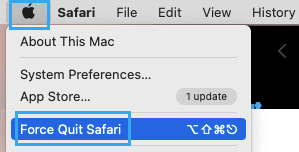
2. On Force Quit Applications window, select Safari and click on the Force Quit button.
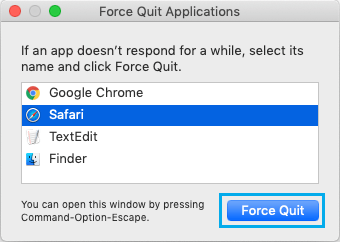
After quitting Safari browser, relaunch the browser and try to access the website.
Note: If you are unable to Force Quit Safari browser, click on Apple Logo and select the Shut Down option.
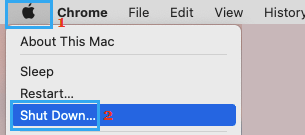
Allow the computer to completely power-off > Wait for 15 seconds and restart the MacBook.
4. Delete Safari Cache & Website Data
If you are able to open or launch the Safari browser, you can clear Safari cache & website data on Mac by using steps as provided in this guide: How to Clear Safari Cache on iPhone & Mac.
If you are unable to open or launch the Safari browser, you can clear the Safari browser cache on your Mac by using these steps.
1. Open the Finder on your Mac.
2. Select the Go tab in top-menu bar and click on Go to Folder option in the drop-down menu.
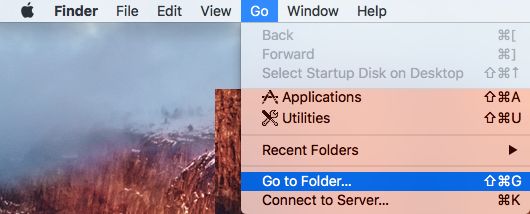
3. In the Go to Folder window, type ~/Library/Safari and click on the Go button.
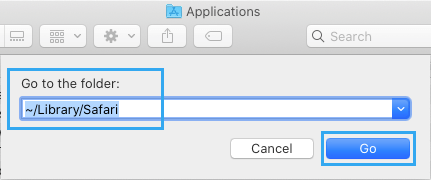
4. On the next screen, right-click on LastSession.plist file and click on Move to Trash. Similarly, move all the files containing History.db in their names to Trash.
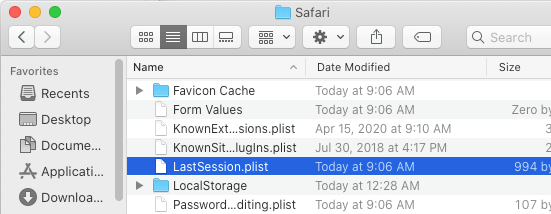
After removing Safari History and Cache, try to open the Safari browser on your Mac.
Note: It is safe to remove these files, as the Safari browser will once again create these files during your next browsing session.
4. Disable Safari Extensions
Outdated and incompatible browser extensions are one of the most common reasons for Safari browser not working, getting stuck or crashing on Mac.
1. Open the Finder on your MacBook.
2. Click on Go tab in the top-menu bar and select Go to Folder… option in the drop-down menu.
Note: You can also use Command + Shift + G shortcut to bring up the Go To Folder
3. Enter ~/Library/Safari/Extensions and click on the Go button.
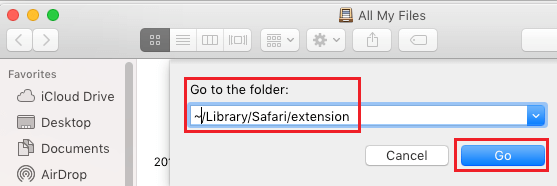
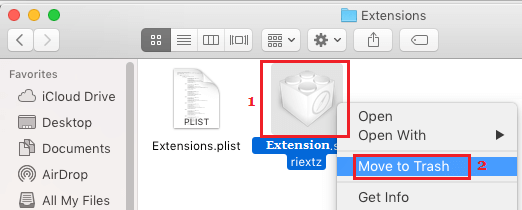
4. In Safari Extensions Folder, right click on the Extension that you want to remove and click on Move to Trash option.
5. Install Updates
Make sure that your MacBook is up-to-date with the latest available Safari and macOS updates.
1. Click on Apple Logo located in the top-menu bar and click on System Settings.
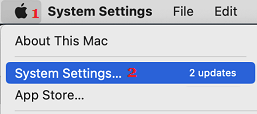
2. From the System Settings screen, go to General > Software Update and install updates (if they are available).
5. Reset Safari Settings
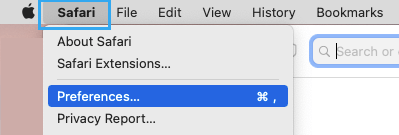
1. Open Safari browser > click on the Safari tab in the top menu-bar and select Preferences… in the drop-down menu.
2. On the next screen, switch to Advanced tab and select Show Develop Menu in Menu Bar option.
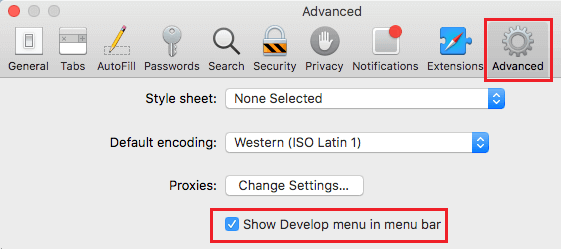
This will enable the Develop option in the top menu-bar on your MacBook.
3. Next, click on the Develop tab in top menu-bar and select Empty Caches option in the drop-down menu.
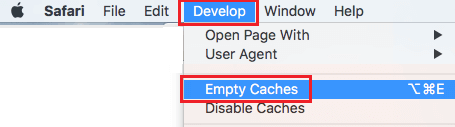
This will clear Safari Browser Cache on your Mac.
7. Delete Safari Preferences File
Corrupted files in Safari preferences folder can prevent Safari browser from opening.
1. Open the Finder on your Mac.
2. Click on the Go tab in top-menu bar and select Go to Folder option in the drop-down menu.
3. On the “Go to Folder” pop-up, type ~/Library and click on the Go button.
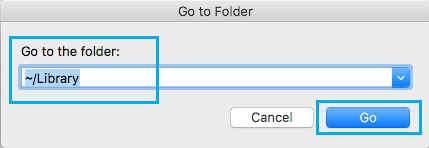
4. From the next screen, go to Preferences Folder > right-click on com.apple.Safari.plist file and click on Move to Trash.
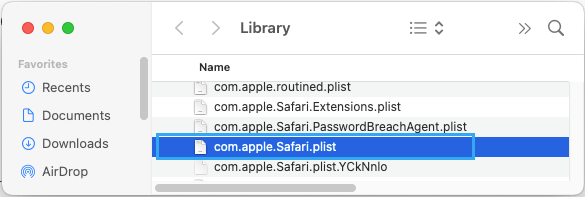
After deleting Safari Preferences File, you should be able to open Safari browser.