While Android phones and Chromebooks come with Google Chrome as their default web browser, Apple devices like MacBook, iPhone and iPad come with their own default Safari browser. Similarly, Windows computers come with Chromium based Microsoft Edge as their default web browser.
Hence, the only way to use Google Chrome browser on a Windows computer, MacBook or iPhone is to download & install the latest version of Google Chrome on your computer or mobile device.
Related: How to Change Default Web Browser in Windows 11/10.
1. Download & Install Google Chrome on Windows Computer
Depending on your preference, you can download the latest version of Google Chrome browser on your computer from Microsoft Store or directly from Google Chrome website.
1. Open the current web browser on your computer and go to Google Chrome website.
2. Click on Download Chrome button to download the current or the most recent available version of Google Chrome browser on your computer.
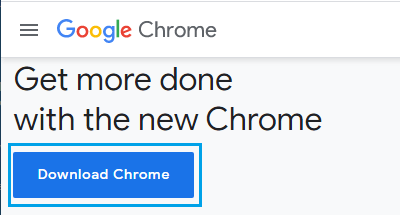
3. On the next screen, select Desktop or any other download location for ChromeSetup.exe file on your computer and click on the Save button.
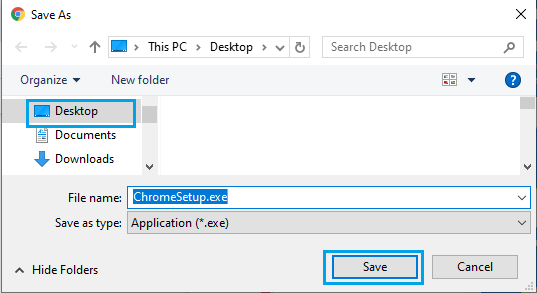
4. After the File is downloaded, open ChromeSetup.exe file by double clicking on it.

5. Patiently wait for Google Chrome to be installed on your computer.
2. Download & Install Google Chrome on Mac
If you are using a MacBook, you can follow the steps below to download & install Google Chrome directly from Google’s Chrome download site.
1. Open the default Safari browser on your Mac > Go to Google Chrome’s website.
2. Click on Download Chrome button to download the latest version of Chrome browser on your computer.
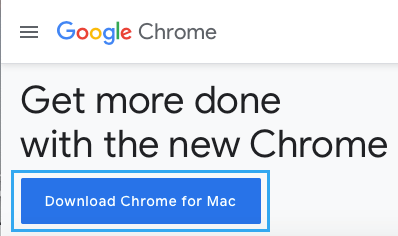
3. Next, open the googlechrome.dmg file on your Mac by double-clicking on it.
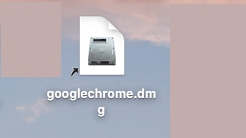
4. The next step is to drag the Google Chrome App to the Applications Folder on your Mac.
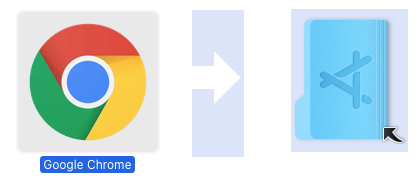
Once, Google Chrome browser is added to the Applications Folder, it is ready to be launched and used on your MacBook.
3. Download & Install Google Chrome on iPhone
While Safari is the default web browser on iPhone, you can also download & Install Google Chrome App from the App Store on your iPhone.
1. Open the App Store on your iPhone.
2. Once you are on App Store, search for Chrome and tap on Get to download Chrome App on your iPhone.
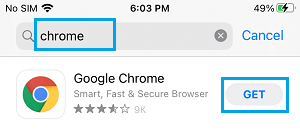
3. Once Chrome is downloaded, Open Chrome App and follow the instructions to Install Chrome on your iPhone.