The default setting in Microsoft Edge browser is to keep itself up-to-date with the latest updates by automatically downloading the updates and installing them, whenever the browser is restarted by the user.
However, Microsoft Edge browser won’t be able to download the updates, if Auto-updates are turned OFF and also if the computer is set to use metered connections.
Manually Update Microsoft Edge Browser
Although, Microsoft Edge browser is designed to stay secure by automatically installing the updates, it is still a good idea to get into the habit of manually checking for updates and installing them (If available).
Even if the Auto-update option is enabled and metered connections switched off, there is always the possibility of updates not being downloaded or installed due to a glitch in the system, presence of malware and other reasons.
Note: According to Microsoft, Auto-updates are likely to be disabled or switched OFF by default, if your computer has cellular capabilities and it was purchased in China.
Steps to Manually Update Microsoft Edge
1. Open the Microsoft Edge browser on your computer.
2. Once you are on Microsoft Edge, click on 3-dots Menu Icon located at top-right corner and select Settings in the drop-down menu.
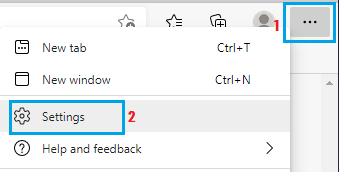
3. On the Settings screen, scroll down in the left-pane and select About Microsoft Edge tab in the left-pane. In the right-pane, you will see Microsoft Edge updating (if an update is available).
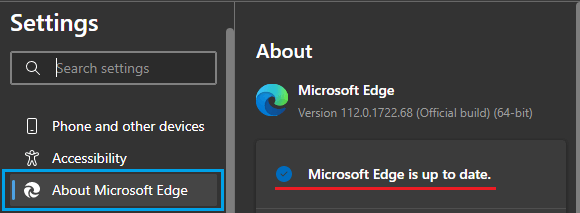
Wait for Windows to check and download the latest available update on your computer.
Note: If an update is already downloaded and available on the computer, you will see “To Finish updating, restart Microsoft Edge” or similar message.