If the Voice Navigation feature in Google Maps is not working, you won’t be able to navigate through busy and unknown places; without taking a look at the screen of your iPhone or Infotainment system of the car.
Luckily in most cases, this issue can be fixed by unmuting Google Maps, disabling Silent mode on iPhone and selecting the required Bluetooth setting for proper audio routing in Google Maps.
Fix: Voice Navigation (Sound) in Google Maps
Before going ahead with the troubleshooting steps, press the Volume up button on your iPhone and make sure that volume is not set to a very low level.
If you are following directions by looking at screen of the Infotainment system of your Car, use the volume button of the cars Infotainment system to increase the volume to a reasonable level.
Related: How to Use Google Maps Without Internet.
1. Unmute Google Maps
A fairly common reason for voice navigation not working in Google Maps is due to voice being accidentally muted in Google Maps.
1. Open Google Maps on your iPhone and start navigating to any place.
2. Tap on the Speaker Icon located at top-right corner of the screen and select the Unmute option.

If the volume on your iPhone is set to a reasonable level, you should now able to hear voice navigation in Google Maps.
2. Enable Voice Navigation in Settings
Make sure that Voice Navigation is enabled for Google Maps on your iPhone.
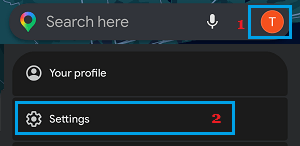
1. Open Google Maps > tap on your Profile Icon and select Settings in the slide-up menu that appears.
2. From the Settings screen, go to Navigation > select the Unmuted option and set volume level to Normal or Louder.
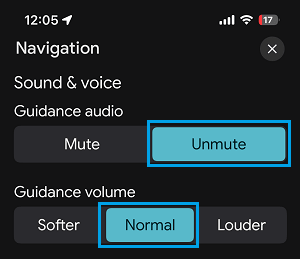
After this, you should be able to hear voice navigation.
3. Disable “Play Voice Over Bluetooth” Option
If your iPhone is plugged-in to Audio System of the car using a charging or USB cable, disable “Play voice over Bluetooth” option in Google Maps.
This will force Google Maps to completely bypass the bluetooth system of the car and speak turn-by-turn directions using the built-in speaker of your iPhone.
1. Open Google Maps > tap on your Profile Icon and select Settings in the slide-up menu that appears.
2. From the Settings screen, go to Navigation > disable Play voice over Bluetooth option.
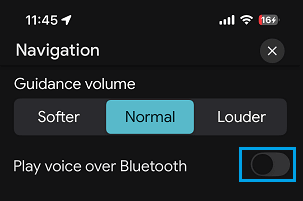
3. Now, if you start navigating; you should be able to hear voice navigation.
4. Enable “Play Voice Over Bluetooth” Option
If your iPhone is wirelessly connected (not plugged-in) to Audio System of the car, the option to “Play voice over Bluetooth” needs to be enabled in Google Maps.
1. Open Google Maps > tap on your Profile Icon and select Settings in the slide-up menu that appears.
2. From the Settings screen, go to Navigation > On the next screen, move the toggle next to Play voice over Bluetooth to ON position.
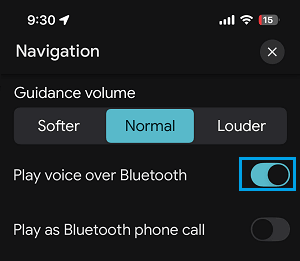
Note: If you are experiencing delayed or interrupted Voice Navigation, it is better to disable this option and use the sound from your iPhone to receive Voice Navigation from Google Maps.
5. Update Google Maps
Make sure that you are using the latest version Google Maps on your iPhone.
1. Open the App Store on your iPhone and tap on the Profile icon located at top-right corner.

2. On the next screen, tap on the Update option located next to Google Maps (if available).
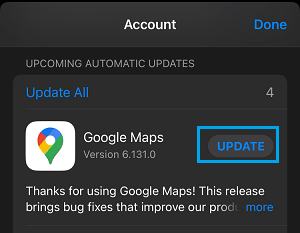
3. Wait for Google Maps to be updated.
6. Uninstall & Reinstall Google Maps
If above methods did not help, the problem could be due to installation of Google Maps on your iPhone being damaged or corrupted.
1. Long press (Tap and Hold) on Google Maps App and select Remove App option.
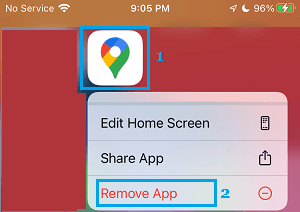
2. On the confirmation pop-up, select the Delete option to confirm.
After uninstalling Google Maps, restart iPhone > Open App Store and Reinstall Google Maps back on your device.