You can use Google Maps offline or without internet connection and still expect to get accurate directions and turn-by-turn voice navigation on your mobile device.
This can be done by downloading a map of the town, city or area within which you are travelling to your iPhone, prior to start of the journey and making sure that Location Services feature has been enabled on your mobile device.
In addition to directions and voice navigation, you can expect offline Google Maps to provide you with the names and addresses of businesses, restaurants, gas stations and landmarks along the route.
Download Offline Google Maps on iPhone
As mentioned above, a map of the city or specific area within which you are travelling needs to needs to be downloaded to iPhone and this step needs to be completed prior to start of the journey, while your iPhone is still connected to Wi-Fi network.
While individual map-downloads are limited to a maximum of 2 GB or 120,000 square kilometers (which ever hits first), you can download multiple overlapping maps to cover an entire country or a massive cross-country road trip.
If you have an Android phone, offline Google Maps can be saved to a SD card attached to an Android device.
1. Steps to Download Google Maps on iPhone
You can follow the steps below to download Google Maps on your iPhone.
1. Open the Google Maps App on your iPhone.
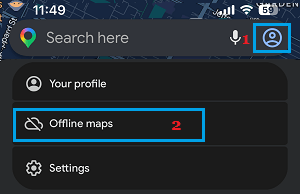
2. In Google Maps, tap on the Profile Icon (top-right corner) and select Offline maps option in the menu that appears.
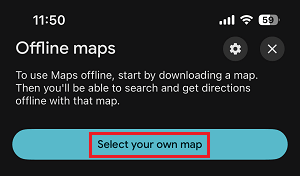
3. On the next screen, scroll down and tap on Select Your Own Map option.
4. On the next screen, adjust the pre-selected Map as required and tap on Download.
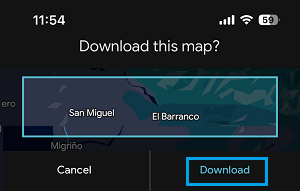
Once the download is completed, your offline map will appear under “Downloaded Maps” section.
2. Use Google Maps Without Data On iPhone
Once an offline Map of the City or area of interest is available on iPhone, it can be used to provide you with accurate turn-by-turn voice navigation, even if your device is not connected to the internet (Wi-Fi or Mobile Data).
1. Open Google Maps App on your iPhone.
2. Type the Name or Address of the place that you that you want to visit in the search bar and select the right Search Result.
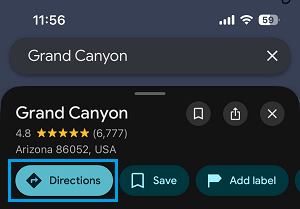
3. After selecting the right Location, tap on Directions in the bottom menu.
4. Type your Starting point (if required) and tap on Start to get Offline Navigation and start driving.
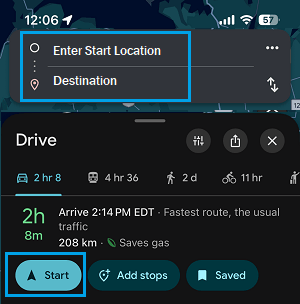
As you keep driving, Google Maps will provide you with accurate turn-by-turn directions and voice navigation, even after your iPhone disconnects from your Home or Office Wi-Fi network.
3. Update, Rename, Delete Offline Google Maps
You can follow the steps below to update, delete or change the ‘Name’ of any offline Google Map that was downloaded on your mobile device.
1. Open Google Maps > tap on Profile Icon and select Offline maps option.
2. On the next screen, select the Offline Google Map that you want to manage.
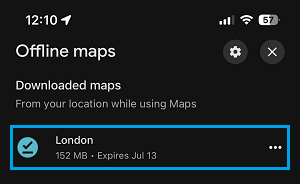
3. On the next screen, you will see the options to Update or Delete the selected Offline Google Map on your Android Phone.
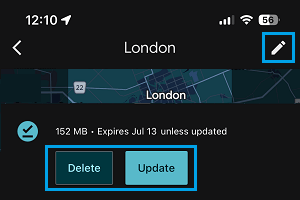
On the same screen, you can tap on the Pencil icon to edit the Name of Offline Google Map.
How Does Google Maps Provide Offline Navigation?
When you are using Google Maps in offline mode, it makes use of the built-in GPS and Accelerometer on iPhone to continuously track your location on the downloaded offline Map and provide you with driving directions.
- Downloaded Map: Contains vector information; which includes coordinates for roads, intersections, business and landmark locations.
- GPS Chip: The built-in GPS chip on iPhone works independent of the Wi-Fi or mobile network and it makes use of radio signals coming from at-least 4 satellites orbiting the earth to identify your exact latitude, longitude and altitude.
- Compass & Gyroscope: If the satellite signal weakens due to trees or tall buildings, iPhone makes use of its internal compass and gyroscope to detect which direction you are moving (turns & rotations)
- Accelerometer: The built-in accelerometer on the phone senses changes in speed (acceleration and braking).
The Google Maps App makes use of all this combined information to calculate and overlay your changing location on the downloaded Google Map in the form of a moving blue dot.
Limitations of Offline Google Maps
Since, your device is not connected to the internet; you won’t be able to make use of the following features in Google Maps.
- Live Traffic Data: You won’t be able to receive live traffic updates, lane guidance and alternate route suggestions.
- Restricted Views: You won’t be able to access satellite view, street view and detailed reviews of place along the route.
- Driving Directions Only: While offline Google Maps can provide accurate navigation while driving, they cannot be used to get transit, bicycling and walking directions.
- Live Features: While you can search for business names, addresses and other points of interest, you won’t be able to access live features like reviews, photos, operating hours.