The “Location Services” feature gets enabled on iPhone, when users switch on a brand new iPhone or reset an existing device and they are required to select either “Enable Location Services” or “Disable Location Services” option, without being able to bypass the screen.
Even if the “Location Services” feature is enabled on iPhone, individual apps are still required to prompt for location access and receive explicit permission; before they are allowed to access your location data.
At any time, you can take a look at the apps that are accessing your location data on iPhone, selectively enable or disable location access for apps and make sure that only the most essential apps are provided with access to your location data.
Enable or Disable Location Tracking on iPhone
If the “Location Services” feature is enabled on iPhone, apps like Google Maps, Apple Maps & Weather App will be able to make use of your location data to provide you with accurate driving directions, traffic updates and location-based weather alerts.
However, if it becomes necessary due to privacy or other reasons, you can disable the “Location Services” feature on iPhone and prevent your device from tracking your location.
1. Enable “Location Services” on iPhone
If you are using apps like Google Maps, Apple Maps and Weather App, you will be prompted to enable the Location Services feature on your iPhone.
1. Go to Settings > Privacy & Security > tap on Location Services.
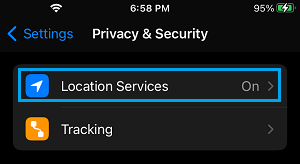
2. On the next screen, enable Location Services by moving the toggle to ON position.
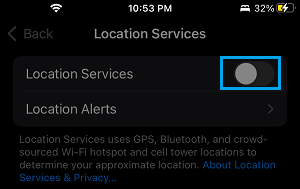
This will allow iPhone to track your location and provide access to your Location Data for apps that request your Location Data.
2. Disable “Location Services” on iPhone
If required, you can prevent iPhone from tracking your location by disabling the Location Services feature.
1. Go to Settings > Privacy & Security > Location Services.
2. On the next screen, move the toggle next to Location Services to OFF position.
3. On the confirmation pop-up, tap on the Turn OFF option to confirm.
Note: The above steps will completely disable the “Location Services” Feature on your iPhone, which effectively prevents all the apps and services from accessing your Location Information.
3. Prevent Specific Apps from Tracking Location
Instead of completely disabling Location Services, it is possible to Disable Location Services for unwanted apps; while allowing only the most essential Apps to access your Location data.
1. Go to Settings > Privacy & Security > Location Services.
2. On Location Services screen, select the App for which you want to Disable Location Services.
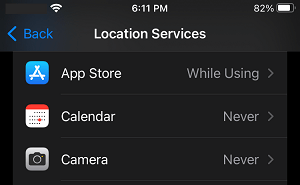
3. On the next screen, tap on the Never option to prevent this particular App from accessing your Location information.
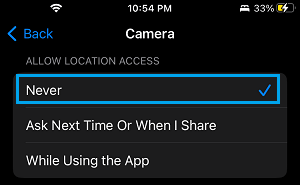
Similarly, you can repeat the above steps to Disable Location Services for others Apps that you believe are not necessary or important for you.
4. Disable Significant Locations & Route Tracking
The purpose of “Significant Locations” tracking feature on iPhone is to track places that you frequently visit and store this information on your device. This feature gets automatically enabled; when the master Location Services feature is switched on.
According to Apple, the “Significant Locations” data is protected with end-to-end encryption and the purpose of collection this information is to provide users with personalized services like predictive traffic routing, memories in Photos App and Calendar events.
1. Go to Settings > Privacy & Security > Location Services.
2. On the Location Services screen, scroll down and tap on System Services.
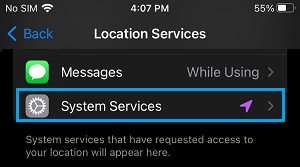
3. On the next screen, scroll down and tap on Significant Locations & Routes.
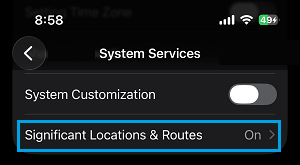
4. Enter your Lock screen password > use the toggle to Disable Significant Locations & Routes.
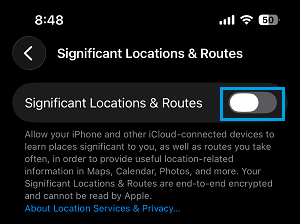
On the same screen, you can clear your Location Data by tapping on Clear History option.