The “Call Waiting” feature on iPhone allows you to respond to an incoming call; even if you are already busy and tied up with an ongoing call. This allows you to manage multiple conversations without missing important personal or business related calls.
Enabling the Call Waiting feature on iPhone ensures that you are always in a position to take important calls; which can be crucial in emergencies and certain business/work related situations, where you cannot afford to miss calls.
Enable & Use Call Waiting on iPhone
When the Call waiting feature is enabled on iPhone, you will be receiving a beep alert; when someone calls your device and you are already engaged with another call. The active caller does not hear the alert; unless you switch between the callers.
The incoming call will be displayed on the screen of your iPhone, showing the Name of the Caller (if saved in your Contacts list) or phone number and you will be able to deal with the incoming call by selecting from any of the following options.
- Hold & Accept: If the incoming call is important, you can place the current call on hold and answer the incoming call.
- End & Accept: If the incoming needs your full attention, you can end the current call and accept the incoming call
- Decline: You can decline the incoming call, which sends the call to voicemail and allows you to continue with the current conversation.
In addition to this, the Call Waiting feature comes with “Message” and “Remind Me” options; which allows you to send a quick message to the caller and receive a reminder to call back the caller.
Related: How to Setup Conditional Call Forwarding on iPhone.
1. Enable Call Waiting on iPhone
If the Call Waiting feature is supported by your mobile service provider, it can be easily enabled on your device by using the following steps.
1. Open the Settings app on your iPhone.
2. From the Settings screen, go to Apps > Phone > scroll down to “Calls” section and tap on Call Waiting.
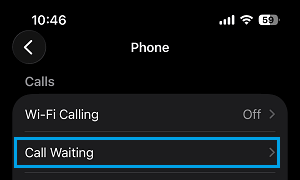
3. On the next screen, enable Call Waiting by moving the slider to ON position.
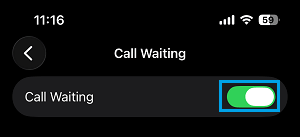
After this, you can expect your iPhone to display the Name or Phone Number of the caller and come up with a beep alert; when anyone calls your device during an ongoing call.
Note: These steps are only applicable for iPhone using GSM network. If your device is using CDMA Network, you need to contact your service provider.
2. Enable Call Waiting While Using Dual SIM
If you are using Dual SIMs on iPhone, you can make call waiting work for both lines by enabling mobile data switching for your preferred line and Wi-Fi calling for both lines.
Important: If you are travelling, switch off Data Roaming on the Home Line to prevent the possibility of unexpected roaming charges.
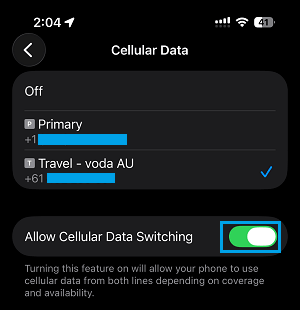
1. Enable Cellular Data Switching: Go to Settings > Cellular > Cellular Data > Select your Local Line > Enable Allow Cellular Data Switching option.
2. Enable Wi-Fi Calling: Go to Settings > Cellular > Select first Line > Enable Wi-Fi Calling.
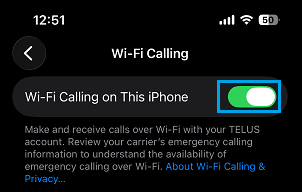
Repeat this step for the other line.
3. Disable Data Roaming: Go to Settings > Cellular > select your Home Line > Disable Data Roaming by moving the slider to OFF position.
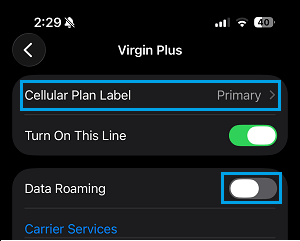
Note: Your Local SIM needs Data Roaming, only if it is a travel eSIM or roaming based prepaid card that makes use of partner networks in other countries.
Important Notes
- Service Provider: Call Waiting works; only if this feature is supported by your mobile service provider and included in your service plan.
- Voicemail: When Call Waiting is disabled, incoming calls go directly to voicemail; while you are engaged with another call.
- Dual SIM: As mentioned above, call waiting works only for incoming calls on the same line, unless cellular data switching & Wi-Fi calling has been enabled.