If you no longer want to receive messages and calls from someone, WhatsApp provides the option to silently block that person; without sending a notification or alerting the blocked person in any way.
However, while blocking anyone that is bothering you with unwanted calls or messages is easy and does not require a second thought, blocking a known person often leads most people to consider the after effects of blocking someone on WhatsApp.
Hence, let us go ahead and understand what exactly happens when you block a contact on WhatsApp and address some of the most commonly asked questions related to the blocking feature in WhatsApp.
Related: How to Use WhatsApp on Computer (PC & Mac).
What Happens When You Block Someone on WhatsApp?
As mentioned above, the blocking feature in WhatsApp works in a silent way and WhatsApp does not send a notification when you block anyone. This allows WhatsApp users to cease and restrict communication with individuals who they no longer wish to be in contact with; without any discomfort or unwanted interaction.
With this understanding, let us go ahead and take a look at what exactly happens when you block an Individual or Group Contact on WhatsApp.
1. Messages, Voice & Video Calls
Messages: When a blocked person sends you a message, the sent message will only show a single checkmark (sent) and the second checkmark (delivered) will never show up, as WhatsApp does not deliver messages from blocked contacts.
Voice & Video Calls: While calls made by the blocked person may appear to ring on the callers device, they will never go through or appear in any way on your mobile device. The caller will not receive any notification or indication that the call was blocked.
Voice Messages: Any attempt made by the blocked person to send you a voice message will result in failure and the sender will not receive a notification that the message was sent or blocked.
Note: Blocked Contacts will be able to see your messages in a Group chat, but won’t be able to have a direct messaging interaction with you.
2. Restricted Visibility
When you block anyone on WhatsApp, the blocked person won’t be able to view a significant portion of your online status and visibility.
Last Seen & Online Status: Blocked person won’t be able to see your online status or see the last time you were active on WhatsApp.
Profile Picture: A cached version of your profile picture may remain visible for a temporary period of time; after which it will disappear and the blocked person will only be able see the default WhatsApp profile icon. Any changes that you make to the profile picture won’t be visible to the blocked person.
Status Updates: Blocked person won’t be able to view the photos or videos that you post to WhatsApp as your Status updates.
Note: It is possible to hide WhatsApp profile picture from specific contacts; without blocking them.
3. Is the Blocked Person Removed from Contacts List?
Blocking someone in WhatsApp does not remove the blocked person from your Contacts list. You will have to manually remove the contact by going to the Contacts App on your mobile device.
If the blocked person has added you as a contact, your Name and Phone number will continue to remain in the Contacts List of the blocked person.
4. Can the Blocked Person Know About Being Blocked?
The blocked person might be able to guess about being blocked by noticing the following signs.
- They are unable to see your ‘Last Seen’ or any other activity online.
- They begin to notice that sent messages are showing up with one check mark (sent) and the second check mark (delivered) never shows up.
- They are never able to initiate voice & video calls with you.
How to Block Someone on WhatsApp
If you have a recent message or call from the person that you want to block, you can block this person; right from the Chats or Calls screen in your WhatsApp account.
If you have deleted all WhatsApp messages from the person that you want to block, you can block this contact by going to the privacy settings in your WhatsApp account.
1. Block Someone from Chats Tab in WhatsApp
The easiest way to block anyone that is bothering you with unwanted messages is by going to the Chats screen in your WhatsApp Account.
1. Open the Chat of the person that you want to block.
2. On the next screen, tap on the Name or Number of the person.

Note: If the Contact is not listed in your Contacts List, you will only see the Phone Number.
3. On Contact’s Info screen, scroll down and tap on the Block option.
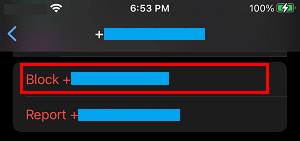
Now, the phone number of this particular individual will be added to the Block List on your iPhone, which totally prevents this person from calling on messaging you on WhatsApp.
2. Block Someone from Calls Screen in WhatsApp
Similarly, you can block anyone that is bothering you with unwanted calls from the Calls screen on your WhatsApp Account.
1. Open WhatsApp and tap on Calls tab located in bottom menu.
2. On the Calls screen, tap on the “i” icon located next to the Contact’s Name or Phone Number that you want to block.
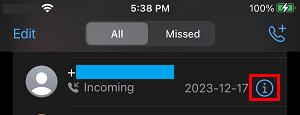
3. On the next screen, scroll down and tap on the Block option.
This particular contact will be added to the Block List on iPhone and won’t be able to call or message you on WhatsApp.
3. Block Multiple Contacts in WhatsApp
An easy way to block multiple contacts in WhatsApp is by going to the privacy settings in your WhatsApp account.
1. Open WhatsApp > tap on the Profile Icon located in the bottom menu.
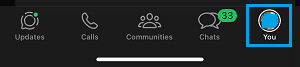
2. From the next screen, go to Privacy > Contacts > Blocked and tap on Add New.
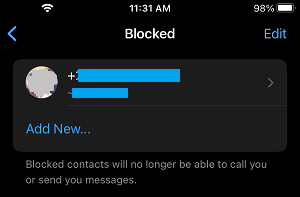
3. On the next screen, select the Contact or Contacts that you want to block.
The selected Contacts will be immediately added to the list of blocked Contacts on your iPhone.
4. How to Unblock Someone in WhatsApp
If you change your mind or end up blocking anyone by mistake, you can unblock that person by going to the Block list on your iPhone.
1. Open WhatsApp > tap on the Profile Icon located in the bottom menu.
2. From the next screen, go to Privacy > Contacts > Blocked and select the Contact that you want to unblock.
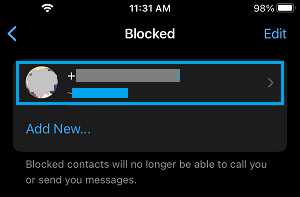
3. On the Contacts Info screen, scroll down and tap on Unblock Contact.
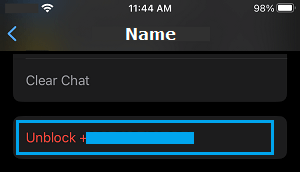
Note: Unblocking Contacts in WhatsApp does not provide access to calls and messages that were sent by the contacts during the time they were blocked.