If the Printer Icon is not showing up on “Devices & Printer” screen or on the Desktop, you won’t be able to access the Printer Settings and select the Printer for printing.
The reason for Printer Icon missing or not showing up on “Devices & Printers” screen could simply be due temporary connection issues (Wi-Fi) or stuck/stopped Print Spooler service.
In other cases, this problem is also known to occur due to Bluetooth support Service, Device install service and other Device related services being disabled on the computer.
Printer Icon Not Showing in Windows 11/10
If the Printer icon is missing from Desktop, it is likely that you may accidentally deleted the Printer Icon and this issue can be easily fixed by creating New Shortcut to the Printer.
In other cases, you should be able to fix the problem using the following troubleshooting steps.
1. Fix Connection Issues
Power Off or unplug the Printer from its power supply source > Wait for 60 seconds and reconnect the Printer back to its Power Supply source.
If it is a wired printer, make sure that it is properly plugged-in to the USB port and also try changing the USB port.
2. Create New Desktop Shortcut to Printer
If the Printer Icon is missing from Desktop, you can create a New Shortcut to the printer.
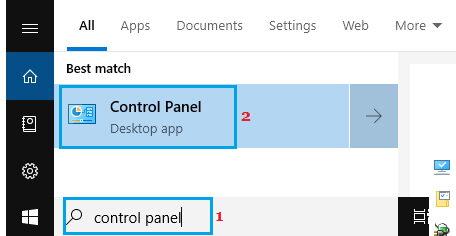
1. Type Control Panel in the Search bar and click on Control Panel Desktop App in the search results.
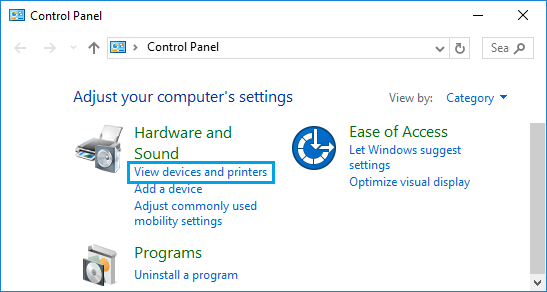
2. On Control Panel screen, switch to Category view and click on View Devices and Printers link.
3. On the next screen, right-click on the Printer and select Create Shortcut option.
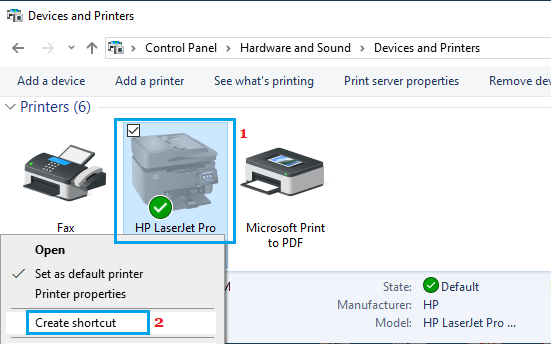
Note: If Printer Icon is Not Showing on this screen, use the Printer Troubleshooter (As provided below)
4. On the pop-up, click on the Yes button to create a Desktop Shortcut.
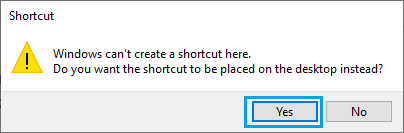
The Printer Icon should now be visible on the Desktop of your computer.
3. Run Printer Troubleshooter
The built-in Printer Troubleshooter as available in Windows might help in fixing this problem.
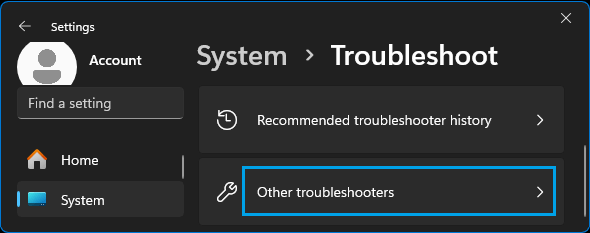
1. Go to Settings > System > Troubleshoot > Other Troubleshooters.
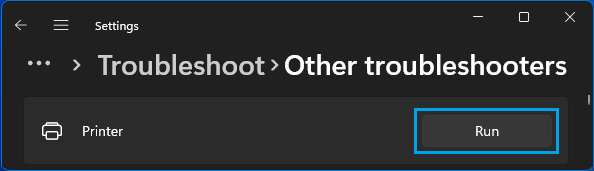
2. On the next screen, click on the Run button located in Printer tab.
3. Follow the instructions as the troubleshooter tries to find and fix printing problems on your computer.
Windows 10: Go to Settings > Update & Security > Troubleshoot. In the right-pane, select your Printer and click on Run the Troubleshooter.
4. Enable Bluetooth Support Service
The problem could be due to Bluetooth Support service being disabled on the computer.
1. Press Windows + R keys to open Run command.
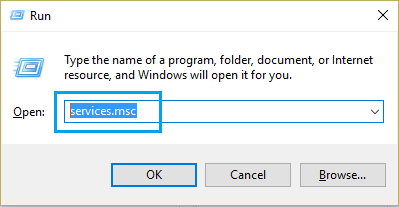
2. In the Run command window, type Services.msc and click on OK.
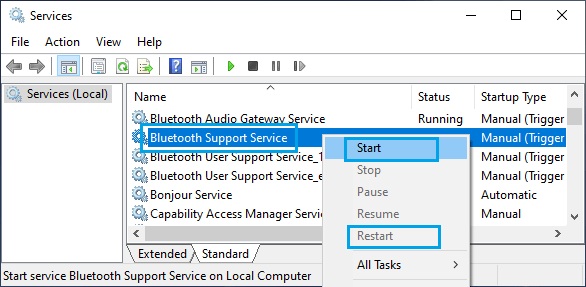
3. On the next screen, right-click on Bluetooth Support Service and click on Start.
After this, restart the computer and check “Devices & Printers” screen.
5. Enable Device Install Service
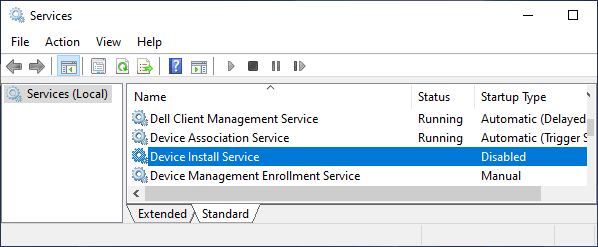
As mentioned above, the problem could be due to “Device Install Service” or other Device services being disabled on the computer.
1. Open Run Command > type Services.msc and click on OK.
2. On the next screen, double-click on Device Install Service (if it is disabled).
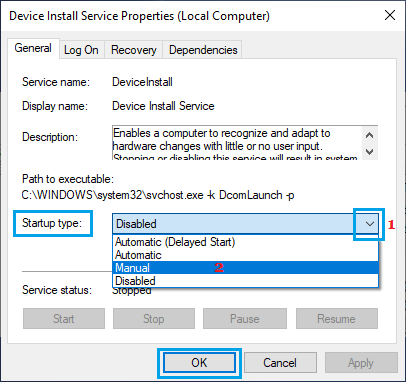
3. On the pop-up, change the Startup Type to Manual > click on Apply & OK.
After this, make sure that the other Device related services are set to the following startup types.
- Device Association Service – Manual (Trigger Start)
- Device Management Enrollment Service – Manual
- Device Setup Manager – Manual (Trigger Start)
- DevQuery Background Discovery Broker – Manual (Trigger Start).
6. Restart Print Spooler
If the Print Spooler service is stuck, it is usually known to come with “Print Spooler Service not running” or similar error message.
However, restarting the Print Spooler service; even if there is no error message is known to fix the issue of missing Printer Icon.
7. Edit Registry
If above methods did not help, creating a New Registry Key for the Printer in Desktop and Control Panel Folders might help in fixing the problem.
Note: It is recommended that you Backup the Registry or create a System Restore Point before going ahead with this step.
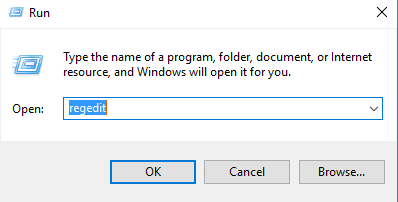
1. Open Run Command > type regedit and click on OK.
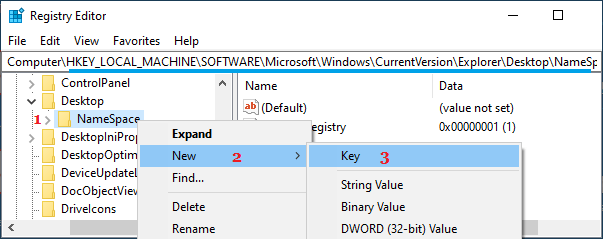
2. From the Registry Editor screen, navigate to HKEY_LOCAL_MACHINE\SOFTWARE\Microsoft\Windows\CurrentVersion\Explorer\Desktop\NameSpace
3. Right click on NameSpace > select New > Key.
4. Name the New Key as: {2227a280-3aea-1069-a2de-08002b30309d}, which is the CLSID for the Printers Folder.
5. Select the New Key in the left pane. In the right pane, edit the value of Default key to Printers.
6. Close the Registry Editor and Restart the computer.