If you are a Gmail fan using Microsoft Outlook, you might be pleased to know that it is possible to use Gmail with Microsoft Outlook and manage Emails in your Gmail Account, calendars, and contacts in one place.
In addition to retaining the familiar Gmail backend, using Gmail within Outlook allows you to combine the search, spam filtering & security features of Gmail with Microsoft Outlook’s advanced offline access and organizational capabilities.
Also, using Gmail with Microsoft Outlook makes your Gmail Account available within Microsoft office programs like Word, Excel & Teams; which makes it really easy to add attachments to your Email messages.
Related: How to Create Microsoft Account Using Gmail.
How to Use Gmail with Outlook
Depending on your requirements, you can make use of either POP or IMAP (mail transfer protocols) to access your Gmail Account in Microsoft Outlook.
The advantage of IMAP (Internet Message Access Protocol) is that it stores Emails on the server and syncs them across multiple devices.
POP (Post Office Protocol) downloads Email Messages to a single computer/device, which results in duplication of Email Messages, when you access them from multiple devices.
While Microsoft Outlook supports both POP & IMAP, it recommends the use of IMAP for quicker access to emails from other service providers in Outlook on all devices.
Step 1. Configure IMAP in Gmail
Since, IMAP is enabled by default in Gmail, all that is required to use Gmail with Microsoft Outlook is to add your Gmail Account to Outlook and provide Outlook with permission to access your Gmail Account.
However, it is still a good idea to take a look at IMAP settings in your Gmail Account and make changes, if required to suit your specific requirements.
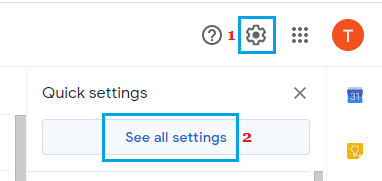
1. Login to your Gmail Account > click on the Gear icon (top-right corner) and click on See all Settings.
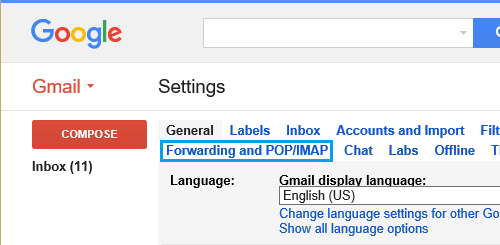
2. On the Settings screen, click on the Forwarding and POP/IMAP tab.
3. On Forwarding and POP/IMAP tab, you can enable POP (if you prefer using it) or scroll down to the IMAP section and Configure IMAP settings to suit your requirements.
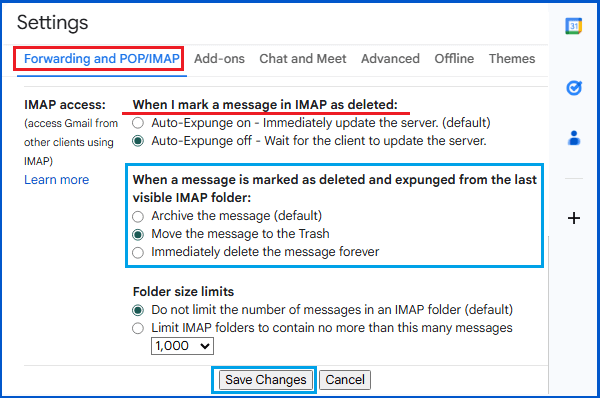
4. Once you are done, scroll down and click on Save Changes.
If you get a large number of emails, select Limit IMAP Folder option to prevent the possibility of exceeding the download quota in Gmail (2.5GB).
Step 2. Add Your Gmail Account to Outlook
After configuring IMAP settings in Gmail (or enabling POP, if you prefer using it), the next step is to add your Gmail Account to Microsoft Outlook.
1. Open Microsoft Outlook App on your computer.
2. Select the View tab and click on View Settings option.
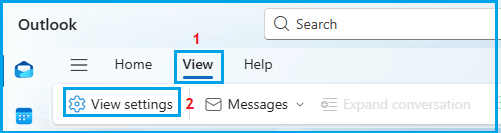
3. On the Settings screen, go to Accounts > Email Accounts > click on Add Account button.
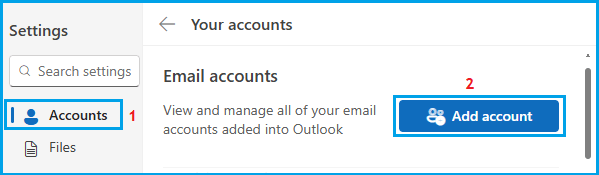
4. On the pop-up, enter your Gmail Account and click on Continue.
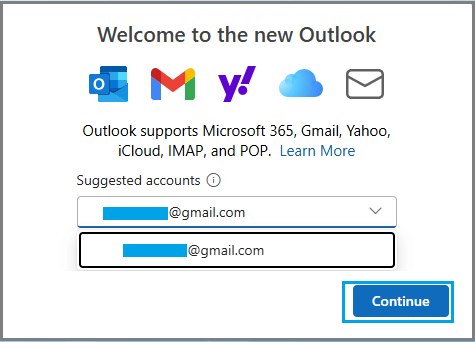
5. On the next screen, click on Continue.
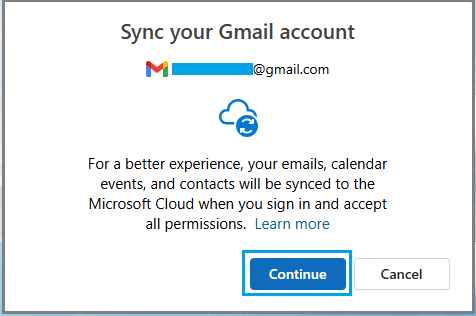
6. On Sign-in with Google screen, select your Gmail Account.
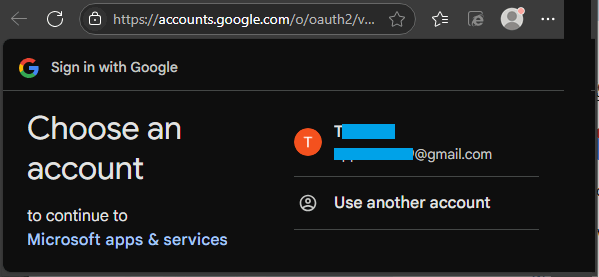
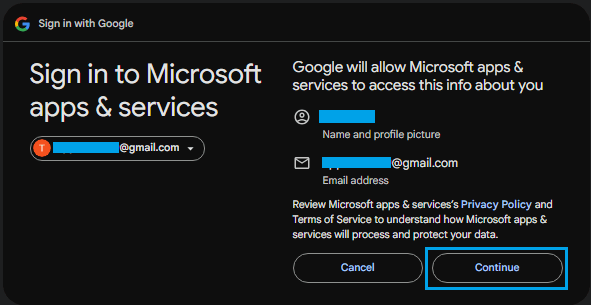
7. On the next screen, click on Continue to allow Google to provide access to Microsoft Apps and services.
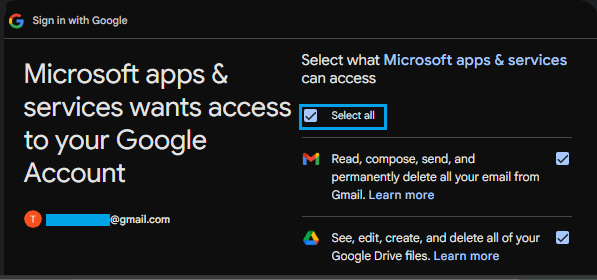
8. On the next screen, Select all the Google services that Microsoft Apps and services can access and click on Continue.
9. Wait for Microsoft Outlook to bring Emails from your Gmail Account.
Step 3. Set Gmail As Your Primary Account in Outlook
If you want to, you can set Gmail as your primary account in Microsoft Account.
1. Click on the View tab > View Settings.
2. Select Accounts > Email Accounts > click on the Manage option, located next to Gmail Account.
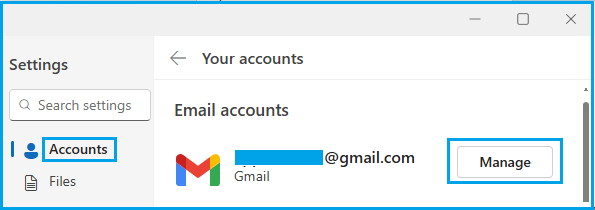
3. On the next screen, scroll down and click Set as primary account button.
4. Make sure that you click on the Save button to save this change in your Microsoft Outlook account.