While it is possible to recover deleted apps on iPhone, you may still want to prevent the possibility of important Apps being accidentally deleted on your device.
This can be achieved by placing restrictions on deleting of apps by using “Content & Privacy Restrictions” feature as available on iPhone.
Prevent Apps from Being Deleted on iPhone
The advantage of preventing Apps from being deleted on iPhone using “Content & Privacy Restrictions” feature is that it is not necessary to create a Screen Time Passcode.
This should be good enough, as the purpose in this case is just to prevent the possibility of apps being accidentally deleted on your iPhone.
Steps to Prevent Apps from Being Deleted on iPhone
You can totally prevent the possibility of apps being deleted on your iPhone by using the following steps.
1. Go to Settings > Screen Time > Content & Privacy Restrictions.
2. On Content & Privacy Restrictions screen, tap on iTunes & App Store Purchases.
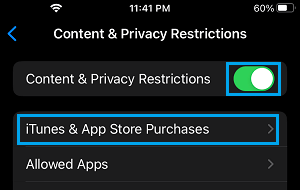
3. On the next screen, select Deleting Apps option.
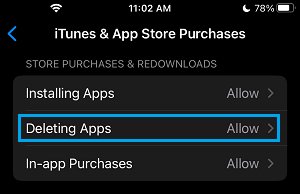
4. On Deleting Apps screen, select the Don’t Allow option to prevent Apps from being deleted on your device.
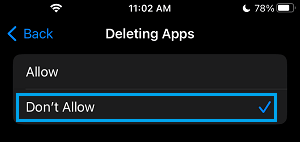
After this setting, anyone else that has access to your device won’t be able to delete Apps, without changing the settings to “Allow” for Deleting of Apps.
Confirm That Apps Cannot Be Deleted on iPhone
Now, that you have placed a restriction on deleting of Apps using the Screen Time Passcode, it is a good idea to confirm that this setting for Apps is indeed working on your device.
1. Long press (Tap & Hold) on any App Icon on the Home Screen of your iPhone and tap on Remove App option.
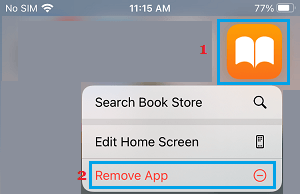
2. On the pop-up, you won’t see the Delete App option, which is normally available when there is no restriction placed on deleting of Apps.
This confirms that anyone that manages to get access to your device won’t be able to delete any App from your iPhone without knowing your Screen Time Passcode.
Note: It is not necessary to create a Screen Time Passcode, in order to use the Screen Time feature on iPhone or iPad.