The most common reason for users looking for a way to remove or uninstall apps and desktop programs on a Windows computer is to free up storage space and prevent unused and unwanted apps from using up resources on the computer.
In addition to this, you may find the need to uninstall a particular app or desktop program on your computer, if it is not working properly; due to installation of the app becoming corrupted or being damaged.
Uninstall Apps and Programs in Windows 11/10
In order to keep your computer running at its best, it is good practice to periodically take a look at all the apps installed on the computer and uninstall apps and programs that you are no longer using.
Depending on your preference, you can use any of the following methods to uninstall an app or desktop program from your computer.
1. Uninstall Apps/Programs Using Start Menu
Perhaps the easiest way to uninstall apps and desktop programs on a Windows computer is by using the Start menu.
1. Click on the Start button and switch to All Apps screen.
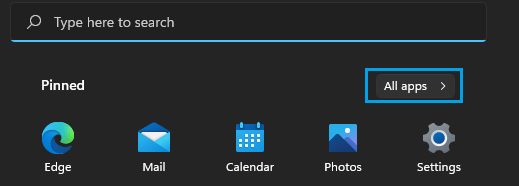
2. On the “All Apps” screen, right-click on the App that you want to uninstall and select the Uninstall option.
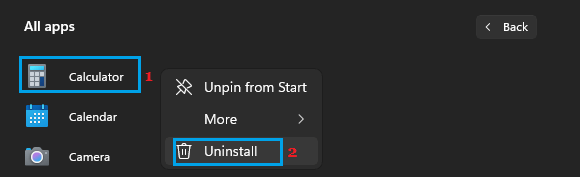
3. On the Confirmation pop-up, click on Uninstall to confirm.
If you are uninstalling a Win32 (Desktop program), you will be taken to “Programs and Features” screen. Right-click on the program that you want to remove and click on Uninstall/Change.
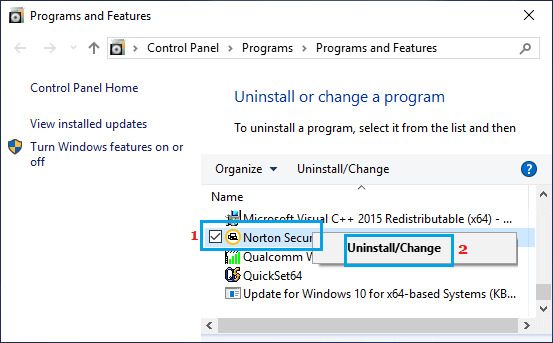
4. If you see a confirmation pop-up, click on Yes or Continue to confirm the uninstallation of the program.
2. Uninstall Apps and Programs Using Settings
While it is easy to uninstall Apps from the Start menu, using Settings menu is the preferred method to uninstall apps on a Windows computer.
1. Go to Settings > Apps > click on Apps & Features in the right-pane.
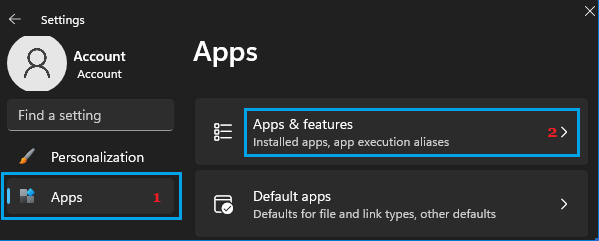
2. On “Apps & Features” screen, click on 3-dots icon located next to the App that you want to remove and select the Uninstall option.
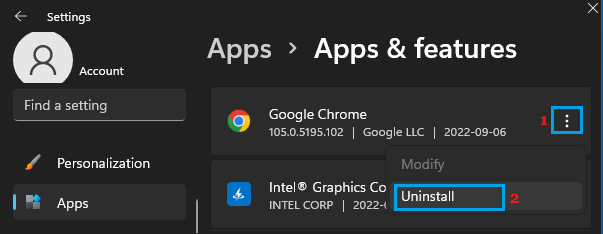
Tip: You can also use the Search Bar to Search for the app or desktop program that you want to remove from the computer.
3. On the confirmation pop-up, click on Uninstall to confirm.
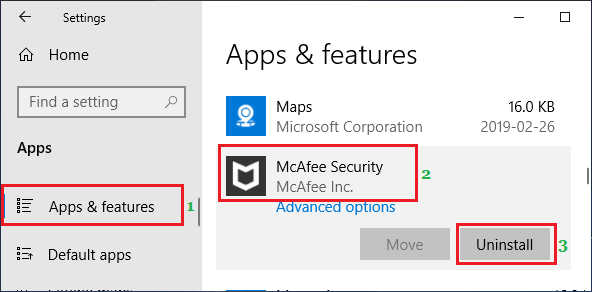
Note: The “Uninstall” option won’t be available for Windows built-in programs like Calculator, Maps, Groove Music and others.
For Uninstalling built-in Windows Apps and programs, you can refer to this article: How to Uninstall Microsoft Apps in Windows 11/10.
Windows 10: Go to Settings > Apps > Apps & Features > select the App or program that you want to uninstall and click on the Uninstall button.
3. Uninstall Apps & Programs Using Control Panel
Another way to uninstall Apps & Programs on a Windows computer is by using Control Panel.
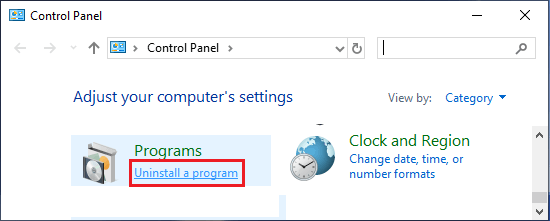
1. Open the Control Panel on your computer.
2. On the Control Panel screen, click on Uninstall a program link located under the “Programs” section.
3. On “Programs & Features” screen, right-click on the program that want to remove and click on Uninstall.
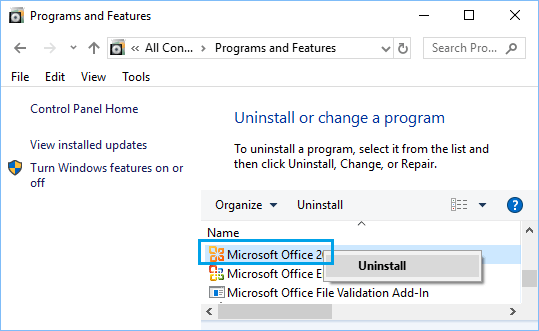
4. On the confirmation pop-up, click on Yes to confirm.
Delete Uninstalled Program Folders
Even after an app or desktop program is removed or uninstalled from the computer, files and folders related to the app may still remain available on the computer.
While, these left over files do not cause any problems, you may want to delete them to recover storage space and clear the clutter of unused files on your computer.
1. Open the File Explorer on your computer.
2. On the File Explorer screen, click on Local Disc (C) in the left-pane and open Program Files folder.
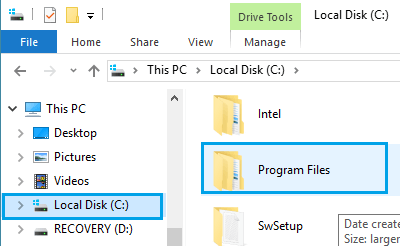
3. Inside the Program Files Folder, look for the Folder belonging to the uninstalled program and delete it.
Note: Make sure that you are aware of Windows Recovery Options in case you end up deleting a wrong folder.