As you must have noticed, Dual Monitors are routinely being used by Architects, Coders, Content creators, Media Editors and people in other professions.
In-fact, the standard setup in many corporate offices and places of work is to provide employees with a Laptop computer, connected to a large screen monitor.
Add Second Monitor to Windows Computer
All that is required to use Dual Monitors on a Windows computer is to physically connect the second monitor to USB Port of the computer and select your desired Disaply mode for the second monitor.
Depending on your requirements, you can set the Display Mode for the second monitor to Duplicate, Extend or to Second Screen only.
1. Steps to Setup Dual Monitors on Windows Computer
1. Plug the second monitor to computer using the required type of cable (USB, HDMI, USB-C). If you have an older computer, it may have VGA or S-VIDEO port.
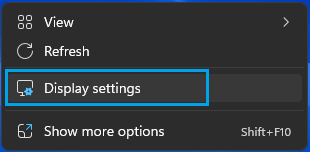
2. After the second monitor is plugged-in, right-click in any Empty space on the Desktop and select Display Settings.
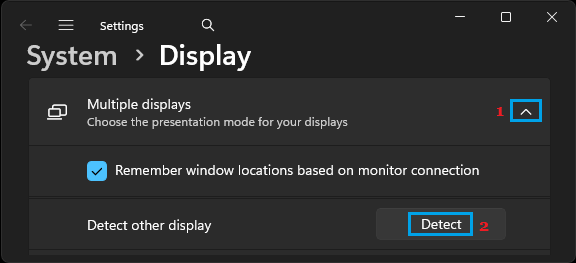
3. If the second display is not showing, scroll down in the right-pane > expand Multiple Display tab and click on Detect.
4. After this, press Windows + P keys on the keyboard of your computer to open the Project Menu and select your desired Display Type that you want to setup on the second monitor.
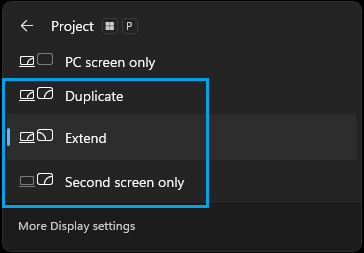
Select Extend, if you work requires a large workspace and select Duplicate if you want to work on the same thing on both screens.
Another Display mode which is available for selection is “Second screen only”, which limits the display to the second screen only.
2. Arrange Displays & Change Display Settings
When Dual or Multiple screens are connected to the computer, you can select and drag the numbered monitor icons (1. 2, 3) to match with their actual or physical arrangement.
1. Right-click in any Empty space on the Desktop and select Display Settings.
2. On Display Settings screen, you can select and rearrange the displays by dragging them.
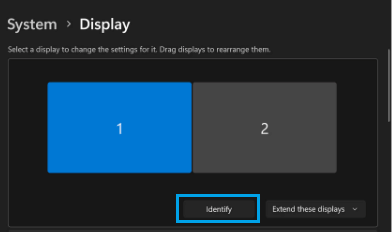
If you are not sure about which number corresponds to the actual monitor, you can click on Identify to see the numbers linked to the monitors.
3. If required, you can change the display settings (Font Size, Resolution, Orientation, Brightness) for any of the connected monitors by clicking on them.