If you are looking for a way to change Apple ID on iPhone, it is likely that you have switched to a New Email Address and want to use it as your Apple ID.
If this is not the case, you might be looking for a way to login to iPhone with another existing Apple ID or want to use a totally New Apple ID on iPhone.
In the first case, you are basically changing the Email Address linked to your Apple ID and this can be easily achieved, without any loss of data.
In the second case, you are switching your device to a New Apple ID, which totally cuts you off from all the Apps and data that was linked to the previous Apple ID.
Change Apple ID on iPhone
In order to change the Email Address linked to Apple ID, you need another Email Address which has not been associated with an Apple Account during the last 30 days.
If you are switching to a New Apple ID, you need a totally New Email Address, which has never been associated with any Apple product/service or used to create an Apple ID.
1. Change Apple ID Email Address
Make sure that you have access to the Email Address that you want to use as New Apple ID and follow the steps below to change the Email Address linked to your Apple ID.
1. Open Settings > tap on your Apple ID Name.
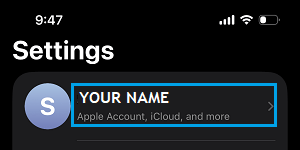
2. From Apple ID screen, go to Sign-In & Security > select your Primary Email Address.
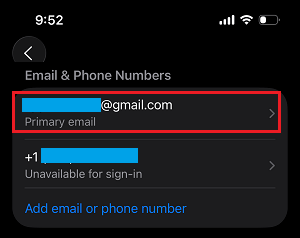
3. On the next screen, select Remove from Account option > On the confirmation pop-up, tap on Remove from Account to confirm.
4. On the next pop-up, select Add New Primary Email Address option.
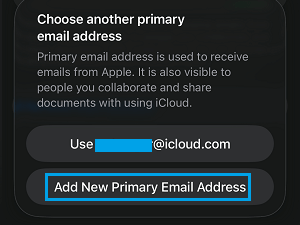
Note: You may be prompted to enter your current Apple ID and Password or verify your identity by answering two Security Questions.
5. On the next screen, enter your New Email Address and tap on Continue.
Apple will now send a Verification Code to New Email Address. Get the verification code by logging in to your Email Account and enter the Verification Code on the next screen.
Once your Email Address is verified, you will be prompted to confirm that the New Email Address can be used for iMessage and other Apple services.
2. Use Another Apple ID on iPhone
All that is required to use another Apple ID on iPhone is to logout from current Apple ID and login using the other Apple ID.
1. Go to Settings > Apple ID Name > Scroll down and tap on Sign Out.
2. After you are completely signed-out, tap on Apple Account.
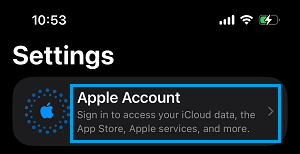
3. On the pop-up, select Sign-in Manually option > Enter the Other Apple ID Email Address and Password linked to the other Apple ID.
While this process is easy, you need to be aware that logging into iPhone using another Apple ID can lead to the following issues and is not recommended from privacy point of view.
iCloud Data Sync: Photos, Contacts, Notes, Calendar events and App data associated with the New Apple ID will begin syncing to your device.
Messages & FaceTime: You will lose access to messages linked to previous Apple ID and all incoming messages and FaceTime requests will be tied to the New Apple ID.
Apps, Music, Books & Subscriptions: You will gain access to Apps, Music, Books and subscriptions linked to the New Apple ID.
Photos & Videos: You will gain access to previously downloaded and saved photos, located on the local or the internal storage of your iPhone.
3. Change Apple ID on iPhone
In this case, the intention is to replace the current Apple ID with a totally New Apple ID and not just change the Email Address linked to Apple ID.
Since, this results in loss of data, you may want to Download All Photos from iCloud to computer and also download a complete backup of your device to Mac or Windows computer.
1. Go to Settings > tap on your current Apple ID Name.
2. On Apple Account screen, scroll down to bottom of the screen and tap on Sign Out.
3. On the pop-up, select Sign Out But Don’t Erase option > Follow the prompts to Sign out from the current Apple ID.
4. After you are signed-out, tap on Apple Account.
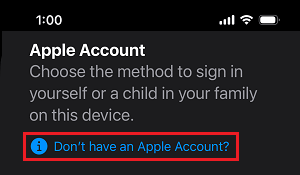
5. Tap on Don’t have an Apple Account Link.
6. Follow the prompts to select your Age Group > Enter First & Last Name > Enter Date of Birth.
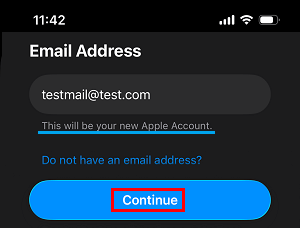
7. On the next screen, enter the Email Address that you want to use as your Apple ID and tap on Continue.
8. Follow the prompts to verify the Email Address and complete the process.
Now the New Email Address that you provided in the above steps will become your New Apple ID.