iPhone provides multiple ways to Hide Text Messages from others and prevent the possibility of your personal and confidential information from being compromised.
In most cases, this can be done by disabling Lock Screen Previews, promptly deleting sensitive or confidential messages and locking up the Messages App with Face ID. In addition to this, iPhone also provides the option to use Invisible Ink to send messages of confidential nature.
Hide Text Messages on iPhone
You can find below the steps to protect Text Messages on iPhone by Hiding Text Message Previews, Deleting Messages, Hiding Message Notifications and other methods.
1. Set iPhone to Auto-Lock
The first step is to make sure that your iPhone is set to automatically lock its screen after a reasonably short period of inactivity. This reduces the chances of someone being able to gain access to your device, in order to read your messages.
1. Go to Settings > Display & Brightness > scroll down and tap on Auto-Lock.
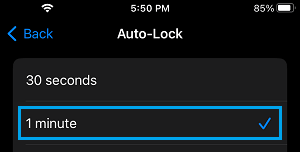
2. On the next screen, select 1 Minute as the Auto-Lock period.
Note: Anything longer than 1 minute is likely increases the chances of your Message notifications being seen by others.
2. Disable Message Previews
The Message previews appearing on the screen of your iPhone can be viewed by anyone that is able to throw a glance at the screen of your device.
Depending on your requirements, you can prevent Message Previews from appearing on the Lock Screen of your device or totally disable message previews on your iPhone.
You can find the steps to totally disable Message Previews on iPhone or just hide them from the Lock Screen in this guide: How to Hide Text Message Previews on iPhone.
3. Lock Messages App With Face ID or Passcode
You can totally prevent the possibility of messages from being viewed by anyone that manages to get access to your device by making it necessary to use Face ID or Passcode to open the Messages App on your iPhone.
1. Locate the Messages App Icon on the Home Screen of your iPhone.
2. Press and hold the Messages App Icon and select Require Passcode or Require Face ID option in the bubble menu that appears.
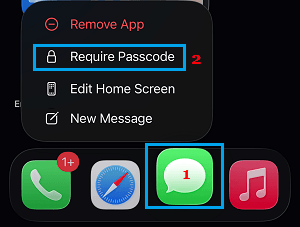
Note: Require Passcode option appears, if you have not yet setup Face ID or disabled Face ID on your device.
4. Delete Sensitive Messages
Another way of preventing the possibility of confidential messages being seen by others is to delete the messages; as soon as you are done with them.
Depending on the case, you can delete selected sensitive messages from a conversation or delete the entire Message Thread by using steps as provided in this guide: How Delete Text Messages on iPhone.
5. Hide Message Alerts
iPhone provides the option to Hide Message Alerts received from selected or specific Contacts.
1. Open Messages App and select the Chat of the person that you want to hide on the Notification screen.
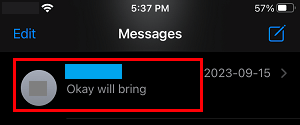
2. Once the Chat is opened, tap on Contact’s Profile Icon.
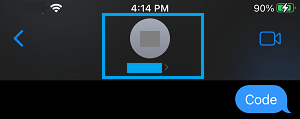
3. On the next screen, move the toggle next to Hide Alerts to ON position and tap on Done.
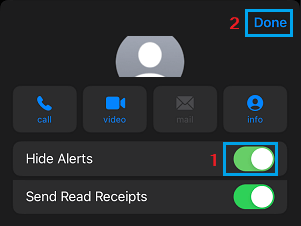
After this, you will no longer see Message Alerts from this particular Contact on your iPhone.
6. Set Messages to Auto-Delete
Another way to protect your privacy on iPhone is to set your device to automatically delete Text Messages after a set period of time.
1. Go to Settings > Messages > scroll down to Message History section and tap on Keep Messages option.
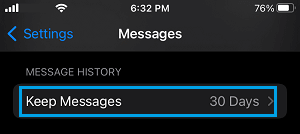
2. On the next screen, select the period up to which you want the Messages to be available on your iPhone.
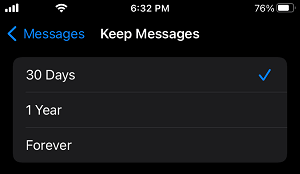
This way you can prevent most of your Messages from being accessed by anyone that manages to gain unauthorized access to your device.
7. Use Invisible Ink
If you are sending confidential or sensitive information to anyone, you can make use of “Send with invisible ink” option as available on iPhone.
This way the sent message remains hidden on the screen of your iPhone and won’t be visible to anyone around you that can manage to take a good look at the unlocked screen of your iPhone.
1. Open Messages App and select the Contact that you want to send the Confidential Message.
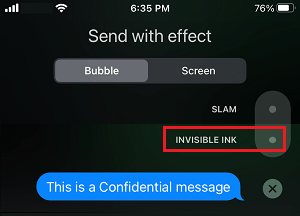
2. Type the Message that you want to send > Once you are done typing, tap and hold on the Send button.
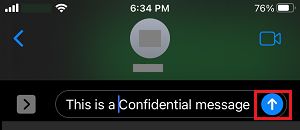
3. On the next screen, select the Invisible Ink option.
4. Once the Message becomes hidden, tap on Send with Invisible Ink button.
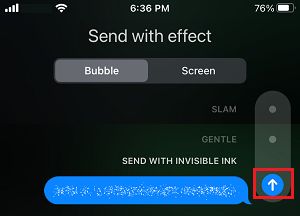
Your recipient will be able to view the hidden Ink message by tapping over the blurred text.