In general, users find the need to delete Text Messages from iPhone; in order prevent the possibility of messages containing personal information from being viewed by others and to declutter the Messages App by removing old messages and inactive Message threads.
Another good reason for deleting messages from iPhone would be to recover storage space by removing messages containing large size file attachments.
Related: How to Hide Text Messages on iPhone.
Delete Text Messages on iPhone
You can find below the steps to delete selected Messages from a conversation on iPhone and also the steps to delete an entire Message thread or conversation from iPhone.
1. Delete Select Text Messages on iPhone
This method is suitable for deleting selected Messages from within a Message thread or conversation on iPhone.
1. Open the Messages App on your iPhone.
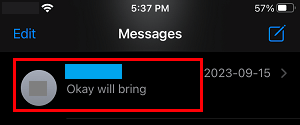
2. Open the Message thread from which you want to delete Text Messages.
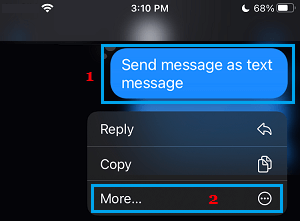
3. On the next screen, tap and hold on the Individual Text Message that you want to delete and select the More… option.
4. On the next screen, select More Messages to delete (if any) and tap on the Trash Icon.
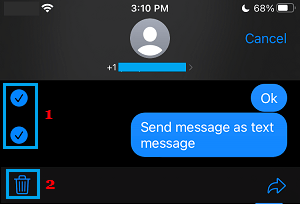
Note: Do not tap on Delete All (if this option appears), as this will delete the entire Message thread from your iPhone.
2. Delete Entire Message Threads From iPhone
This method is suitable for deleting or removing an entire Message thread or conversation from iPhone.
1. Open the Messages App on your iPhone
2. On the Messages screen, select the Edit option and tap on Select Messages option in the menu that appears.
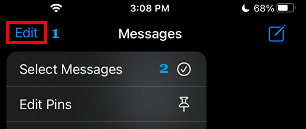
3. Next, select the Message Threads that you want to delete and tap on the Delete option.
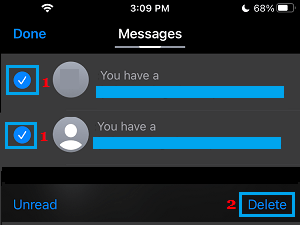
The selected Message Threads along with all their attachments will be removed from your iPhone.
3. Bulk Delete Old Messages on iPhone
This method can be used to Bulk delete all Messages from your iPhone that are older than 30 days, along with all their attached photos and documents.
1. Open Settings on your iPhone > scroll down and tap on Messages.
2. On the Messages screen, tap on Keep Messages option.
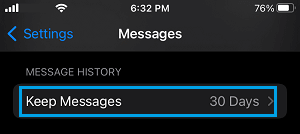
3. On the next screen, tap on 30 Days.
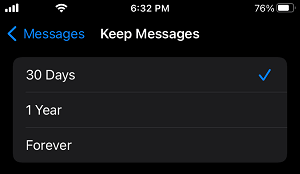
4. On the confirmation pop-up, tap on the Delete option.
This will delete all the Messages stored on your iPhone that are older than 30 days.