If required, it is easy to change the Login Password for any User Account on a Windows computer and start logging into the computer by using the New Password.
In case of computers located at an office or place of work, the most common reason for changing Windows Login password is due to IT Policy of the company, which may require its employees to change the Login password on a regular basis.
In the case of Home computers, people find the need to change the Login password, if it appears to have been compromised and also if it is difficult to remember.
Change Windows Login Password
Depending on how the computer was initially setup or due to your own preference, you might be using either Local or Microsoft Account to login to the computer.
If you are using Microsoft Account to login to the computer, you can refer to this guide: How to Change Microsoft User Account Password.
If you are using a Local Account, you can change the login password for any User Account on your computer by using Settings, Control Panel and Command prompt.
1. Change Windows Password Using Command Prompt (CMD)
As you may agree, the quickest way to change the Login Password for any User Account on a Windows computer is by using Command Prompt.
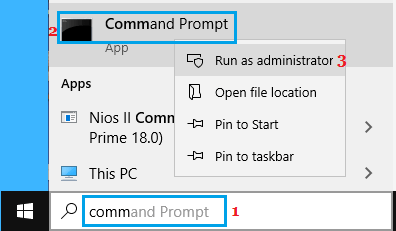
1. Type CMD in the Search bar, right-click on Command Prompt in the search results and select Run as Administrator option.
2. On the Command Prompt screen, type “net user Username NewPassword“and press the Enter key.
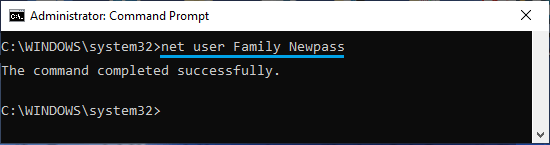
Note: In above command, replace Username with the actual User Name of your Account and replace NewPassword with the New Password that you want to use.
Once this Command is successfully executed, you will be able to login to the computer using the New Password.
Tip: If you do not know the Name of your User Account, type net user in Command Prompt window and press the Enter key. This will list the Names of all User Accounts on your computer.
2. Change Password Using Settings
If you are like most users, you are likely to prefer using the Settings menu to change the login password on your computer.
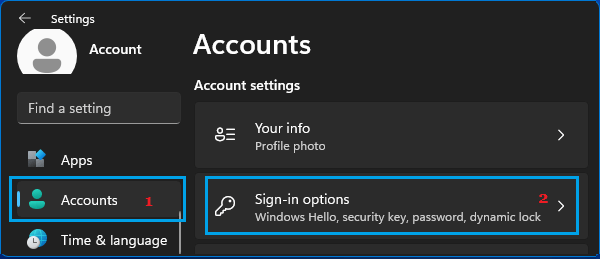
1. Open Settings > select Accounts in the left-pane and click on Sign-in Options in the right-pane.
2. On Sign-in options screen, expand the Password tab and click on the Change button.
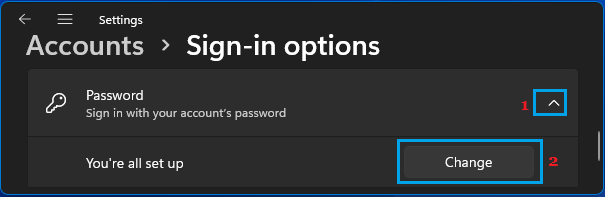
Windows 10: Go to Settings > Accounts > Sign-in Options > Password > click on the Change button.
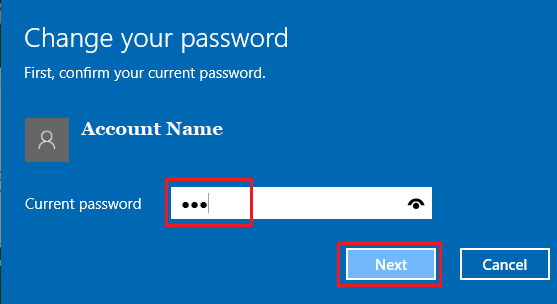
3. On Change your Password screen, enter you Current Password and click on the Next button.
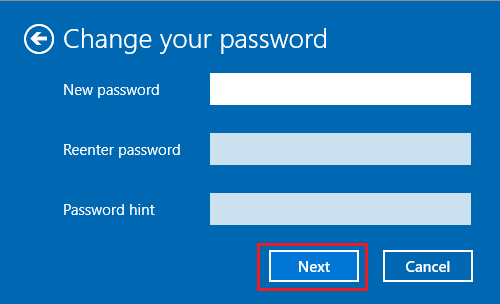
4. On the next screen, enter your New Password, Re-enter Password and click on the Next button.
5. Finally, click on the Finish button to complete the process.
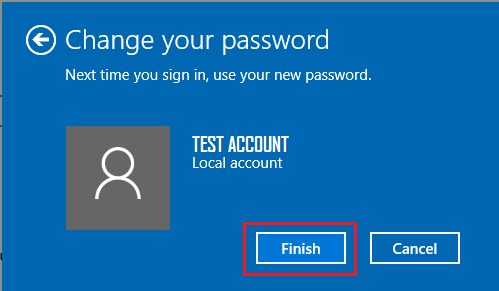
After this, you will be able to login to the computer by using your New password.
3. Change Login Password Using Control Panel
Another way to change the password for any Local User Account on a Windows computer is by using the Control Panel.
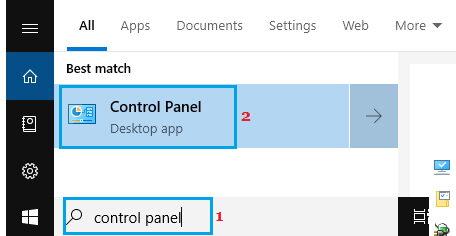
1. Type Control Panel in the Search bar > click on Control Panel Desktop App in the search results.
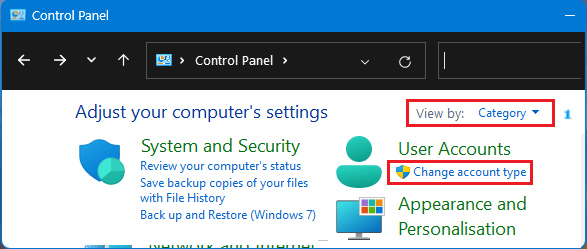
2. On the Control Panel screen, make sure you are in “Category” view and click on Change account type.
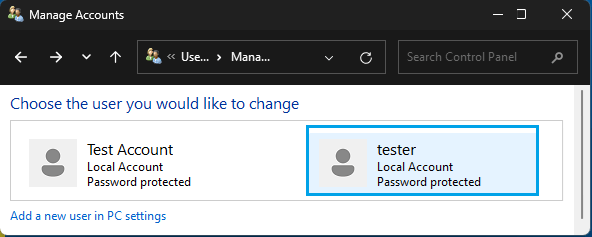
3. On Manage Accounts screen, click on the User Account for which you want to change the password.
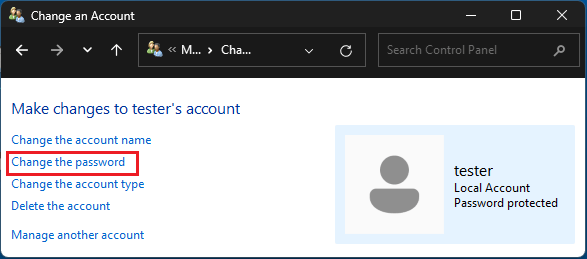
4. On Change Account screen, click on Change password link.
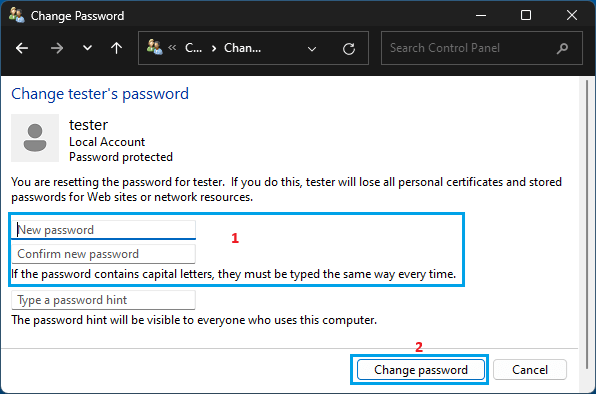
5. On Change Password screen, enter New Password, confirm the New Password, type Password Hint and click on Change Password.
After this, you should be able to login to the computer using your New password.
4. Another Way to Windows Password Using Command Prompt
Here is another way to change the Login Password for any Local User Account on your computer by using Command prompt.
1. Open Command Prompt As Admin
2. Type net user Username * and press the Enter key.
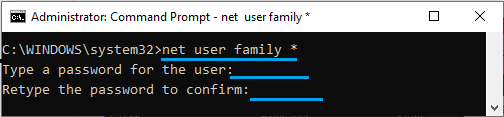
3. Next, type your New Password and Retype the New Password to confirm.
Note: In above command, replace the Username with your actual User Name (It was Family in our case).
Once above commands are executed, the Login password on your computer will be changed and replaced with the New Password.
The only problem with this method is that you won’t be able to see any confirmation when you type and retype the New Password.