If the Messages App on iPhone starts displaying messages with phone numbers; instead of Names and Profile pictures of the senders, you will have a hard time figuring out the owner or the sender of these messages.
If this is happening with all Messages threads, the problem could be occurring due to a temporary iCloud glitch, iCloud Contacts not syncing or due to the Messages App not having the permission to access the Contacts List on your iPhone.
Another common reason for messages displaying phone numbers is due to the Messages App not being able to associate messages coming from phone numbers with country codes (For example +1 for USA/Canada or +44 for UK) with Contacts listed without country codes or with incorrect country codes in the Contacts List.
iMessages Showing Numbers Instead of Names
If the Messaging App on your iPhone is displaying phone numbers of the senders and not displaying their Names and Profile pictures, you should be able to fix the problem using the following methods.
1. Fix iCloud Sync/Glitch
The problem could simply be due to a temporary or minor iCloud glitch and this can be easily fixed in most cases by disabling and enabling iCloud Contacts.
1. Open Settings App and tap on your Apple ID Name.
2. From the next screen, go to iCloud and tap on Show All (If Contacts App is not shown).
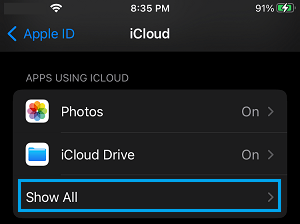
3. Scroll down the screen and move the slider next to Contacts to OFF position.
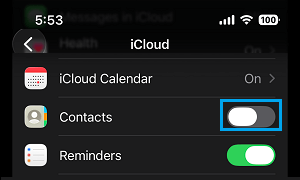
4. On the pop-up, select Delete From iPhone option (Don’t worry your Contacts live on iCloud).
5. After the Contacts are removed from iPhone, enable iCloud Contacts by moving the slider to ON position.
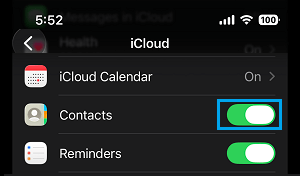
6. On the pop-up, select the Merge Contacts option.
After this, restart your device and you should find messages appearing with the names of your Contacts.
2. Add Country Code
As mentioned above, a common reason for messages appearing without Names is due to Contacts being added to iPhone without country codes or added with incorrect country codes.
The solution in this case is to correct or add country codes to phone numbers of the Contacts that are appearing without Names in the Messages App.
1. Open the Contacts App on iPhone and select the Duplicate Contact that you want to remove.
2. On the Contacts Detail screen, tap on the Edit option; located at top-right corner of the screen.
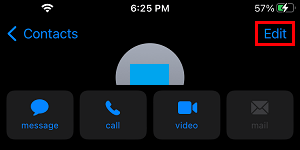
3. Go to the Phone entry line and Add the Country Code to beginning of the phone number; using either the full format (0044) or Short format (+44).
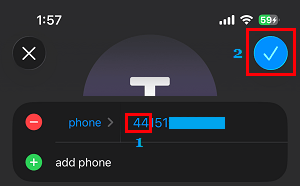
3. Tap on Done (Check Mark) to save this change on your iPhone.
3. Change Contact’s Phone Number
This issue can happen, if your Contact has switched to a New Phone number; but is still listed with the old phone number in the Contacts List.
1. Open Contacts App > select the Contact that is appearing without Name in the Messages App.
2. Tap on the Edit option, located at top-right corner of the screen.
3. Go to the Phone Entry and replace the old phone number with the New Phone Number of your Contact.
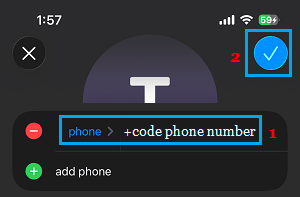
4. Tap on Done to save this change.
4. Remove Duplicate Contacts
Presence of duplicate Contacts and Contacts being split across multiple accounts (iCloud, Gmail, Outlook) can end up confusing the messages app; resulting in the messages being displayed with phone numbers.
The solution in this case is to designate a default account for Contacts (usually iCloud) and remove Duplicate Contacts by using methods as provided in this guide: How to Remove Duplicate Contacts from iPhone.