As you must have noticed, Windows does not provide the option to use password; when you try to login to the computer using a Microsoft Account; while it does provide the password login option for Local User Accounts.
The reason for this is due to a default setting in Windows operating system; which automatically removes the traditional password login option for Microsoft Accounts and replaces them with Windows Hello Sign-in options like PIN, Face ID and Finger Print Recognition.
According to Microsoft, its “passwordless” initiative and the default “Only allow Windows Hello sign‑in for Microsoft accounts” setting in Windows is intended to improve the security of your device and Microsoft Account.
Change Windows Hello PIN to Password
While there might be solid security reasons behind Microsoft dissuading Windows users from using passwords to login to the computer; especially while using Microsoft Accounts, there are many users who prefer using a password to login to the computer; instead of having to remember a PIN.
The good news! The default option to use Windows Hello sign-in options like Face ID, Finger Print and PIN can be disabled and this will allow you to login to computer using a password; even if you are using a Microsoft Account.
1. Enable Password Login For Microsoft Accounts
While the password login option is disabled by default for Microsoft Accounts in Windows, it can be easily enabled and this will allow to login to the computer using password, instead of having to use a PIN.
1. Press Windows + I keys to open the Settings App on your computer.
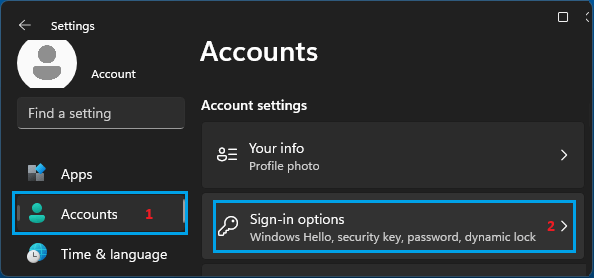
2. On the Settings screen, select Accounts in the left-pane and click on Sign-in options in the right-pane.
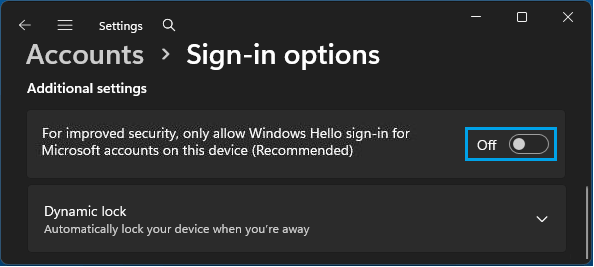
3. On the next screen, scroll down to “Additional Settings” section and disable For improved security, only allow Windows Hello sign-in for Microsoft accounts on this device option.
Now when you restart the computer, you will find the login screen displaying the Password Login option.
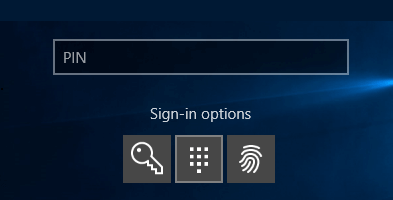
Note: You may have to click on Sign-in options link and then click on the Key Icon to switch from PIN to the password login option.
2. Change Windows Hello PIN to Password Format
Another option is to change your PIN; which is likely to be in a four-digit number format to a password-like PIN by enabling the option to “Include letters & symbols” in the PIN.
For example, if you are current using a 4-digit PIN (say 6677); you can replace it with a letter based password-like PIN (say Magic) or any other unique word or term that you want to use as the login password on your computer.
While this type of password-like PIN will be indistinguishable from a regular password, internally it will continue to use the same Windows Hello security architecture. It will only be tied to the device (not your Microsoft Account) and it will continue to be protected by TPM (Trusted Platform Module) security chip on your computer.
1. Open the Settings App on your computer.
2. Select Accounts in the left-pane and click on Sign-in options in the right-pane.
3. On the Sign-in options screen, expand the PIN (Windows Hello) tab and click on Change PIN.
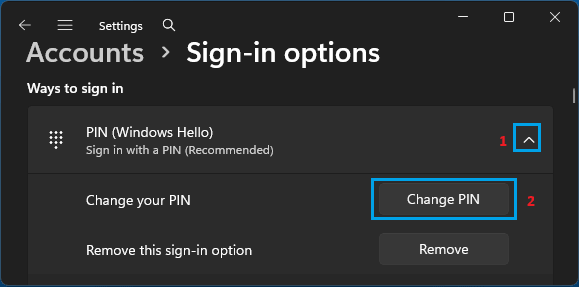
4. On “Change your PIN” pop-up, enable Include letters and symbols option and this will allow you to change your current number based PIN to a letter based password-like PIN.
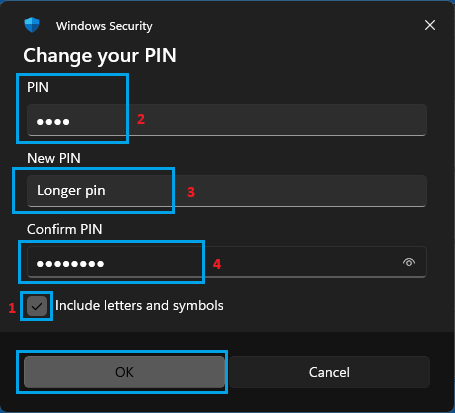
5. Type your New password-like PIN, Confirm the New password-like PIN and click on OK to save this change on your computer.
Allow Windows Hello sign‑in for Microsoft accounts Not Available
If “Only allow Windows Hello sign-in for Microsoft accounts on this device” option is not available, it is most likely that you are currently not logged-in to a Microsoft Account.
The option to enable or disable “Allow Windows Hello Sign-in for Microsoft Accounts” appears only when you are logged-in to a Microsoft Account and it may appear greyed-out; if Windows decides that the computer does not meet the requirements for “passwordless” sign-in.
Hence, the solution in this case is to sign-in to Microsoft Account (if you are not already signed-in) and setup a PIN password; if the option is not working or greyed-out.