Over a period of time, photos attached to iMessages can end up taking up a lot of storage space on your iPhone. Hence, it is a good practice to periodically delete photos from iMessages on your iPhone.
The accumlation or build up of photos in Messages App occurs, both when you send photos to others using the Messages App and also when you receive messages from others with photo attachments.
In-fact, everytime you attach photos to iMessages and send them to others, you end up with multiple copies of photos, which are already available in the Photos App on your iPhone.
Delete Photos from iMessages on iPhone
You can find below the steps to delete photos from iMessages linked to a particular Chat or Contact and also the steps to Bulk Deleted photos attached to Messages from all your Contacts on iPhone.
In addition to this, the iOS Messages App provides the option to setup your iPhone to automatically delete iMessages along with their attachments, after a set period of time.
1. Delete iMessage Photos from Particular Contact on iPhone
This method brings up photos attached to iMessages from a selected Chat or Contact, which allows you to review and delete all or selected photos in this particular chat.
1. Open Messages App and select the Chat from which you want to remove photos.
2. On the next screen, tap on Name or Phone Number of the Message sender.
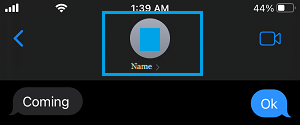
3. On Contacts Info screen, scroll down to “Photos” section and tap on See All and then tap on Select (top-right).
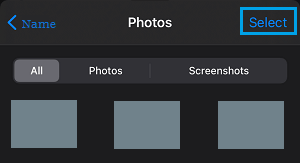
4. Next, select Photos that you want to remove from your device and tap on the Delete option.
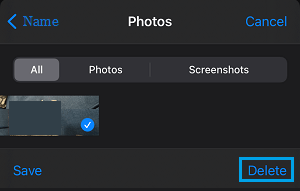
Similarly, you can select other Chats and repeat the above steps to remove photos attached to those Chats.
2. Bulk Delete Photos from iMessages on iPhone
This method allows you to bring up photos that are attached to all the iMessages on your iPhone, which allows you to select and delete them.
1. Go to Settings > General > iPhone Storage > Messages.
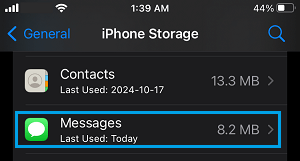
2. On the Messages screen, scroll down to Documents section and select the Photos tab.
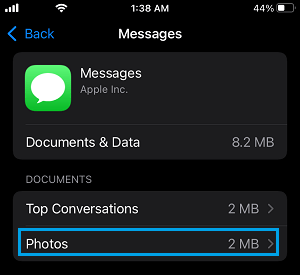
3. On Photos screen, tap on Edit option (top-right) > Select Photos that you want to remove from your device and then tap on the Trash icon.
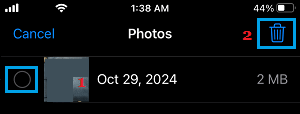
This will remove all the selected photos attached to iMessages from different senders on your iPhone.
3. Automatically Delete iMessages & Attachments on iPhone
In case you want to, it is possible to setup your device to automatically delete iMessages along with their attachments, after your selected period of time.
1. Go to Settings > Apps > Messages > Scroll down to “Message History” section and tap on Keep Messages.
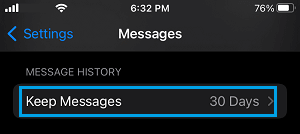
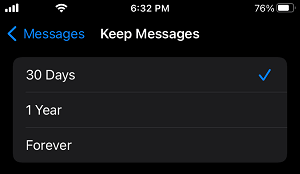
2. On the next screen, select the Duration up to which you want to keep Messages on your iPhone.
3. On the Confirmation pop-up, tap on Delete to confirm.
After this, iMessages that are older than your selected period (30 days or 1 year) will be removed from your device.
Also in future, iPhone will automatically delete iMessages older than your selected period.