If you are looking for a way to Install Internet Explorer on your computer, it is likely that you are dealing with certain Institutional websites, which provide access to downloads and other features via Internet Explorer.
If you are using Windows 10, Internet Explorer should still be available on the computer in a hidden way and it can be accessed by using the Start Menu, Windows Search and Run Command.
While Internet Explorer has been totally removed from Windows 11, it is still possible to make use of Internet Explorer on a Windows 11 computer by using a workaround as provided in this guide: How to Use Internet Explorer in Windows 11.
Install Internet Explorer in Windows 10
In most cases, Internet Explorer should already be available on a Windows 10 computer and you should be able to open Internet Explorer by using Start Menu, Windows Search and Run Command.
Even if Internet Explorer has been disabled on your computer, it can be activated and installed on your computer from the Control Panel.
1. Open Internet Explorer Using Run Command
An easy way to open Internet Explorer on a Windows 10 computer is by using the Run Command.
1. Right-click on the Start button and click on Run.
2. In the Run Command dialogue box, type iexplore and click on OK.
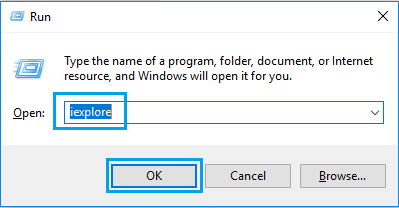
3. Once you click on OK, you should find Internet Explorer opening with its familar Home Page (MSN) on your computer.
2. Open Internet Explorer from All Apps Menu
Another easy way to Open Internet Explorer is from the All Apps menu on your Windows computer.
1. Click on the Start button and click on All Apps.
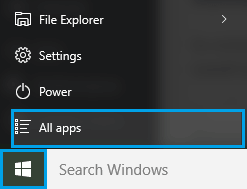
2. Scroll down the list of apps till you find Windows Accessories folder and click on it.
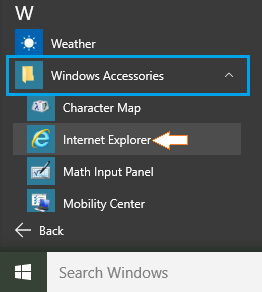
3. You should be able to find Internet Explorer within Windows Accessories folder.
You can make it easy for you to Open Internet Explorer by right-clicking on Internet Explorer and selecting pin to taskbar option in the right-click menu.
3. Pin Internet Explorer to Taskbar Using Windows Search
Another way to open Internet Explorer and Pin Internet Explorer to the Taskbar is by using Windows search.
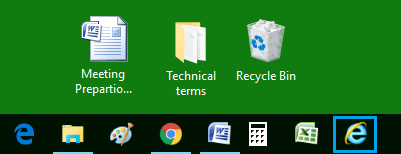
1. Type Internet Explorer in the Search bar > right click on Internet Explorer Desktop App and select Pin to Task bar option.
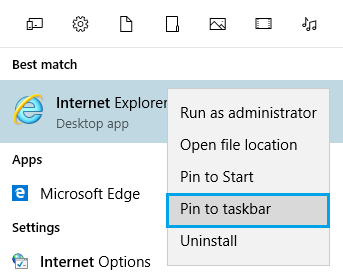
2. This will pin Internet Explorer icon to the taskbar of your computer, making it easy for you to launch or open Internet Explorer on your computer.
4. Activate & Install Internet Explorer from Control Panel
If above methods did not work, you can activate and Install Internet Explorer from the Control Panel.
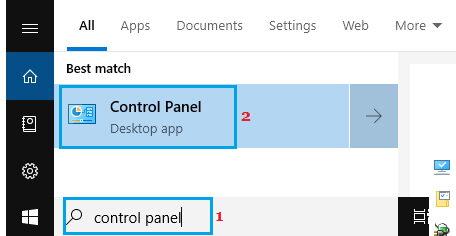
1. Type Control Panel in the Search bar > click on Control Panel Desktop App in the search results.
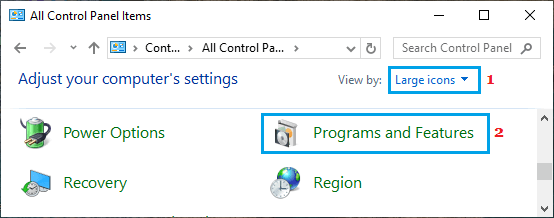
2. On the Control Panel Screen, switch to Large Icons view and click on Programs and Features icon.
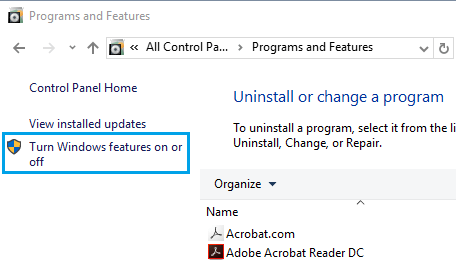
3. On the next screen, click on Turn Windows Features On or Off Link.
4. On Windows Features screen, scroll down and select the little box next to Internet Explorer.
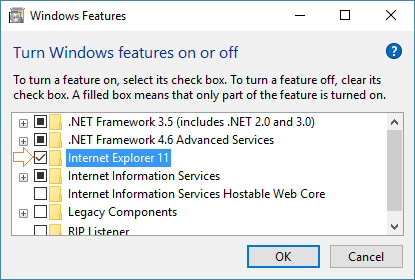
5. Click OK to complete the activation/installation of Internet Explorer on your Computer.
Once Internet Explorer is activated, you can open Internet Explorer by using Start Menu, Windows Search, Run Command and Pin Internet Explorer to the Taskbar on your computer.