The default option in Windows is to come up with “Publisher could not be verified” error message, if it is unable to verify the source and authenticity of an app, desktop program or file that you are trying to open.
This security warning message is designed to prevent malicious software from running on the computer and it usually generated by the SmartScreen feature of Windows security and also by User Account control.
Publisher Could Not Be Verified Warning in Windows
While you can easily fix “Publisher could not be verified” message by right-clicking on the blocked app and selecting the unblock box on its Properties screen, you should do this; only if you are certain that the app is from a trusted source.
In other cases, you may find the need to disable the SmartScreen Filter feature of Windows Security on your computer.
1. Run the File From Security Warning
If Windows is unable to confirm the origin or authenticity of a File that you are trying to open, it may provide you with the option to overrule the File block.
1. Open the File on your computer
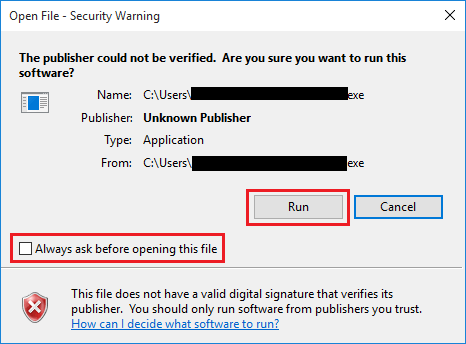
2. On “Publisher could not be verified” dialogue box, uncheck Always ask before opening this file option and click on Run.
3. Depending on your User Account settings, you may see “Do you want to allow this app from unknown publisher” pop-up. Click on Yes to confirm.
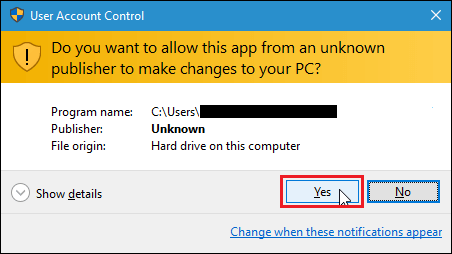
After this, the File should automatically open on your computer.
2. Unblock the File
As mentioned above, you can unblock the file by going to its properties screen.
1. Right-click on the File that you want to unblock and select Properties.
2. On the “Properties” screen, go to General tab and uncheck the Unblock box.
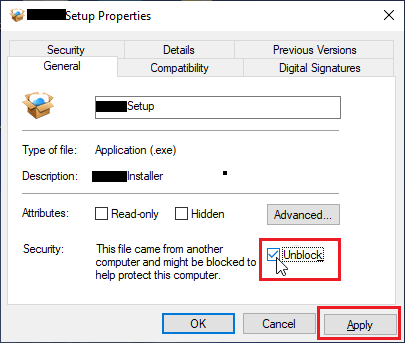
Note: If you do not see the “Unblock” box, the file is not blocked and you should be able to open the File.
3. Click on to Apply and OK to save this change.
After this, you should be able to open the File on your computer; without coming across “Publisher could not be verified” message.
3. Disable SmartScreen Filter For Apps & Files
In certain cases, the SmartScreen Filter in Windows Security can prevent files and programs from opening on the computer, even if they are trustworthy.
If you really trust the File/Program and its publisher, you can open the File by disabling SmartScreen filter for Apps and Files on your computer.
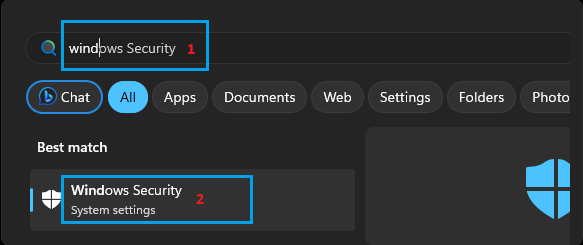
1. Type Windows Security in the search box and click on Windows Security System settings in the search results.
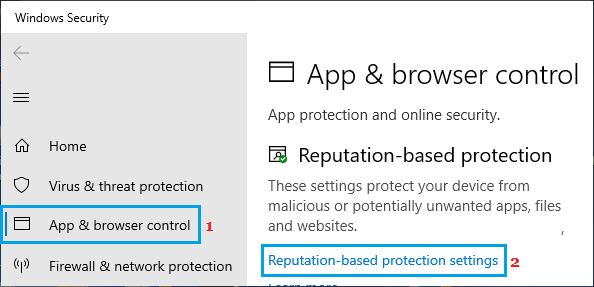
2. On Windows Security screen, click on Apps & Browser Control in the left-pane. In the right-pane, click on Reputation-based protection settings.
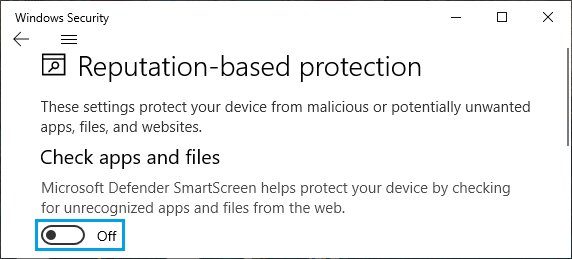
3. On the next screen, disable Check Apps and Files option.
After this try to open the File/Program and select Open Anyway option on the pop-up warning.