If the virtual keyboard of your iPhone is not appearing while typing, the problem could be due keyboard features like Reachability or One-Handed Keyboard being enabled on your device.
Apart from this, the problem of a missing keyboard on iPhone can also be caused due to faulty apps, use of other Keyboards, the keyboard dictionary being corrupted and other reasons.
iPhone Keyboard Missing or Not Showing Up
If the iPhone Keyboard is missing while using a specific App, the problem could be due to that particular App being damaged or corrupted and this can be fixed by deleting and reinstalling that particular App on your iPhone.
If you find that the Keyboard is missing and not showing up in any app, you should be able to fix the problem using the following steps.
1. Restart iPhone
Simply, restart your device and you might be surprised to see the keyboard back and even working properly on your iPhone.
1. Go to Settings > General > scroll down and tap on Shut Down.
2. On the next screen, use the Slider to power off iPhone.
After 30 seconds, Restart your device and see if the Keyboard is working properly on your iPhone.
2. Disable One-Handed Keyboard
The “One Handed Keyboard” feature on iPhone can sometimes prevent the default keyboard from appearing.
1. Go to Settings > General > Keyboard > One-Handed Keyboard.
2. On the next screen, select the OFF option.
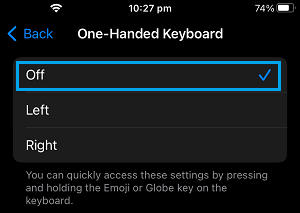
After disabling one-handed keyboard, open the Messages App and see if the keyboard becomes availbale for typing.
3. Disable Readability Feature
Reachabiity is another keyboard feature, which can potentially block visibility of the default iPhone keyboard.
1. Go to Settings > Accessibility > Touch.
2. On the next screen, move the toggle next to Reachability to OFF position.
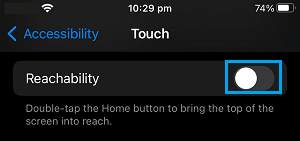
This should prevent the possibility of your iPhone keyboard being hidden by the Reachabilty feature.
4. Disable Other Keyboards
If you are using other keyboards, they might be interfering with the proper functioning of the keyboard.
1. Go to Settings > General > Keyboard > select the other Keyboard.
2. On the next screen, disable the other keyboard by moving the slider to OFF position.

After disabling the keyboard, check to see if the Keyboard is back and working properly on your iPhone.
5. Reset Keyboard Dictionary
Over a period of time the Keyboard Dictionary on iPhone can become filled up and even get corrupted.
1. Go to Settings > General > Transfer or Reset iPhone > Reset.
2. On the next screen, select Reset Keyboard Dictionary option.
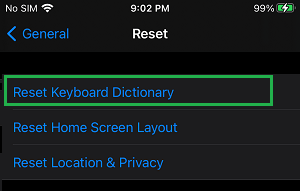
This results in clearing of all the words that iPhone has learnt from your typing, along with damaged and corrupted files (if any).
6. Reset All Settings
If above methods did not help, Reset all the settings on your iPhone to its original Factory Default values and see if this helps in fixing the problem.
1. Go to Settings > General > Transfer or Reset iPhone > Reset.
2. On the pop-up, select Reset Network Settings option.
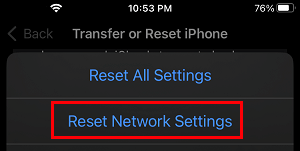
3. When prompted, enter your Lock Screen Password.
4. On the pop-up, select the Reset option to confirm and wait for the Reset process to be completed.