If iPhone is not being detected by Windows computer, you won’t be able to Backup, Restore or Update your device using Apple’s iTunes software installed on your Windows 11/10 computer.
In our case, the problem was due to iTunes not being used and updated for a long period of time and it was resolved as soon as the latest available version of iTunes was installed on the computer.
In other cases, the problem could be due to Apple Mobile and Apple Mobile USB drivers not being updated, Apple services not being set to automatically start on the computer and other reasons.
iPhone Not Detected by iTunes in Windows 11/10
Before going ahead with the troubleshooting steps, make sure that the problem is not due to a security feature on iPhone, which prevents it from being connected to untrusted devices.
Unplug iPhone from the computer, wait for 15 seconds and plug it back into the USB port of the computer. If the computer is not yet trusted, you will see “Trust This Computer” pop-up on the screen of your iPhone.
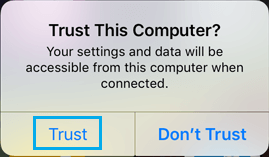
Select the Trust option and you should immediately see iPhone appearing or showing up in iTunes. If this is not the case, you should be able to fix the problem using other troubleshooting steps.
1. Update iTunes
Make sure that the latest version of iTunes is installed on your computer.
1. Remove iPhone from the computer and restart iTunes.
2. Once you are in iTunes, click on the Help tab in top-menu bar and select Check for Updates option in the drop-down menu.
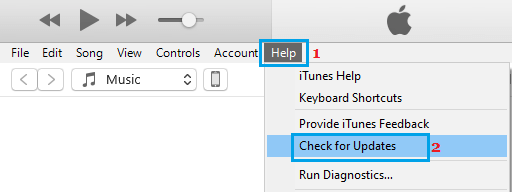
3. Wait for iTunes to check for updates and install them on your computer.
After updating iTunes, plug iPhone to computer and you should now find it showing up near the top-menu bar in iTunes.
2. Try Another USB Port
Remove iPhone from its current USB Port and plug it into another USB port. This should work, if the problem is being caused due to that particular USB Port being faulty.
If you are using a USB HUB, connect iPhone directly to the USB Port, instead of connecting it via the USB HUB, which might be faulty.
3. Update Apple Mobile Device Driver
The problem could be due to the Apple Mobile device driver software on your computer becoming outdated.
1. Right-click on Start button and click on Device Manger.
2. On Device Manager screen, open Portable Devices entry, right-click on Apple iPhone and click on Update Driver option.
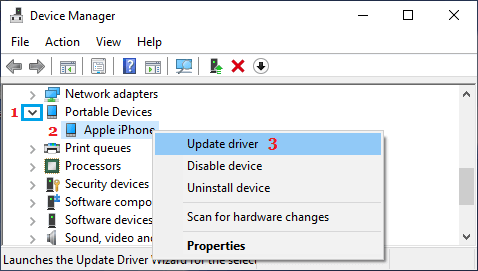
3. On the next screen, select Search automatically for updated driver software option.
After the Software is installed, open iTunes > reconnect iPhone to computer and see if it is now showing up in iTunes.
4. Update Apple Mobile USB Driver
Follow the steps below to update Apple Mobile USB device driver on your computer.
1. Open the Device Manger on your computer.
2. On Device Manager screen, expand Universal Serial Bus Devices entry, right-click on Apple Mobile Device USB and click on Update Driver option.
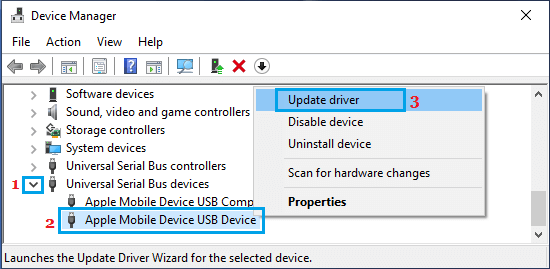
3. On the next screen, select Search automatically for updated driver software option.
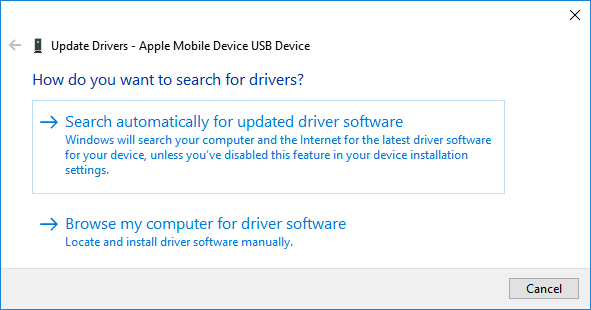
4. Follow the prompts as Windows tries to search and install the updated driver on your computer.
If Windows is unable to find the updated driver software, try to locate the driver manually by clicking on Browse my computer for driver software option and look for Driver in the following locations
- C:\Program Files\Common Files\Apple\Mobile Device Support\Drivers
- C:\Program Files (x86)\Common Files\Apple\Mobile Device Support\Drivers
After the Driver Software is installed, open iTunes > reconnect iPhone to computer and see if it is now showing up in iTunes.
5. Set Apple Services to Start Automatically
Follow the steps below to make sure that Apple Services are running and are set to start automatically on your computer.
1. Press Win + R keys > type services.msc and click on OK.
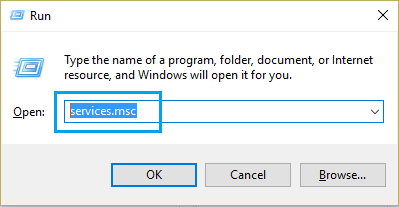
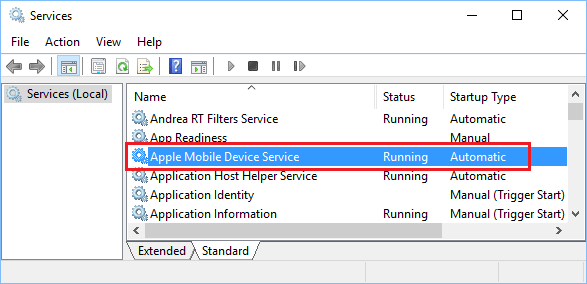
2. On the Services screen, make sure Apple Mobile Device Service, Bonjour Service and iPod Service are running and they are set to start automatically.
3. If any Apple Service is not set to start automatically, double-click on the Apple Service > on the next screen, change Startup type to Automatic and Start the service (in case it is not running).
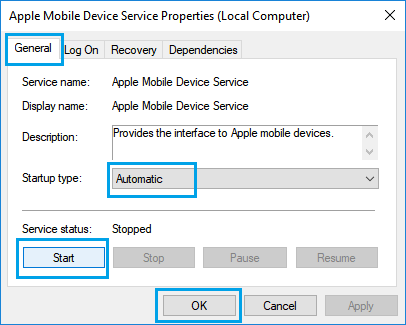
4. Click on OK to save the changes made and close the screen.
6. Reset Location & Privacy
Unplug iPhone from the computer and follow the steps below to Reset Location and Privacy Settings on your device.
1. Go to Settings > General > Transfer or Reset iPhone > Reset.
2. On the pop-up, select Reset Network Settings option.
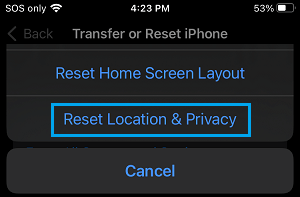
3. After the Reset process is completed, plug iPhone to Computer > Unlock iPhone and select the Trust option, as Trust This Computer pop-up appears on the screen of your iPhone.
7. Reinstall iTunes
If above methods did not work, uninstall iTunes and Reinstall it back on your computer.
1. Open Settings > click on the Apps Icon.
2. On the Apps screen, type iTunes in the Search bar > click on iTunes > Uninstall.
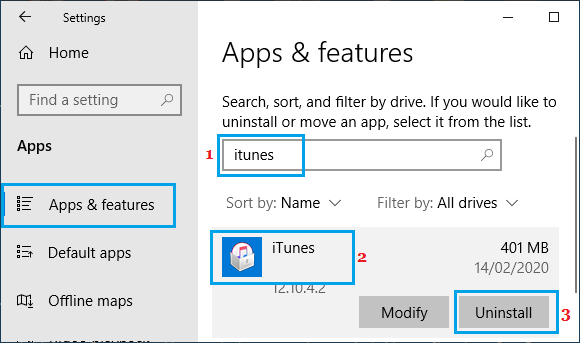
3. Download and install the latest version of “iTunes For Windows” from Microsoft Store or the App Store on your computer.
After reinstalling iTunes, connect iPhone to computer and you should now find it appearing in iTunes.