If you are looking for a way to recover permanently deleted Email Messages from the web version of Microsoft Outlook, it is likely that you have deleted the Email Messages from Inbox and followed it up by removing them from “Deleted Items” Folder.
The good news! – It is possible to recover deleted Email Messages in Microsoft Outlook; even if they have been manually cleared or permanently deleted from “Deleted Items” folder.
Recover Deleted Emails in Microsoft Outlook
When you delete Email Messages from Inbox or any other Folder in Microsoft Outlook, the deleted items are simply moved to “Deleted Items” Folder; where they remain available for Recovery within a period of 14 days.
After this, if you try to manually clear deleted Email Messages from “Deleted Items” folder, Microsoft Outlook comes up with a pop-up; which warns you that you are permanently deleting the Email Messages. However, even if you go ahead with the permanently deletion, the Email Messages are moved to a sub-folder (Deletions) in Recoverable Items Folder; from where they can be recovered within the next 14 days.
So the bottom line is – Items deleted from Inbox and other Mail Folders can be recovered from “Deleted Items” folder; within 14 days and from “Deletions” Sub-folder; within the next 14 days.
Related: How to Prevent Outlook From Adding Calendar Events.
1. Recover Emails Deleted From Inbox or Other Folders
If you have recently deleted an Email Message or Messages in Outlook, they should still be available in “Deleted Items” folder and they can be easily recovered.
1. Login to your Microsoft Outlook Email Account by entering your Email Address and Password.
2. After you are logged-in, open Deleted Items Folder (left-pane) and select the Email Messages that you want to Recover.
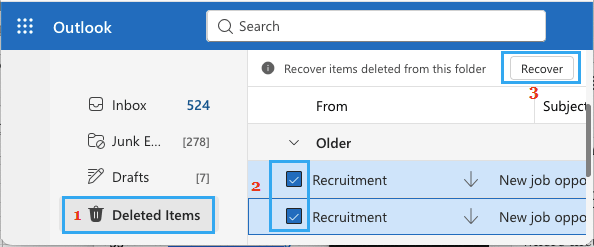
3. After selecting the Email Messages, click on the Recover button; located next to Recover items deleted from this folder line.
The selected Email Messages will be moved back to Inbox or the Folder from which they were originally deleted.
2. Recover Permanently Deleted Emails in Outlook
As mentioned above, Microsoft Outlook provides an opportunity to recover deleted Emails; even if they are not available in “Deleted Items” Folder or you had permanently deleted them by clearing the “Deleted Items” Folder.
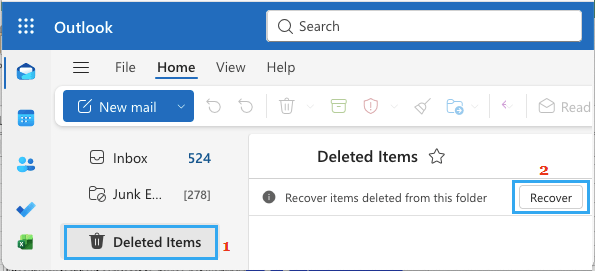
1. Login to your Email Account and open the Deleted Items Folder; located in the left-pane.
2. Once you are in “Deleted Items” Folder, click on the Recover Button and this will take you to “Deletions” sub-folder in Recoverable Items Folder; where the permanently deleted Emails are likely to be available.
3. On the “Deletions” screen, locate the Email Messages that you had permanently deleted or cleared from “Deleted Items” Folder and select them by checking the boxes.
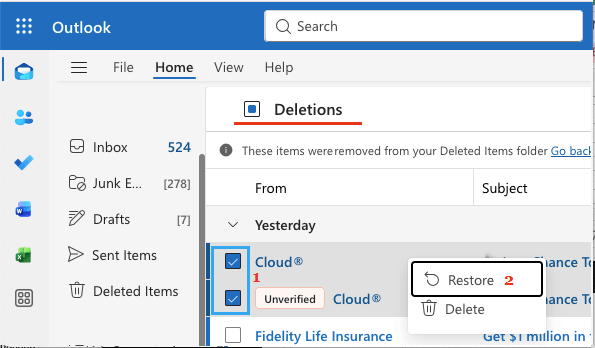
4. After selecting the permanently deleted Email Messages, right-click on the Selected Messages and select the Restore option.
Once you click on Restore, the deleted items will be moved back to the original Folder in which they were previously located. If the original Folder is not available; the recovered Email Messages are moved to the Inbox.