A common reason for Duplicate Contacts on iPhone is due to Contacts from multiple accounts like iCloud, Gmail, Outlook and even WhatsApp showing up in the Contacts List.
For example, if the same people exist on iCloud, Gmail and Outlook, your Contacts List on iPhone can end up with multiple duplicate Contacts originating from iCloud, Gmail and Outlook.
In certain cases, this issue is caused by iCloud itself or apps like Outlook creating duplicate entries in the Contacts App, due to glitches and syncing issues.
Remove Duplicate Contacts on iPhone
iPhone comes with a built-in feature, which should automatically identify Duplicate Contacts and prompt you to merge them. However, this happens; only when a default Account is set or selected for the Contacts App on your device.
Hence, go to Settings > Apps > Contacts > Default Account > select iCloud as the default Account for the Contacts App on your iPhone.
In addition to this, you can eliminate duplicate Contacts on iPhone by using other methods as provided below in this guide.
1. Switch OFF Redundant Accounts
If your Contacts List on iPhone is littered with multiple Contacts, you should be able to significantly reduce the number of duplicate entries by switching off redundant Accounts.
1. Go to Settings > Apps > Contacts > Contacts Accounts.
2. On the next screen, select the Account that should not be enabled for Contacts on your iPhone.
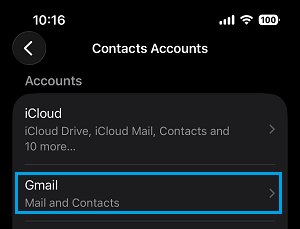
3. On the next screen, move the Contacts slider to OFF position.
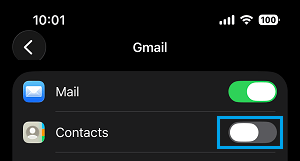
4. Repeat the above steps for other Accounts, which should not be adding or showing Contacts on your iPhone.
2. Merge Duplicate Contacts
As mentioned above, the built-in feature in iOS should automatically identify duplicate Contacts and prompt you to fix them.
1. Open the Contacts App on your iPhone and tap on View Duplicates.

2. On the next screen, you can review the Duplicates found and tap on the Merge All option.
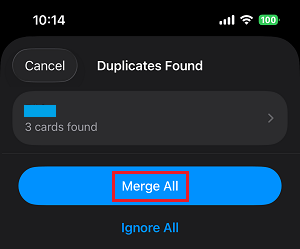
3. The Duplicate Contacts as shown on this screen will be merged into a single Contact.
3. Manually Remove Duplicate Contacts from iPhone
If you have a limited number of Contacts, you can manually go through the Contacts list and remove duplicate Contacts.
1. Open the Contacts App on iPhone and select the Duplicate Contact that you want to remove.
2. On the Contacts Detail screen, tap on the Edit option, located at top-right corner of the screen.
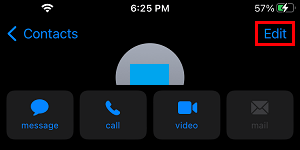
3. On the same screen, scroll down to bottom of the screen and select Delete Contact option.
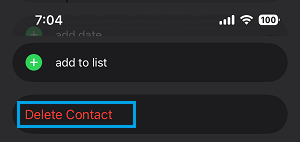
4. On the pop-up, select the Delete option to remove the duplicate contact from your device.
4. Link Duplicate Contacts on iPhone
As mentioned above, the Contacts App on iPhone comes with a built-in “Link Contacts” feature, which can be used to eliminate Duplicate Contacts.
1. Open Contacts App and select the Duplicate Contact that you want to remove.
2. On the next screen, tap on the Edit option, located at top-right corner of the screen.
3. On the same screen, scroll down to “Linked Contacts” section and select Link Contacts option.
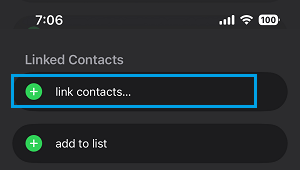
4. On the Contacts screen, select the Duplicate Contact that you want to link and tap on the Link option located at top-right corner.
5. On the next screen, tap on the Done Icon to save this change on your iPhone.
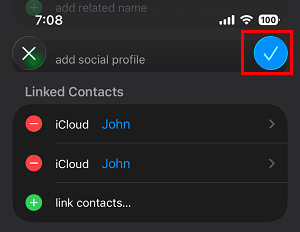
If there are more Duplicates, you can repeat the process by selecting the Link Contacts option once again and repeating the above steps.
After this, the Contact will appear as a single entry on the Contacts List and with two phone numbers.
For example, when you combine John with Home phone number and John with Mobile Phone Number, it will result in a single entry for John in the Contacts App with both Home and Mobile phone number.