As you must have noticed, the Safari browser on Mac comes up with a prompt asking whether you want to save the password to browser, whenever you are trying to login to a website that requires a password.
While there are users who like the idea of Passwords being stored by the browser, there are others who are not comfortable with Passwords being by Safari browser.
Hence, we are providing below the steps to prevent the Safari browser from Asking to Save Passwords and the steps to remove Passwords already stored by Safari browser on your Mac.
Stop Safari Browser from Asking to Save Passwords
Follow the steps below to stop the Safari Browser from asking to Save Passwords on your Mac.
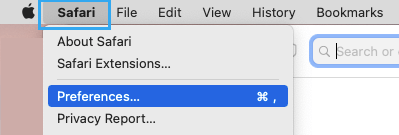
1. Open the Safari browser on your Mac > click on Safari Tab in top-menu bar and select Preferences… in the drop-down menu.
2. On the pop-up screen, switch to AutoFill tab and Uncheck User Names and Passwords option.
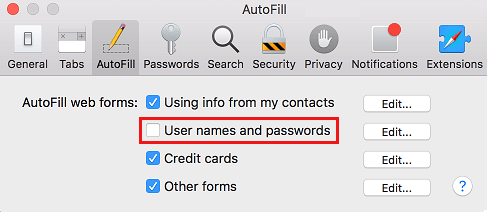
After this, you will no longer find the Safari bowser on your Mac offering to save passwords.
Delete Passwords Stored By Safari browser
After preventing Safari browser from asking to save passwords, the next step is to make sure that none of your passwords are stored in Safari Browser.
1. Open Safari browser > click on Safari Tab in top-menu bar and then click on Preferences… in the drop-down menu.
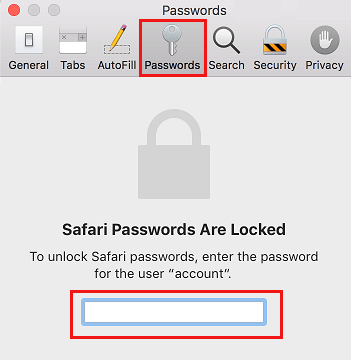
2. On the next screen, switch to Passwords tab and enter the Password for your User Account on Mac.
3. On the next screen, select the Website for which Safari browser has stored Password and click on the Remove Button.
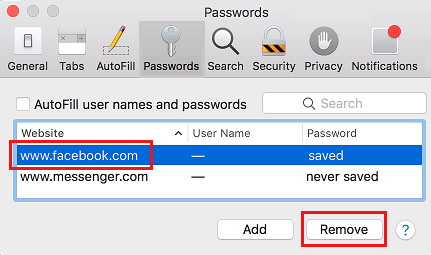
4. On the confirmation pop-up, click on Remove to delete the password for this particular website on your Mac.
5. Repeat the above steps for other websites for which passwords have been stored by Safari browser.