As the name suggests, the Picture-in-Picture (PiP) mode in YouTube allows you to play YouTube videos in a minimized form at any corner of the screen of your Windows computer or Mac.
This allows you to use almost the entire screen of the computer for your work related tasks, with your favorite YouTube video playing in a corner of the screen in a minimized Picture-in-Picture mode.
For example, you can carry on working on a Microsoft Word document or Excel spreadsheet, while listening to YouTube music or podcast playing in a corner of the screen in PiP mode.
Use YouTube in Picture-In-Picture Mode on PC & Mac
All that is required to use YouTube in Picture-In-Picture (PiP) mode on a Windows computer is to open YouTube in Google Chrome browser and select the PiP mode option in Google Chrome.
In the case of a MacBook, you can make use of both Google Chrome and the default Safari browser to play YouTube videos in PiP mode.
Once PiP Mode is selected, you will find the video detaching itself from YouTube’s website and playing in its own minimized window, located at bottom-left or right corner of the screen.
The video will continue to play, even when you open and start using other apps, which is ideal for those who like listening to music or podcast, while working or doing something else on the computer.
1. Play YouTube in PiP Mode on Windows computer
You can follow the steps below to use YouTube Picture-in-Picture Mode on a Windows computer.
1. Open the Google Chrome browser on your computer and visit youtube.com.
2. Open the YouTube Video that you want to watch in PIP Mode.
3. Right-click anywhere on the video and ignore the first menu that appears.
4. Right-click again on the Video and this time select Enter Picture in Picture option in the second right-click menu that appears.
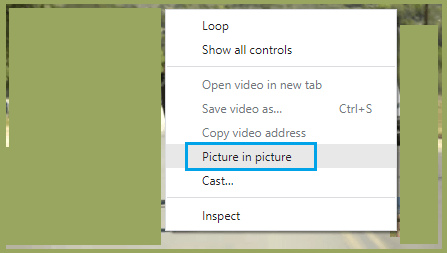
4. Once you click on Picture-in-Picture option, you will immediately find the YouTube Video detaching and playing in a small window, at bottom-right corner of the screen.
Once the YouTube video becomes available in PiP mode, you can minimize the browser tab in which the main YouTube website is open.
The YouTube video will continue to play in minimized or PIP Mode, even when you open Microsoft Word, Excel or any other app or program on your computer.
2. Play YouTube In PiP Mode on Mac
The YouTube Picture-in-Picture mode works on a MacBook running MacOS Sierra (and above) and it is supported by the default Safari browser on Mac.
1. Open the Safari browser on Mac and go to YouTube.com.
2. Open the YouTube video that you want to play in PiP Mode.
3. Right-click anywhere on the Video and ignore the first menu that appears.
4. Next, right-click again on the same video and select Enter Picture-in-Picture option in the menu that appears.
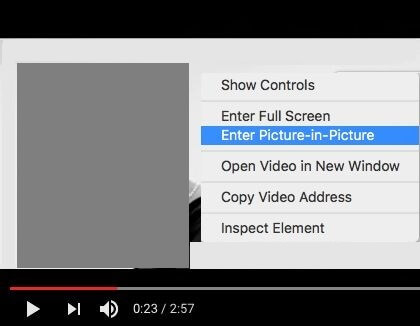
5. Once you click on Enter Picture-in-Picture, you will find the video detaching itself from its parent website and playing in a small window, located at bottom-left corner of the screen.
Once the video starts playing in PiP mode, you can minimize the main YouTube tab, which frees up the screen for working on a document/spreadsheet, web browsing or checking social media accounts.
the mouse over video and click on the “X” icon that appears at top-left corner of the video.
3. Exit YouTube PiP Mode on Windows computer
Once you are done playing the video in PiP mode, you can exit PiP mode by hoovering the mouse over PiP video and clicking on Back to tab option.
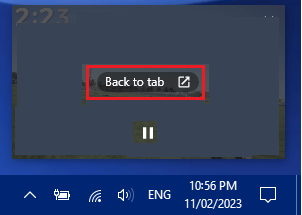
The video will exiting Picture-in-Picture mode and go back to YouTube’s main website, where you will find it playing in the form of a regular size YouTube video.
4. Exit YouTube PiP Mode on Mac
You can disable or exit YouTube PiP mode at any-time on Mac by hovering the mouse over the PiP video and clicking on the little Arrow icon that appears at bottom of the Video.
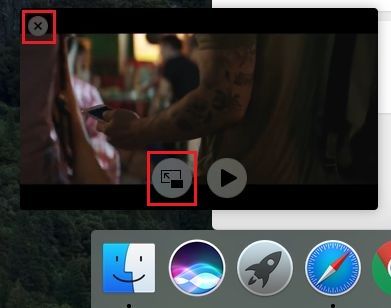
To close the PiP video, hover
5. Enlarge YouTube Picture-in-Picture Video
When you enable Picture-in-Picture Mode on any YouTube video, it will start playing in a small detached window, located at bottom-left corner of the screen.
If required, you can enlarge the size of the Picture-in-Picture video by following the steps below.
1. Hover the Mouse over the edge of YouTube Video playing in PIP mode.
2. Drag the edge of the PIP window to make it larger than its default small size.
1. Hover Mouse over the edge of YouTube Video playing in PiP mode.
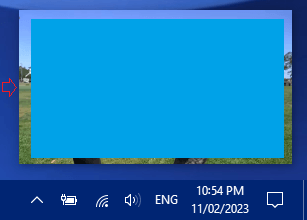
2. Drag the edge of PiP window to make it larger than its default small size.
6. Move YouTube Picture-in-Picture Video
As mentioned above, the default option in YouTube is to play the PiP Video at lower-left corner of the screen. However, the PiP video can also be moved to any other corner or anywhere else on the screen of your computer.
Windows Computer: Press and Hold the CTRL key, click on the video and then drag it to any location on the screen of your computer.
Release the CTRL Key, once you have moved the video to your desired location.
MacBook: Press and Hold the Command key, click on the video and then drag it to any location on the screen of your Mac.
Release the Command Key, once you have moved the video to your desired location.