Since, visual and individual requirements vary, Windows operating system provides the option to adjust screen brightness and change the size of Desktop and Taskbar Icons to suit all types of users.
For example, some users may find the need to increase the size of Desktop icons; in order to make them clearly visible and easy to click or tap (in case of touch screen computers), while others may want to decrease the size of Desktop Icons to reduce the screen space occupied by Icons on the Desktop.
Increase or Decrease Size of Icons in Windows 11/10
You can find below different methods to change the size of Icons located on Desktop, Taskbar and the File Explorer screen of a Windows computer.
1. Change Size of Desktop Icons in Windows 11/10
The easiest way to change the size of Desktop icons on a Windows computer is by right-clicking in any empty space on the Desktop and selecting the View Menu.
1. Right-click in any empty space on the desktop of your computer.
2. In the menu that appears, go to View tab and select Large icons to increase the icon size and Small icons to decrease the size of desktop icons on your computer.
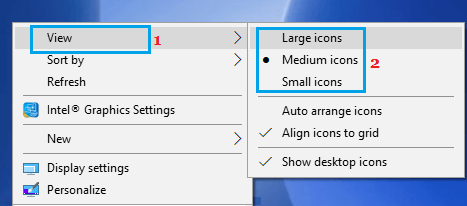
Note: The default size is medium icons.
2. Change Icon Size By Using Mouse
Another way to quickly change the Icon size on a Windows computer is by using the Ctrl button and scroll wheel of the mouse.
1. Press and Hold the Ctrl button on the keyboard of your computer.
2. With the Ctrl button pressed, use the scroll wheel of the mouse to increase or decrease the size of desktop icons on your computer.
Scrolling forward increases the icon size while scrolling backwards decreases the size of Desktop Icons.
3. Change Icons to Custom Size
You can select a custom size for Desktop and Taskbar Icons on your computer, instead of going with the available Large, Medium and Small icon sizes.
1. Right-click in any empty space on the screen of your computer and click on Display Settings in the menu that appears.
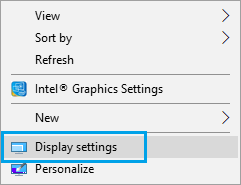
2. On the Display Settings screen, click on the Scale Tab.
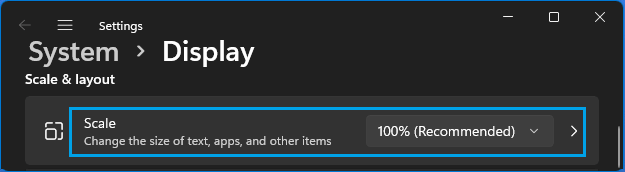
Note: If you are using Windows 10, click on Advanced scaling settings.
3. On the Custom Scaling screen, enter the percentage by which you want to increase the size of Icons on the computer and click on the Apply Icon.
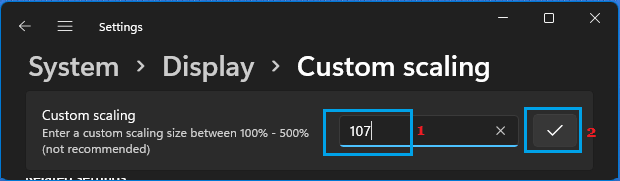
4. Make sure you click on Sign out now to implement the new size of icons on your computer.
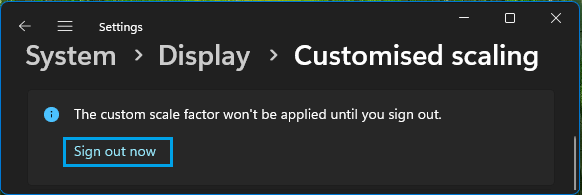
In addition to Desktop icons, the above steps will also change the size of Taskbar Icons and the text in Microsoft Edge, Calendar and other Apps.
4. Change Taskbar Icon Size
You can change the size of Taskbar Icons on a Windows computer by using the following steps.
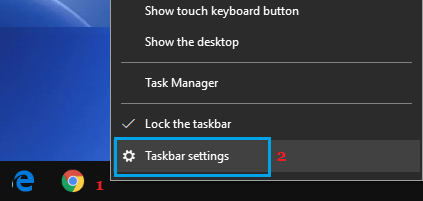
1. Right-click on the Taskbar and click on Taskbar Settings.
2. On the next screen, toggle ON the option to Use small taskbar buttons.
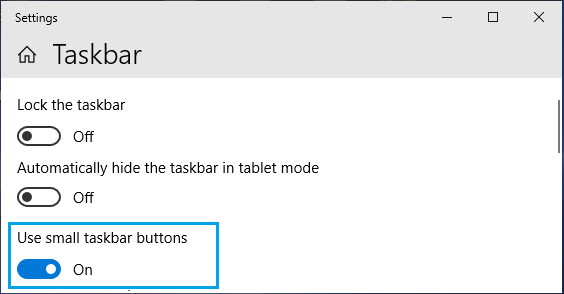
You should immediately see the taskbar icons appearing in small size on your computer.
5. Change Size of Folder Icons in File Explorer
You can change the size of Folder Icons as they appear in the File Explorer window by using the following steps.
1. Right-click on the Start button and click on File Explorer.
2. In File Explorer window, click on the View tab and select your desired size for Folders in the File Explorer window.
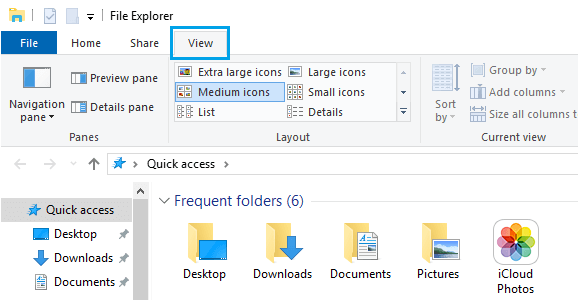
Note: You can also press the Ctrl Button and use the scroll wheel of the mouse to switch the File Explorer view to Large icons, Medium icons, Small icons, Details and List views.