Clearing the browser Cache on your computer can help in fixing the problem of Google Chrome browser running slow, freezing or displaying badly formatted webpages.
For this reason, clearing the browser cache happens to be the most commonly used and recommended step to fix browser related problems on both computers and mobile devices.
Why Clear Cache & Cookies in Google Chrome
As you must be aware, cookies contain user data collected by the websites that you visited on your computer and the cache helps the browser load websites faster by storing images and other reusable parts of a website.
However, over a period of time; the browser cache gets filled up and becomes outdated, which often results in the browser becoming slower and sometimes running into problems.
Hence, clearing the browser cache along with cookies (which can also get corrupted), allows the browser to cache fresh content, which improves its overall performance and helps in fixing browser related problems.
Related: How to Automatically Clear History in Google Chrome
1. Clear Cache & Cookies in Google Chrome on Windows PC and Mac
The steps to clear cache in Google Chrome are practically the same on both MacBook and Windows computer.
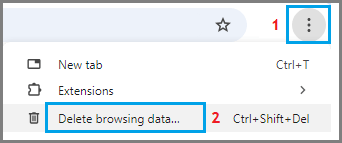
1. Open Google Chrome > click on 3-dots menu icon and select Delete Browsing Data option in the drop-down menu.
2. On Delete browsing data screen, select All Time as the Time Range, select the Cached images and files box to clear browser cache, select Cookies and other site data box to clear Cookies and click on Delete from this device button.
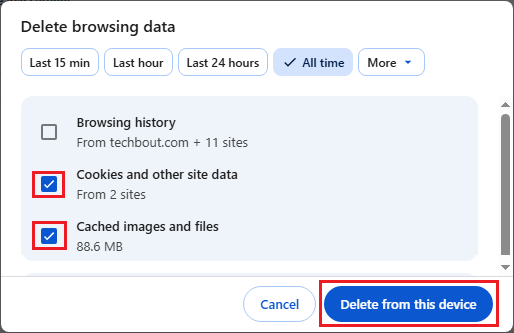
Once you click on Delete from this device button, all the Cached Images/Files and Cookies/other site data will be cleared from your computer.
Alternately: You can use the following keyboard Shortcuts to clear Chrome browser Cache on your computer.
- Press Ctrl + Shift + Delete combination to get to “Clear Browsing Data” Screen on a Windows Computer
- Press Command + Shift + Delete buttons to directly get to “Clear Browsing Data” screen on Mac
After clearing the browser Cache, you will find your favorite websites loading a bit slower, when you visit them for the first time.
On the next visit, you will find the websites loading faster as Chrome browser makes use of the locally available Cached data to render the webpages.