According to Microsoft, the “Telemetry and Data Collection” feature in Windows is designed to collect anonymous Diagnostic Data, in order to improve the performance of Windows products and services.
If you are using the Enterprise version of Windows, Microsoft provides the option to disable collection of all Diagnostic Data via the Local Group Policy Editor.
In the case of Professional and Home Edition of Windows, Microsoft collects a limited amount of required Diagnostic Data, which cannot be disabled and it provides the option to disable Optional Diagnostic Data Collection related activities.
Also, Microsoft provides the option to view the type of Diagnostic Data that is being collected by enabling the “Diagnostic Data Viewer” tool on your computer.
Disable Telemetry and Data Collection in Windows 11/10
If you are using the Home Edition of Windows, you can considerably reduce Telemetry & Data Collection activity on your computer by disabling Optional Diagnostic Data, Inking & Typing Diagnostic Data and Recommendations & Offers.
If you want to, you can totally Disable Telemetry and Data collection by editing Registry and switching off “Connected User Experiences & Telemetry” and “dmwappushsvc” services on your computer.
1. Disable Optional Diagnostic and Feedback
As mentioned above, this option allows you to disable the Optional diagnostic data that Microsoft collects from user activity on your computer.
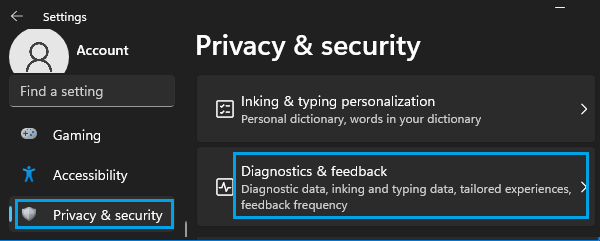
1. Go to Settings > Privacy & Security > click on Diagnostics &Feedback tab in right-pane.
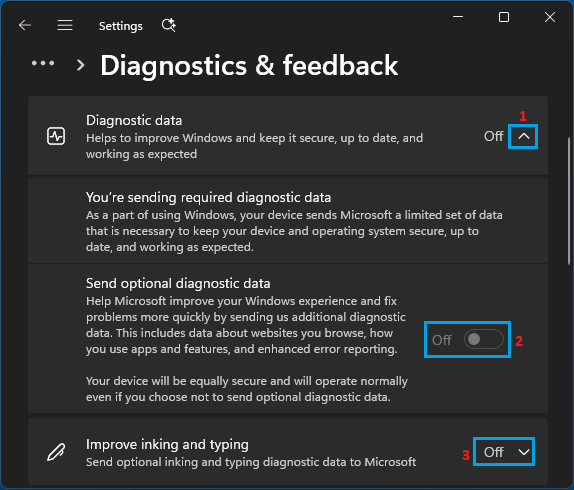
2. On the next screen, expand Diagnostic Data tab and disable Send optional diagnostic data option.
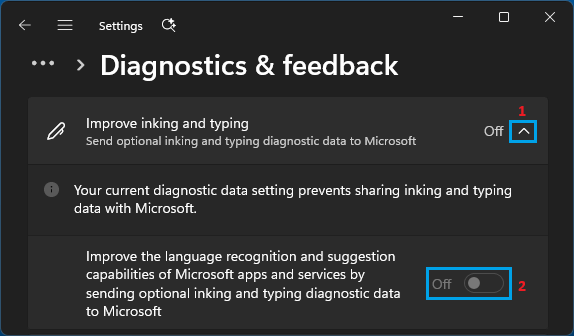
Next, expand Improve inking and typing tab and disable sending optional inking and typing diagnostic data option.
If you scroll down on the same screen, you will find the option to View diagnostic data by enabling Diagnostic Data Viewer.
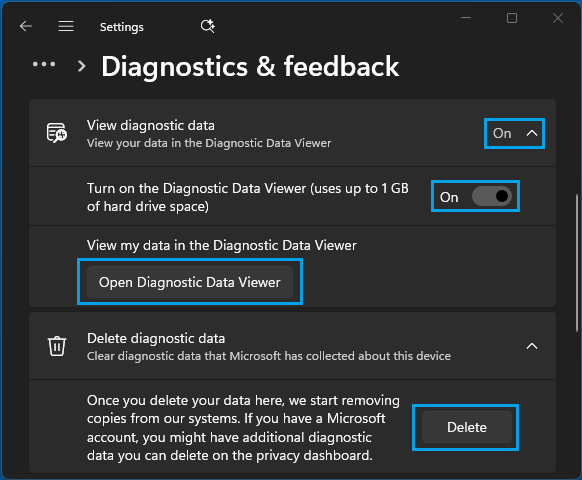
You can also request Microsoft to Delete Diagnostic Data by clicking on the Delete button.
2. Disable Recommendations and Offers
You can further cut down the Telemetry & Data Collection activity on your computer by Disabling Personalized recommendations.
1. Go to Settings > Privacy & Security > click on Recommendations & offers tab in right-pane.
2. On the next screen, disable Personalized offers and Improve Start and search results options.
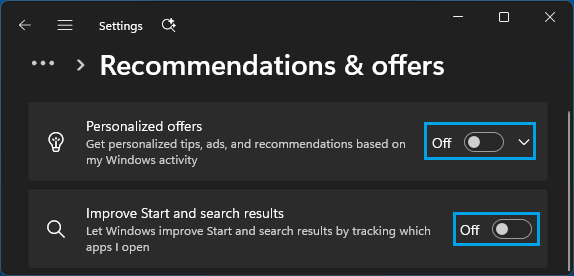
On the same screen, you can find the option to prevent Advertisers from serving personalized Ads.
3. Disable Telemetry and Data Collection By Editing Registry
As mentioned above, you can make use of this registry tweak to totally disable “Telemetry and Data Collection” feature on your computer.
Note: It is recommended that you create a System Restore Point, before going ahead with this step.
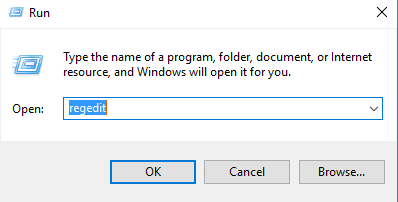
1. Press Windows Logo + R keys > type regedit and press the Enter key.
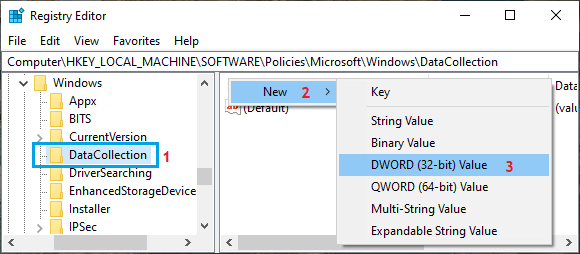
2. On the Registry Editor screen, navigate to HKEY_LOCAL_MACHINE\SOFTWARE\Policies\Microsoft\Windows\DataCollection.
Note: If DataCollection does not exist, right-clicking on Windows > select New > Key and name this key as DataCollection.
3. Select DataCollection key in the left-pane. In the right-pane, right-click in any empty space and select New > DWORD (32-bit) value and Name the newly created DWORD as AllowTelemetry.
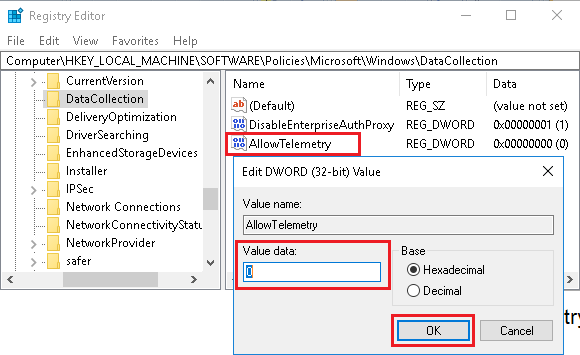
4. Double-click on the newly created Allow Telemetry DWORD and set its Data Value to “0”.
Note: We haven’t noticed any adverse impact after Disabling Telemetry on our testing computer. However, it is recommended that you check other reliable sources.
4. Disable Connected User Experience
After Disabling Telemetry and Data collection, you also need to switch-off “Connected User Experience” and “dmwappushsvc” services, in order to totally disable Telemetry on your computer.
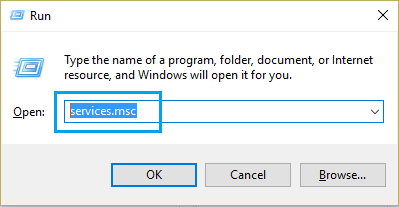
1. Press Windows + R keys > type services.msc and click on the OK button.
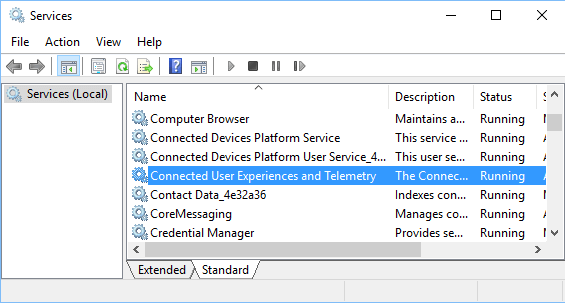
2. On the services screen, scroll down and double-click on Connected User Experiences and Telemetry.
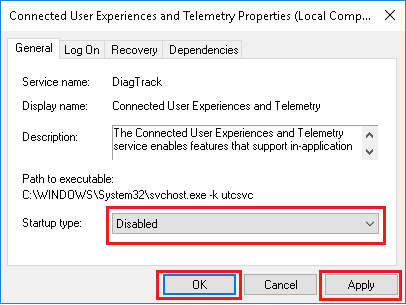
3. On the next screen, disable Connected User Experience and Telemetry on your computer by setting Startup Type to Disabled.
4. On the same screen, locate dmwappushsvc service and double click on it.
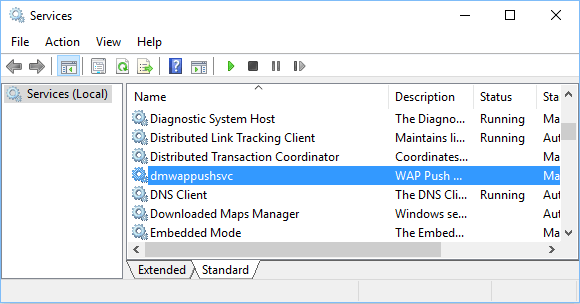
5. On the next screen, disable dmwappushsvc service by setting the Startup Type to Disable.
Hopefully, this should help in Disabling Telemetry and Data Collection Feature on your computer.