Windows computers come with the “OneDrive” App pre-installed on them; which should help users enjoy the seamless connectivity with Microsoft’s comprehensive Backup/Sync, Cloud-storage, File management and Collaboration service.
While this feature can be useful, there are many users who do not find the need to use a cloud storage service and either want to Disable OneDrive or Uninstall OneDrive from their computers; mostly due to its default auto-start, auto-sync and background running tendencies.
Hence, we are providing below different methods to limit OneDrive activity and the steps to Uninstall & Disable OneDrive on a Windows computer.
Quit, Disable, Uninstall OneDrive in Windows 11
While OneDrive has a default tendency to automatically launch itself on the computer and start uploading files to Microsoft Cloud storage service, it also provides the option to disable auto-sync and select specific Folders that you want to be uploaded to OneDrive: How to Disable Auto Save to OneDrive in Windows 11/10.
If you are an occasional OneDrive user, you can simply quit the OneDrive (while not using) by clicking on the OneDrive Taskbar Icon and prevent OneDrive from automatically starting up with the computer by using the “Startup” Settings for Apps; as available on your computer.
If you do not want to use OneDrive, you can unlink the computer from Microsoft’s OneDrive service, Uninstall the OneDrive App or disable OneDrive by using Group Policy and Registry Editor.
1. Quit OneDrive
A simple way to prevent OneDrive from remaining active on the computer and using up resources is to wait for OneDrive Icon to appear on the Taskbar and Quit OneDrive.
1. Wait for OneDrive Icon to appear on the Taskbar.
2. Click on OneDrive Icon > click on Gear-shaped Icon and select the Quit OneDrive option.
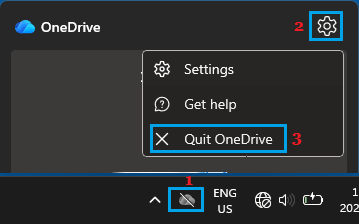
This option allows you to keep OneDrive disabled on the computer, until you find the need to use it.
2. Disable OneDrive Auto-Start
Instead of having to quit OneDrive on a daily basis, you can prevent OneDrive from automatically starting up with the computer.
1. Press (Win + I) keys to open the Settings menu on your computer.
2. From the Settings screen, go to Apps > Startup > Locate Microsoft OneDrive and switch it off.
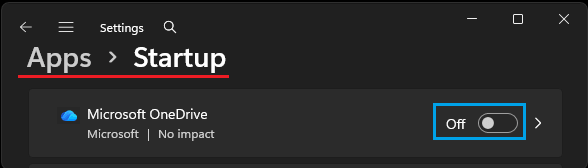
3. Restart the computer.
After this, you should no longer find OneDrive automatically starting up on your computer.
Note: If you are already signed-in to OneDrive, you can prevent OneDrive Auto-start by using the Settings Menu of the OneDrive App: Stop OneDrive From Opening at Startup in Windows 11/10.
3. Unlink the Computer from OneDrive
If you are not interested in using OneDrive, the easiest way to disable your interaction with OneDrive is by using “Unlink this PC” option.
1. Click on OneDrive Cloud Icon, located in the Taskbar > click on the Gear-shaped Icon and click on Settings.
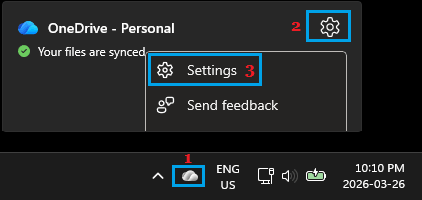
2. On the Settings screen, select the Account tab in the left-pane and click on Unlink this PC option in the right-pane.
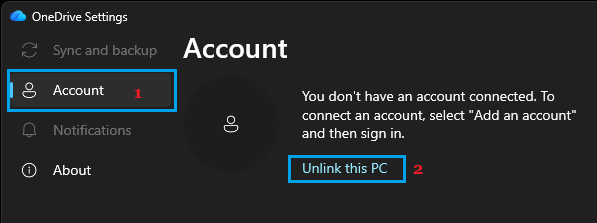
3. On the confirmation pop-up, select the Unlink Account option to confirm.
This will unlink the computer from OneDrive; which effectively prevents it from bothering you in any way.
Note: Once the computer is unlinked from OneDrive, you won’t be able to resume syncing or backup files to OneDrive by manually launching the OneDrive application. You will be required to sign-in to OneDrive and setup the computer again.
4. Uninstall OneDrive Using Settings
If you do not want to use OneDrive or unlikely to use it in the near foreseeable future, you can uninstall the OneDrive application from your computer.
1. Open the Settings App on your computer.
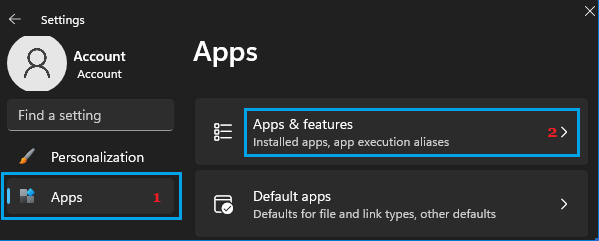
2. On the Settings screen, select Apps in the left-pane and click on Apps & Features in the right-pane.
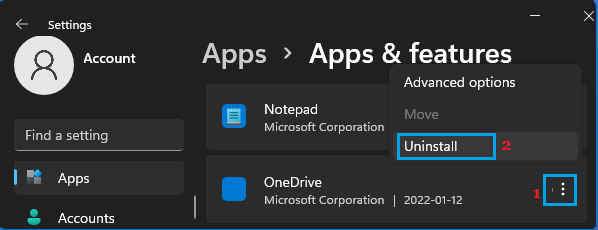
3. On “Apps & Features” screen, click on 3-dots icon; located next to the OneDrive entry and select the Uninstall option.
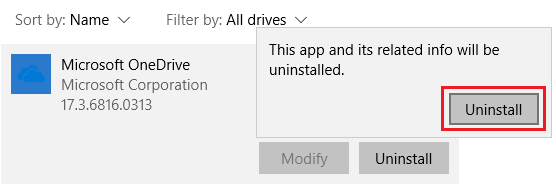
4. On the confirmation pop-up, click on Uninstall to confirm.
5. Wait for Windows to Uninstall the OneDrive App from your computer.
5. Uninstall OneDrive Using Command Prompt
If you are unable to uninstall OneDrive by using Settings, you can uninstall the OneDrive app by using Command Prompt.
1. Make sure that you Quit OneDrive by using the first method.
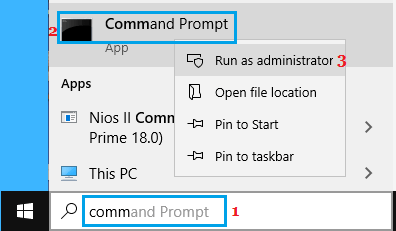
2. Type CMD in the Search bar > right-click on Command Prompt App in the search results and select Run as Administrator option.
3. On the Command prompt screen, type the following commands and press the Enter key on the keyboard of your computer.
- For 32-bit system – %systemroot%\System32\OneDriveSetup.exe /uninstall
- For 64-bit system – %systemroot%\SysWOW64\OneDriveSetup.exe /uninstall
4. Wait for the Uninstall process to be completed.
After the Uninstall process is completed (in silence), you will not see a confirmation. However, the OneDrive app will be removed from the computer and you should find it missing from the File Explorer Sidebar (may need a restart).
6. Completely Disable OneDrive Using Registry Editor
If you are using the Home Edition of Windows, you can prevent OneDrive from syncing files, starting automatically and appearing in File Explorer by using the following registry tweak.
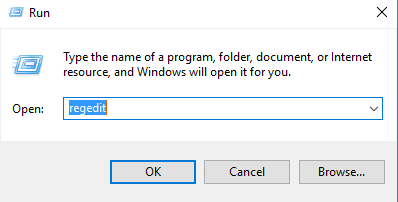
1. Press Windows + R keys > type regedit and click on OK.
2. From the Registry screen, navigate to HKEY_LOCAL_MACHINE\SOFTWARE\Policies\Microsoft\Windows\OneDrive
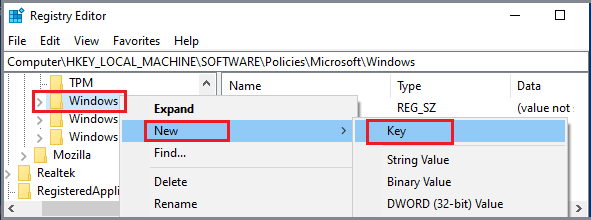
Note: If OneDrive Key is not available, right-click on Windows > Select New Key and name the New Key as OneDrive.
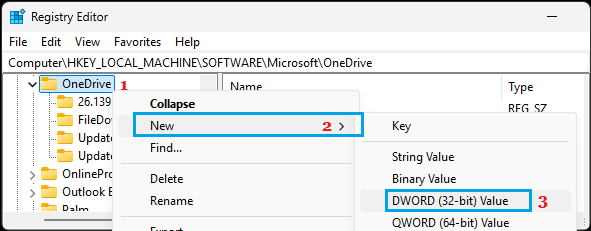
3. Right-click on OneDrive > Select New > DWORD (32-bit) Value.
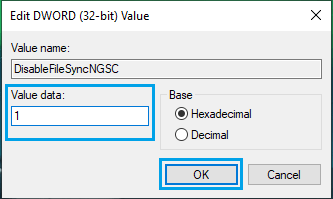
4. Name the New DWORD as DisableFileSyncNGSC and double-click on it.
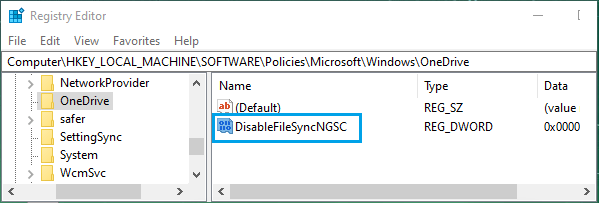
5. On the Edit DWORD (32-bit) pop-up, set the Value data to 1 and click on OK.
6. Close the Registry Editor and restart the computer.
This prevents OneDrive from syncing files, starting automatically and appearing in File Explorer.
7. Disable OneDrive Using Group Policy
If you are using Windows Pro, Enterprise or Education edition of Windows, Microsoft actually provides a Group Policy to prevent OneDrive synchronization and disable OneDrive.
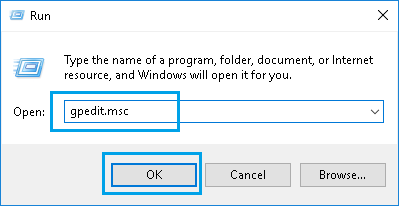
1. Open Run Command > type gpedit.msc and click on OK.
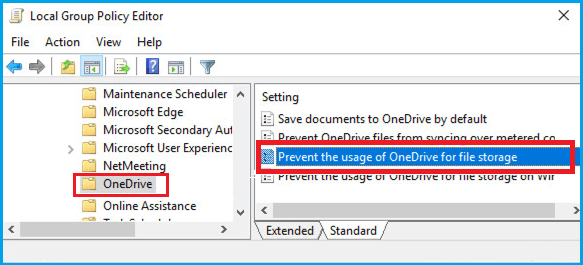
2. Navigate to Computer Configuration > Administrative Templates > Windows Components > OneDrive and open Prevent Usage of OneDrive Policy by double-clicking on it.
3. On the pop-up, select the Enabled option.
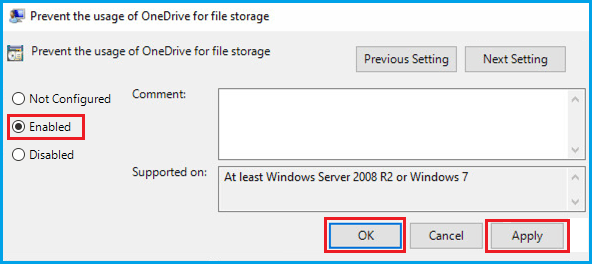
4. Click on Apply, OK and restart the computer to implement this policy.
How to Reinstall OneDrive
If you find the need to use OneDrive in future, you can always download and Install the OneDrive App on your computer from any of the following sources.
1. Download and Install OneDrive Desktop Program, this will replace the OneDrive application that you had deleted from your computer.
2. Download and Install the OneDrive App as available at Microsoft Windows Store. This version of OneDrive is better suited for touch enabled devices.