If you are looking for a way to transfer Files from a Windows computer or MacBook to iPhone, it is likely that you have eBooks, PDFs or other type of files on the computer and you want to make them available on your mobile device.
In general, the most common reasons for transferring files from a Windows computer or MacBook to iPhone are the following.
- Personal Photos & Videos: It is common for users to store photos and videos on the large storage space of their computers and transfer selected photos to iPhone.
- Professional Photos & Videos: Professional photo and video editing work can be done using the superior processing power of a computer and published from a mobile device.
- Offline Reading: Transferring eBooks and PDFs from computer to iPhone makes them available for offline reading on flights and while using public transit.
- Ready to use References: Transferring reports, spreadsheets, contracts and other types of reference material from phone to computer can be helpful in meetings.
In addition to above, sending documents via iMessages/WhatsApp, sharing photos/videos on social media and editing files using iPhone-only apps are other common reasons for transferring files from computer to iPhone.
Related: How to Attach Files From Computer to WhatsApp Message.
Transfer Files from Computer to iPhone
If you are using a MacBook, the easiest and fastest way to transfer an eBook, PDF file, photo, video or any other type of file to iPhone is by using AirDrop.
For more information and the actual steps to AirDrop Files from a MacBook to iPhone, you can refer to this guide: How to Use AirDrop on iPhone and Mac (Complete Guide).
Since, AirDrop is not available on a Windows computer, you can make use of other methods as provided below to wirelessly transfer files from computer to iPhone.
1. Transfer Files from Computer to iPhone Using Email
An easy way to transfer files from a Windows computer to iPhone is by emailing the Files to yourself and accessing them on your mobile device.
1. Login to your Email Account using a Laptop or Desktop computer.
2. Create a New Email Message > Attach the File located on the computer to this Email Message and send the email to your own Email Address.
3. After this, open the Mail App on your iPhone > Go to Inbox and open the New Email that you had sent to yourself from the computer.
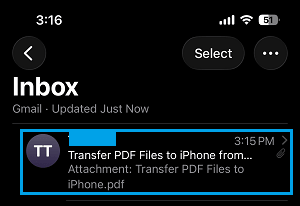
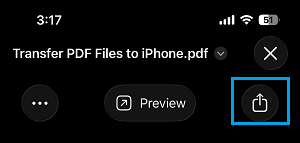
4. Open the attached PDF file by tapping on it and then tap on the Share Icon located in the bottom-right corner of the iPhone screen.
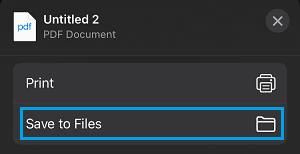
5. From the Sharing Menu that appears, select Save to Files option.
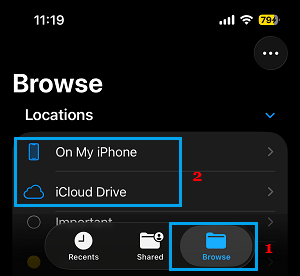
6. On the next screen, you can select On My iPhone to save the selected File to the Local storage of your iPhone or select iCloud Drive to save the File to your iCloud Drive Account.
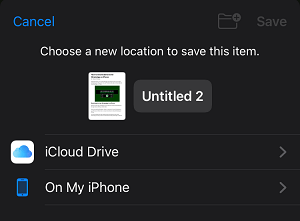
You can access the downloaded File at any time on your iPhone by using the Files App.
2. Transfer Files from Computer to iPhone Using iCloud
Another way of transferring files from a Windows computer to iPhone is by uploading the files to iCloud; which makes them easily accessible on iPhone.
1. Visit iCloud.com on your Windows computer
2. Sign-in to iCloud by entering the Apple ID and password linked to your iCloud Account.
3. Once you are logged in, click on the Apps Icon and select Drive.
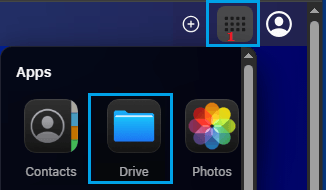
4. Once you are in iCloud Drive, click on the Cloud shaped upload icon.

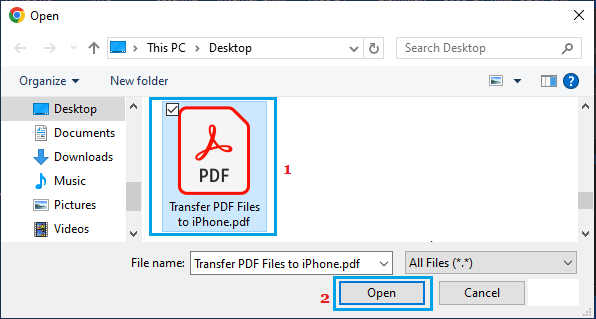
5. On the next screen, select the File that you want to upload to iCloud Drive and click on the Open button.
6. After the File is uploaded to iCloud, open the Files App on your iPhone > switch to Browse tab and select iCloud Drive.
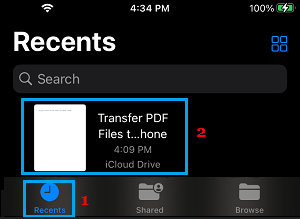
7. On the next screen, switch to Recents tab and you will be able to see the particular File that you had uploaded to iCloud Drive from your computer.
8. You can download the File to the local storage of your iPhone by opening the File and then tapping on the Share Icon.
9. If the File is in PDF format or an eBook, you can select the Books option.
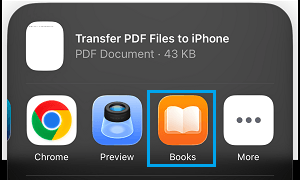
10. The selected File will be downloaded to the Books App on your iPhone.
3. Transfer PDF Files from computer to iPhone Using iTunes
The easiest way to transfer PDF files from a Windows computer to iPhone is by using the File Sharing option as available in iTunes.
Note: This method requires Google Chrome, Adobe Acrobat or any other app that can open PDF Files to be installed on your iPhone (easily available on the App Store).
1. Open iTunes on your computer and plug iPhone to computer.
2. Select your iPhone by clicking on the small Phone icon as it appears in iTunes.

3. Select the File Sharing tab in the left-pane. In the right-pane, select Chrome or any other listed app that can open PDF Files and click on Add Files button.
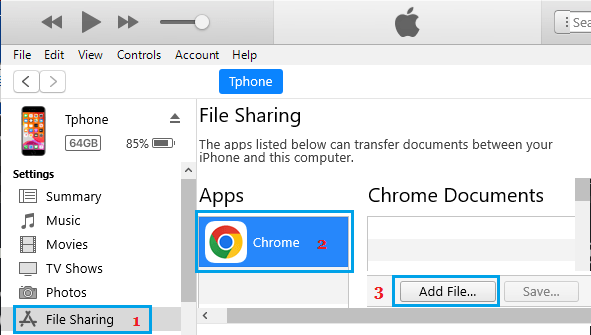
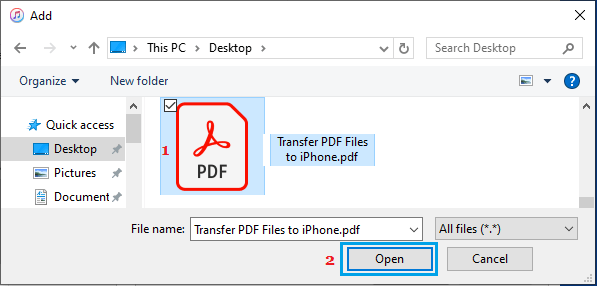
4. On the next screen, select the PDF file that you want to transfer to iPhone and click on Open.
5. After this, open the Files App on your computer, switch to Browse tab and select On My iPhone.
6. On the next screen, open the Chrome Folder by tapping on it.
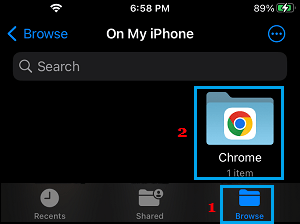
In the Chrome Folder, you will find the PDF file that you had transferred from the computer.