In addition to calls and text messages, WhatsApp provides the option to send voice messages, which can be really convenient for those who prefer sending recorded voice messages or find it difficult to type messages on the small screen of a mobile device.
However, there are users who are looking for a way to disable the Voice Message recording feature in WhatsApp, in order to prevent the possibility of their voice being accidentally recorded by WhatsApp.
In general, cases of unintended voice messages being recorded and sent in WhatsApp happen due to accidental tap on the recording button, while the users were trying to type text messages.
Disable Voice Message Recording in WhatsApp
Starting with a bad news – WhatsApp does not provide any official way to prevent the possibility of your voice being recorded while typing or any way to disable its Voice Message Recording feature.
Hence, the only way to disable voice message recording in WhatsApp is by preventing WhatsApp from accessing the Microphone on your iPhone and providing WhatsApp with access to Microphone only while making voice and video calls.
1. Steps to Disable Voice Message Recording in WhatsApp
As mentioned above, the only way to disable the “Voice Message Recording” feature in WhatsApp is by preventing WhatsApp from accessing the Microphone on your iPhone.
1. Open the Settings App on your iPhone.
2. From the Settings screen, go to Privacy & Security > Microphone > Move the slider next to WhatsApp to OFF position.
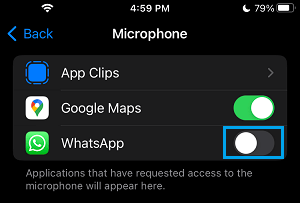
From now on, the voice recording feature in WhatsApp will no longer work on your iPhone, which totally prevents the possibility of your voice being accidentally recorded while sending WhatsApp Messages.
How to Make Calls on WhatsApp When Microphone is Disabled?
Unfortunately, preventing WhatsApp from accessing the Microphone prevents you from making regular voice and video calls using WhatsApp on your iPhone.
As mentioned above, you can get around this problem by allowing WhatsApp to access Microphone, while you are trying to make a WhatsApp call on your iPhone.
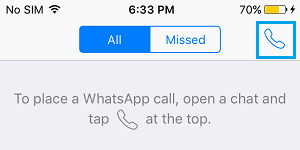
1. Open WhatsApp and place a WhatsApp Voice Call as usual by tapping on the Phone Icon.
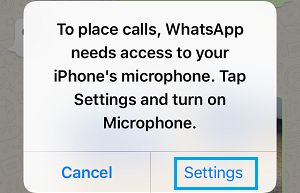
2. Since, WhatsApp does not have access to Microphone, it will prompt you to enable access to Microphone. Simply, tap on the Settings option in the Pop-up.
3. On the next screen, enable WhatsApp with access to the Microphone on your iPhone by moving the toggle to ON position.
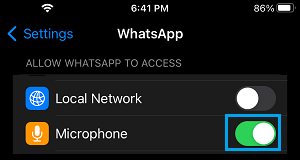
After this, you can make voice & video calls on WhatsApp as usual and disable WhatsApp from accessing the Microphone after you are done with making calls on WhatsApp.
How to Receive Calls on WhatsApp When Microphone is Disabled?
When you receive a Call on iPhone, WhatsApp prompts you to enable access to Microphone, which should make it easy for you to provide WhatsApp with access to Microphone.
1. Tap on the Settings option in the pop-up that appears.
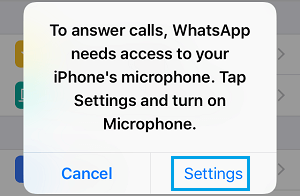
2. On the next screen, enable WhatsApp with access to the Microphone by moving the toggle to ON position.
Note: The person trying to call you on WhatsApp will be able to hear your Phone ringing and will receive a Call Denied Message when you tap on Settings.
Hence, it is recommended that you Call back your Contact, as soon as you are done with providing WhatsApp with access to the Microphone on your iPhone.