If you are unable to access USB Drive or Device on a Windows computer, the problem might simply be due to use of USB Ports being disabled on the computer.
This is likely to be the case, if the computer is located at place of work, was provided to you by the employer to work from home or it was bought from an auction help by a company.
In such cases, the most likely reason for USB Drives not being accessible on the computer is due to USB Ports of the computer being disabled for security reasons.
Enable USB Ports in Windows 11/10
If you the computer is using the Home Edition of Windows operating system, you can enable USB Drives by using Device Manager and Registry Editor.
If the computer is running Windows Pro or Windows Enterprise, you can make use of Group Policy Editor to enable and disable USB Drives.
1. Enable USB Ports Using Device Manager
The easiest way to enable the use of USB Ports on a Windows computer is by using Device Manager.
1. Right-click on Start button and click on Device Manager.
2. On Device Manager screen, expand the entry for Universal Serial BUS Controllers > right-click on the USB Drive Controller and click on Enable.
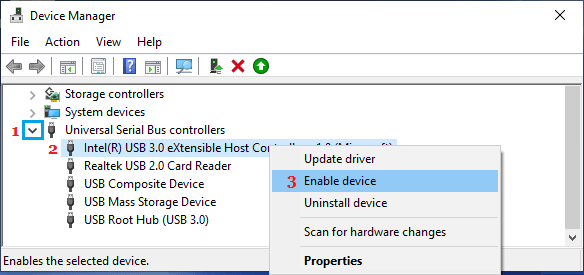
3. Repeat this step for other entries under “Universal Serial Bus Controllers” section.
2. Enable USB Ports Using Registry Editor
If above method did not help, follow the steps below to Enable USB Ports using Registry Editor.
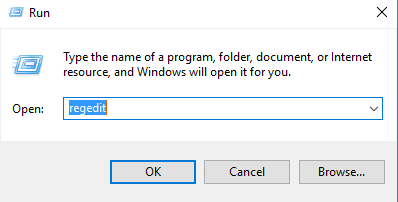
1. Press Windows + R keys to open Run Command.
2. In the Run Command window, type regedit and click on OK.
3. On the Registry Editor screen, navigate to HKEY_LOCAL_MACHINE\SYSTEM\CurrentControlSet\Services\USBSTOR
4. Next, click on USBSTOR in the left-pane. In the right-pane, double-click on the Start key.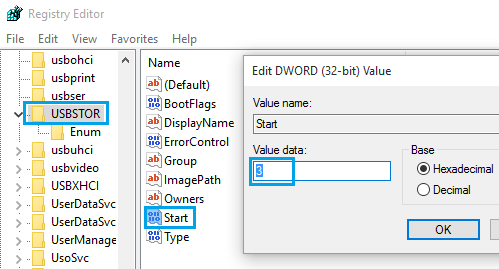
5. In the Edit DWORD pop-up, change the Value Data to 3 and click on OK.
After this, you should be able to access USB Devices attached to any of the USB Ports on your computer.
3. Use Local Group Policy Editor
If the computer is using the Professional edition of Windows, you can make use of the Group Policy Editor to Enable the use of USB Ports on the computer.
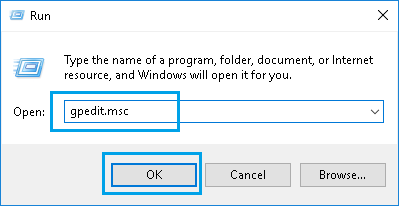
1. Open Run Command > Type gpedit and press the enter key.
3. On Group Policy Editor screen, navigate to Computer Configuration > Administrative Templates > System > Removable Storage Access and double-click on Removable Disks: Deny read access entry.
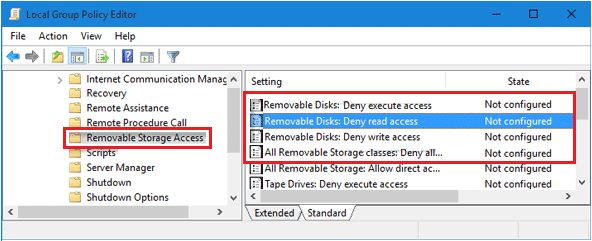
4. On the next screen, select the Enabled option.
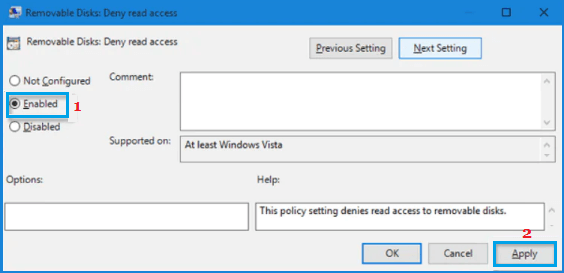
5. Click on Apply and OK to save this change on the computer.