If you are connecting to internet using the Wi-Fi password that was setup by your Internet service provider, you may find it written at back/bottom of the Modem/Router or saved to a Notebook or Text file on your computer.
Even if you did not note down the password or cannot find it, your Wi-Fi network password is available on both iPhone and MacBook in a hidden form and it can be viewed.
Find Wi-Fi Password on iPhone & Mac
All that is required to view your Wi-Fi network password on iPhone is to open the Settings menu on your device and tap on your Wi-Fi network name.
In the case of a MacBook, you can find the password for your Wi-Fi Network by using Keychain access and Command Prompt.
1. Find Wi-Fi Password on iPhone
Finding the password for Wi-Fi network on iPhone is easy, compared to finding it on a MacBook.
1. Go to Settings > Wi-Fi > select your Wi-Fi Network.
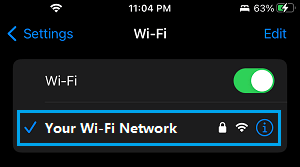
2. On the next screen, tap on the hidden Password Entry.
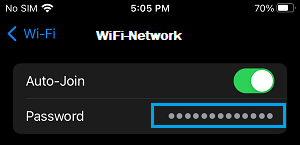
3. On the pop-up, enter your Lock Screen Passcode and you will be able to view the Password for your Wi-Fi network.
Note: iPhone needs to be running iOS 16.1 and higher version, in order to view Wi-Fi Password using this method.
2. Find Wi-Fi Password Using Keychain Access
If you remember the Admin User Name and Password on your Mac, you can easily view the Password for your Wi-Fi Network by using Keychain.
1. Open the Launchpad on your Mac and click on Keychain Access Icon.
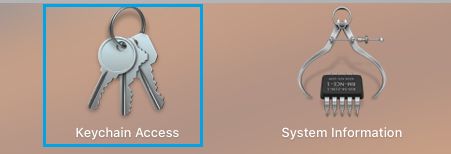
2. On the next screen, go to System > Passwords and double-click on your Wi-Fi Network Name.
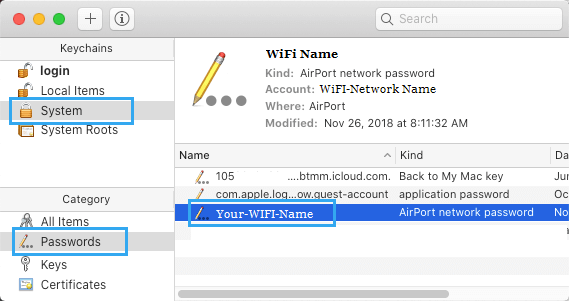
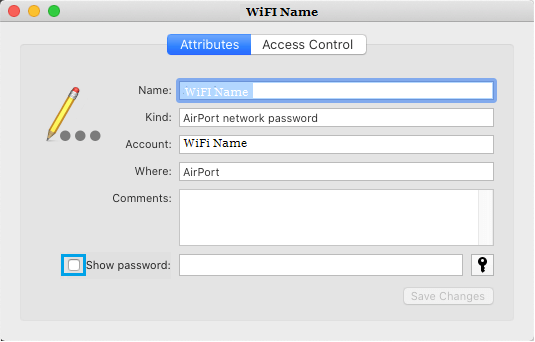
3. On the pop-up, check the little box next to Show Password option.
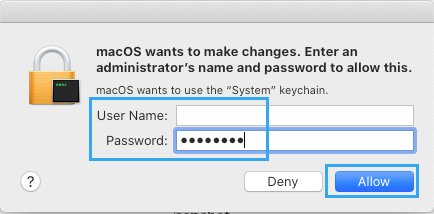
4. On the next pop-up, enter your Admin User Name, Password and click on Allow.
5. You will now see your Wi-Fi Password next to Show Password entry.
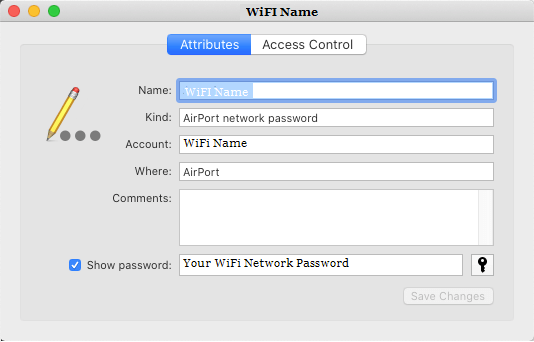
Make sure that you uncheck Show Password option after you are done copying or noting down the Password for your Wi-Fi Network.
3. Find Wi-Fi Password Using Terminal
If you like using the Terminal, you can follow the steps below to find the Wi-Fi Password on the Terminal window.
1. Open Launchpad > click on the Terminal Icon.
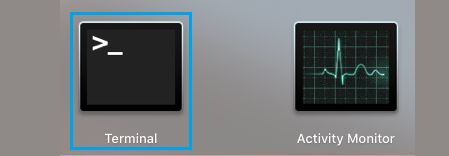
2. On the terminal screen, type security find-generic-password -ga Wi-Fi Name | grep “password:” and press the enter key.
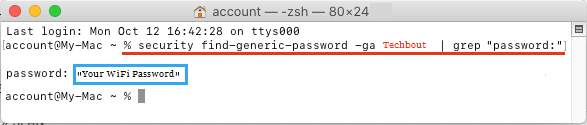
Note: Replace Wi-Fi Name in above command with the actual name of your Wi-Fi Network.
3. On the pop-up, enter your Admin User Name, Password and click on Allow.
Once, you authorize the action by entering Admin User Name and Password, you will be able to see your Wi-Fi Password on the command prompt screen.
4. Find Wi-Fi Password on Mac Without Admin Password
Even if you do not have access to your Admin Account, you can find the password for your Wi-Fi network by using the following steps.
1. Open the Launchpad on your Mac and click on Keychain Access Icon.
2. From the next screen, go to Local Items > Passwords and double-click on your Wi-Fi Network Name.
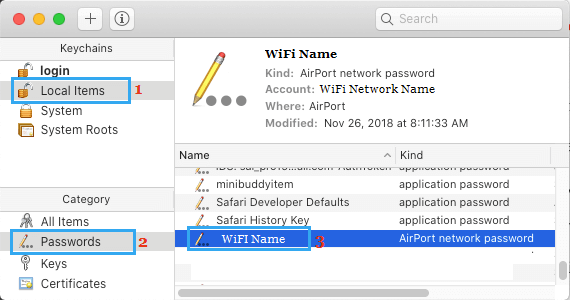
3. On the pop-up, click in the little box next to Show Password option.
4. On the next pop-up, enter your Local User Account Password and click on OK.
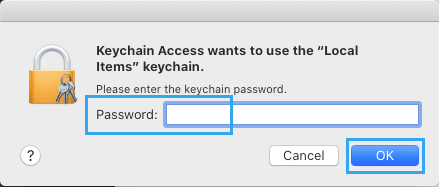
5. You will now see your Wi-Fi Network password next to Show Password entry.
Make sure that you uncheck Show Password option after you are done copying or noting down your Wi-Fi Network Password.