WhatsApp provides the option to Lock both Individual and Group Chats on iPhone and prevent the possibility of your personal messages from being viewed by others.
Once WhatsApp Messages are locked on iPhone with Touch ID, Face ID or Lock Screen Passcode, they can only be accessed by using the set or selected authentication protocol.
Lock WhatsApp Messages on iPhone
If you are already using Touch ID or Face ID, you can make use of Touch and Face ID to protect specific or selected individual WhatsApp Chats on iPhone.
If you are not using Touch & Face ID, you can lock all WhatsApp Messages on your iPhone by using a 4-digit Screen Time Passcode.
1. Lock WhatsApp Chats on iPhone Using Touch/Face ID
As mentioned above, this method allows you to protect specific or selected Individual WhatsApp Chats using Touch ID or Face ID.
In order to use this method, the option to use Touch ID or Face ID needs to enabled on your iPhone. If you not yet enabled Touch/Face ID, go to Settings > Touch ID & Passcode and follow the prompts to setup Touch ID on your iPhone.
After enabling Face ID or Touch ID, you can follow the steps below to Lock any WhatsApp Chat on iPhone using Touch ID or Face ID.
1. Open WhatsApp > select the Chat that you want to protect or lock.
2. Once the Chat is open, tap on the Contact’s Name (Group Name in case of a Group Chat).

3. On Contacts Info screen, scroll down and Select Chat Lock option.
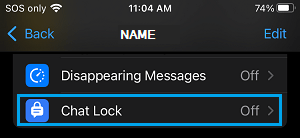
4. On the pop-up, move the toggle next to Lock This Chat with your Face ID or Touch ID option as applicable in your case.
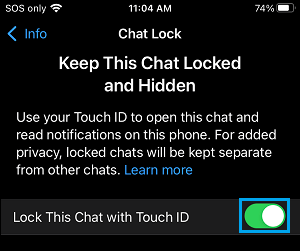
After this, WhatsApp will always prompt you to authenticate using Touch ID, whenever you open this particular Chat on your iPhone.
2. Lock WhatsApp Using Screen Time Passcode
If you are not using Touch ID or Face ID, it is possible to Lock WhatsApp Messages on your iPhone with Screen Time Passcode.
1. Go to Settings > Screen Time > tap on Turn On Screen Time.
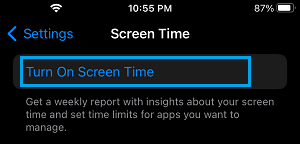
2. On the pop-up, select Turn On Screen Time option > On the next-pop-up, select This is My iPhone option.
4. On the next screen, scroll down and tap on Use Screen Time Passcode.
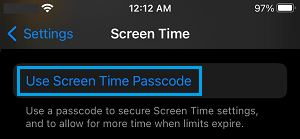
5. On the pop-up, Enter any 4-digit Screen Time Passcode and confirm the Passcode.
Important: Make sure that you write down this Passcode. You won’t be able to unlock Apps, disable or make changes to Screen Time settings, if you forget Screen Time Passcode.
6. After this, you can either follow the instructions to setup Screen Time Password recovery by using your Apple ID or skip these step by tapping on Cancel.
7. After this go to Settings > Screen Time > scroll down and tap on App Limits.
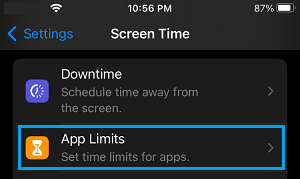
8. On the next screen, tap on Add Limit.
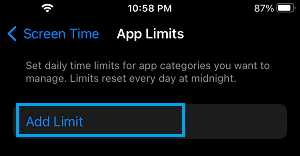
9. On ‘Choose Apps’ screen, expand the Social section and select WhatsApp.
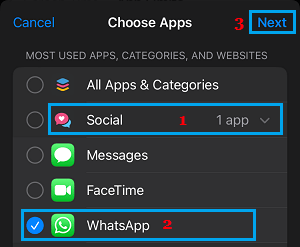
10. On the next screen, set Time as 1 Minutes and tap on Add. (This is the minimum time that you can set)
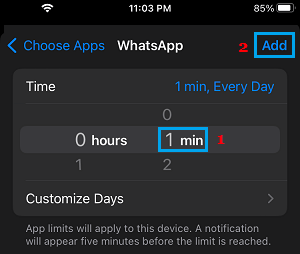
Note: On the same screen, make sure that Block at End of Limit option is set to ON position.
After this setting, WhatsApp will become automatically locked after the allowed time (1 minute), after which it can only be unlocked by using your Screen Time Passcode.
3. How to Unlock WhatsApp Chats on iPhone
At any time, you can access Locked Chats in WhatsApp by using Touch or Face ID as applicable in your case.
1. Open WhatsApp > scroll down the list of Chats and tap on Locked Chats.
2. When prompted, verify your Touch/Face ID and you will be able to see all the locked Chats.
4. How to Disable WhatsApp Chat Lock on iPhone
If you no longer want to Lock Chats in WhatsApp, you can disable the feature and remove the protection.
1. Open the Locked Chat using Touch or Face ID
2. Once the Chat is open, tap on Contact’s Name or the Group Name.
3. On Contact’s info screen, tap on Chat Lock.
4. On the pop-up, move the toggle next to Lock This Chat with Face ID or Touch ID to OFF position.
5. Verify your Face ID or Touch ID to view the Chat.
5. What Happens When You Lock Chats in WhatsApp
The Chat lock feature in WhatsApp provides an additional layer of security and totally rules out the possibility of your personal Chats being viewed by anyone that gains access to your device.
When you lock an individual or Group Chat in WhatsApp, it is removed from the Chat list and becomes hidden in a locked folder.
Additionally, Photos or images that you receive in locked Chats are not automatically saved to the gallery and need to be manually downloaded on your device.
6. What Happens to Notifications for Locked Chats in WhatsApp
When you lock a Chat in WhatsApp, the privacy feature in Chat Lock ensures that both Message content and Name of the sender is not exposed in Message Notifications.
In other words, WhatsApp automatically disables notification previews for Locked Chats and hides the Name of the sender.