If Google Chrome is not updating, even when you are trying to manually update the browser, it should come up with an error code and message, pointing to the most likely reason for this problem on the computer.
If Google Chrome comes up with “Chrome Failed to Update” message with no error code, the problem is usually due to the User Account lacking the permission to install updates.
In other cases, the issue of Google Chrome failing to install updates on a Windows computer could be due to incompatible browser extensions, corrupted browser settings and other reasons.
Unable to Update Google Chrome in Windows 11/10
If the Google Chrome browser installed on your Windows computer is not updating, you should be able to fix the problem using the following steps.
1. Restart the Browser and try to Update
Restart Google Chrome and try to update it manually by using following the steps.
1. Click on 3-dots menu icon (top-right) > hoover mouse over Help and click on About Google Chrome.
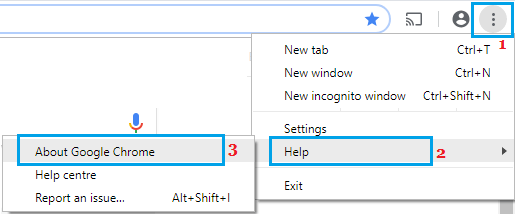
2. On the next screen, wait for Google Chrome to check and apply the updates (if available).
3. Click on the Relaunch button to restart the Chrome browser on your computer.
2. Run Google Chrome As Admin
As mentioned above, the problem could be due to your User Account not having the permission to install updates. Hence, login to your Admin Account and try to update the browser.
1. Right-click on Google Chrome Icon > Select Run As Administrator option.
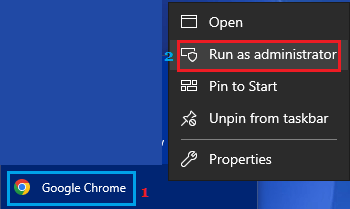
2. Next, click on 3-dots icon > hoover mouse over Help and click on About Google Chrome.
3. On the next screen, wait for Google Chrome to check for update and install it on your computer.
4. After the update is installed, click on the Relaunch button to restart Chrome and Apply the updates.
3. Temporarily Disable Antivirus Program
In certain cases, the problem is due to browser updates being blocked by Windows Defender or some other third-party antivirus program installed on the computer.
Hence, temporarily disable the Antivirus software program installed on the computer and see if this helps in fixing the problem.
4. Disable Browser Extensions
It is not uncommon to find incompatible browser extensions blocking downloads and interfering with proper functioning of Google Chrome.
1. Click on 3-dots icon > Hoover mouse over Extensions > click on Manage Extensions.
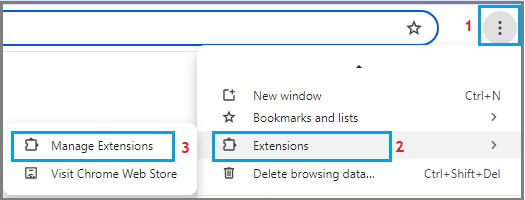
2. On the next screen, disable extensions by moving the toggle to OFF position and delete unwanted extensions by clicking on the Remove option.
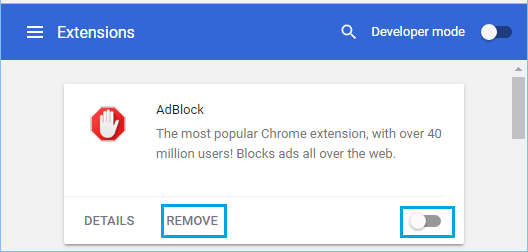
3. Make sure that you restart the browser to implement this change.
5. Reset Chrome Browser to Default Settings
Reset the Chrome browser installed on your computer to its default settings and see if this helps in fixing the problem.
For more information about this and the steps to reset Google Chrome, you can refer to this guide: How to Reset Google Chrome to Default Settings.
After the reset process is completed, you should be able to manually update the Chrome browser on your computer.